11. Languages
Who: admins add and remove languages. Editors and authors translate content.
A site starts with one language, and everything in this chapter is invisible until you add a second one. Then you can publish the same site in as many languages as you like.
How it works
- Every post, page, category and tag belongs to one language. It can have a translation in each of the other languages, and the translations are linked together.
- The default language has no prefix in its web addresses (
/blog/summer-menu). Other languages have one (/et/blog/suvemenuu). The front page/is in the default language,/etis the Estonian front page, and so on. - A page that has no translation is not shown in that language: visitors get a "not found" page, and the language switcher only lists languages in which the page exists. Two languages can use the same slug (both can have
/about). - Each language has its own menu, search, archives and RSS feed (
/et/feed.xml), its own site title, tagline and footer text, and the site's own words (Older →, Search…, dates) in that language. English, Estonian, Russian, Finnish and German are built in; other languages use English words.
Adding a language
Open Settings and the Languages section.
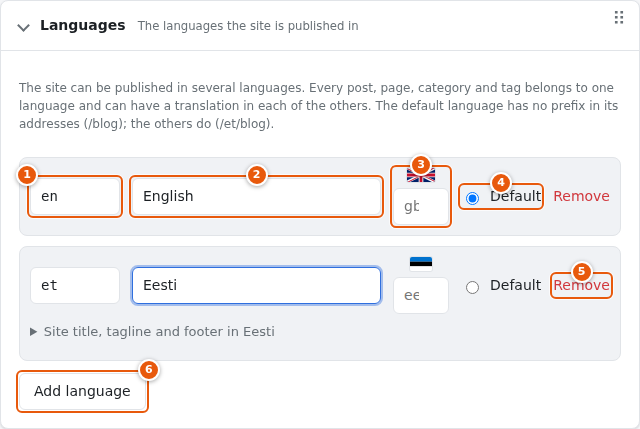
- Language code: a short code such as
en,et,ruorpt-br. It becomes the prefix in the addresses. - Language name: how it is written in lists and in the language switcher, in its own language (Eesti, English, Русский).
- Flag: a two-letter country code. It is filled in for the usual country of the language; change it if you wish (for example
usfor American English). - Default: the language shown at the root of the site. Exactly one language is the default.
- Remove. A language that still has content cannot be removed: delete or move its content first. The default language cannot be removed.
- Add language adds a new row.
For a language that is not the default, you can open Site title, tagline and footer in … below its row and write them in that language. An empty field uses the default language's text.
Press Save settings when you are done.
Renaming a code. If you change the code of an existing language (for example
en→et), its content moves with it and its addresses change. This is the way to label content that you wrote before you added languages.
What changes in the admin
Once the site has two or more languages:
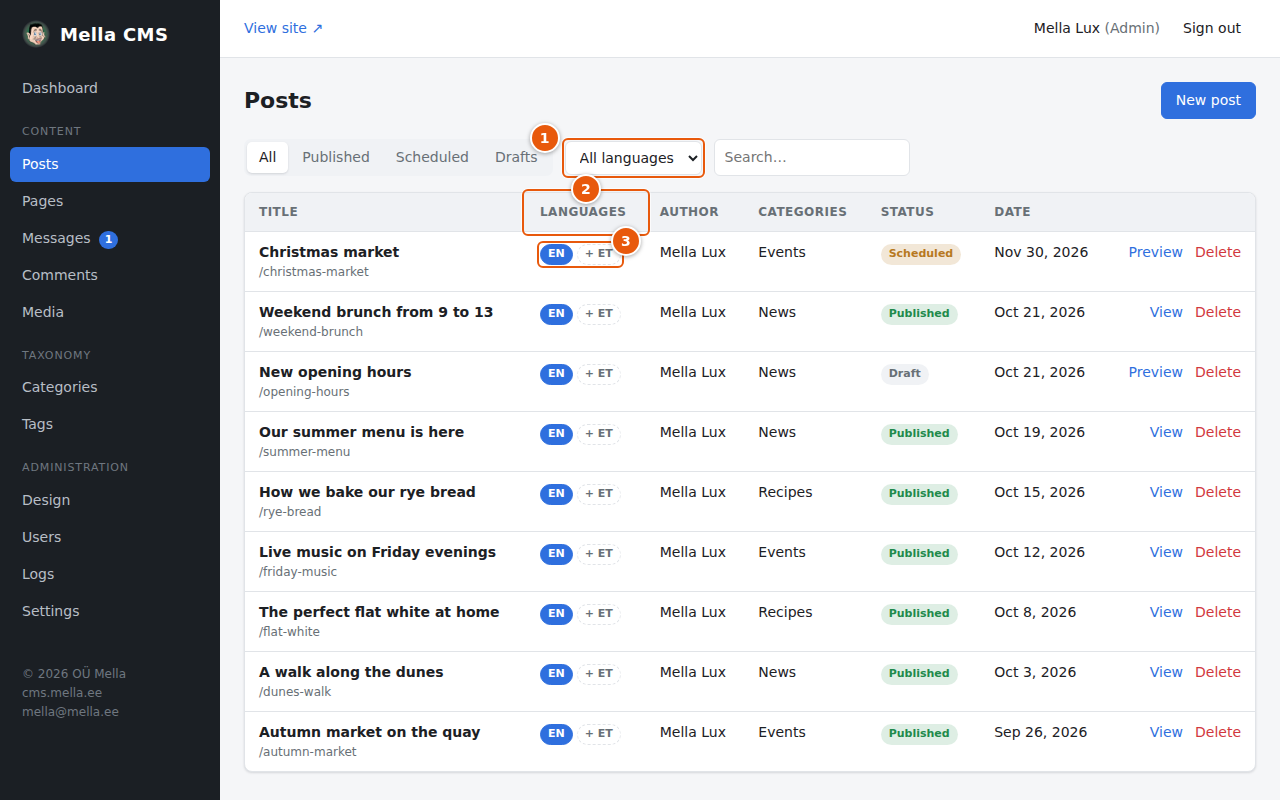
- A language filter appears above the list.
- The Languages column.
- A chip for every language. The coloured chip is the language of this post. A plain chip (for example
ET) opens the translation. A chip with + means "no translation yet": press it to start one.
Categories, tags and media get language chips too, and the Design page gets a tab for every language (see below).
Translating a post or page
Open a post. A language chip appears next to the title, and the side panel has a Language panel:
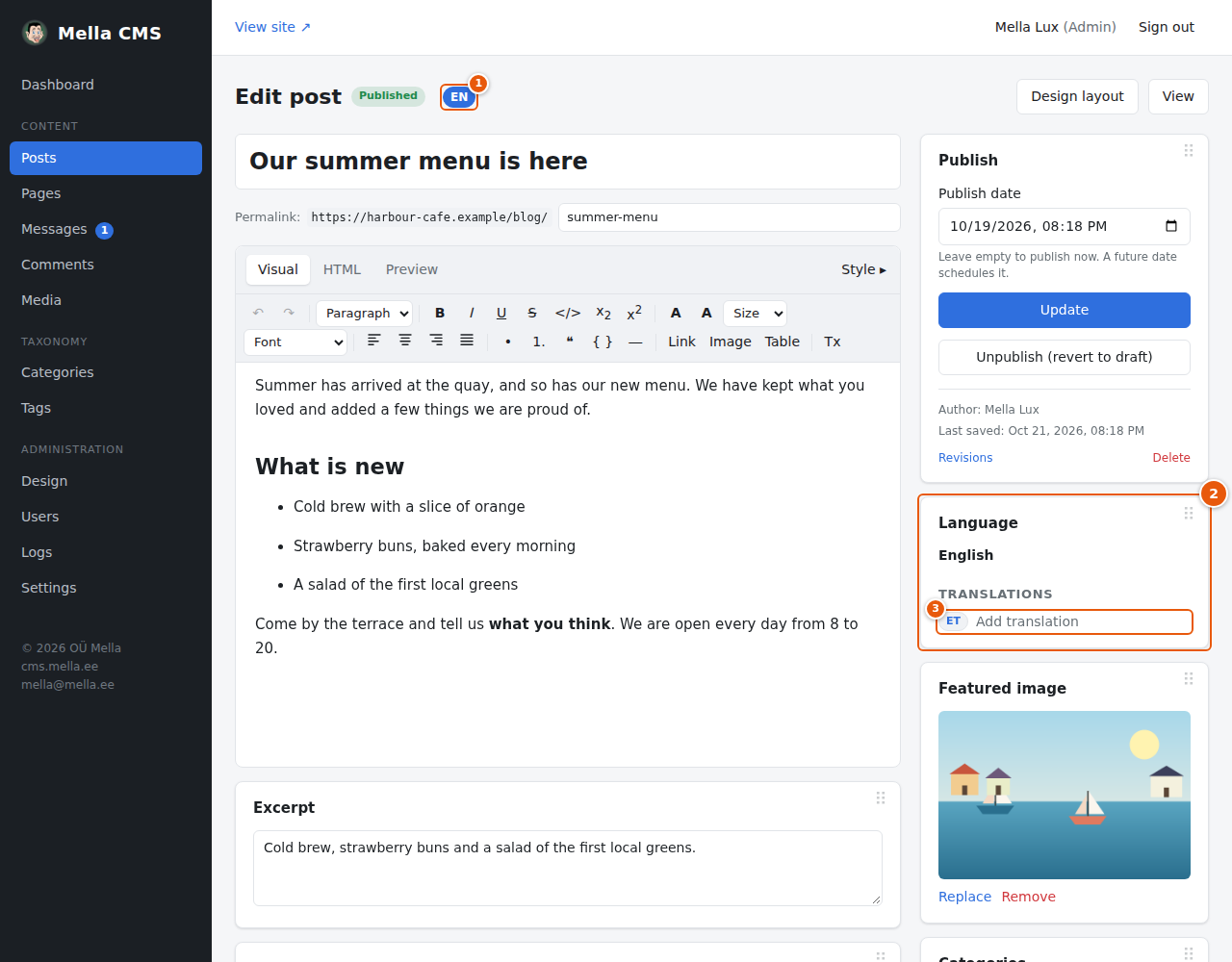
- The language of this post. It is fixed when the post is created.
- The Language panel shows the language and the Translations of the post.
- Add translation for a language that does not have one yet. If a translation exists, its title is shown as a link instead.
Press Add translation. The CMS opens a draft copy of the post in the new language, and tells you so:
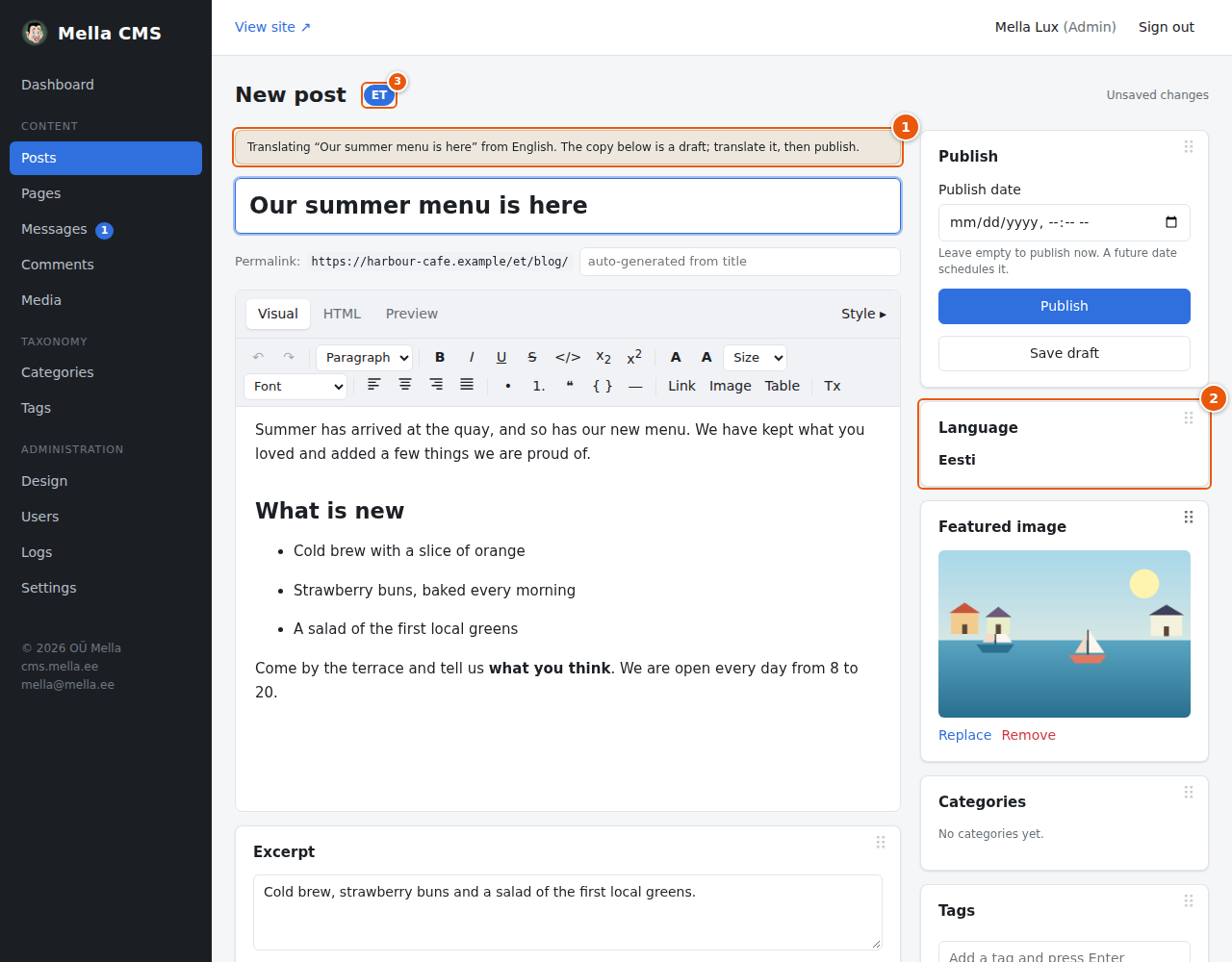
- The note says what you are translating and from which language.
- The language of the new post.
- The language chip next to the title.
Translate the title and the text, check the permalink (it starts empty and is made from the translated title), and press Publish (or Save draft).
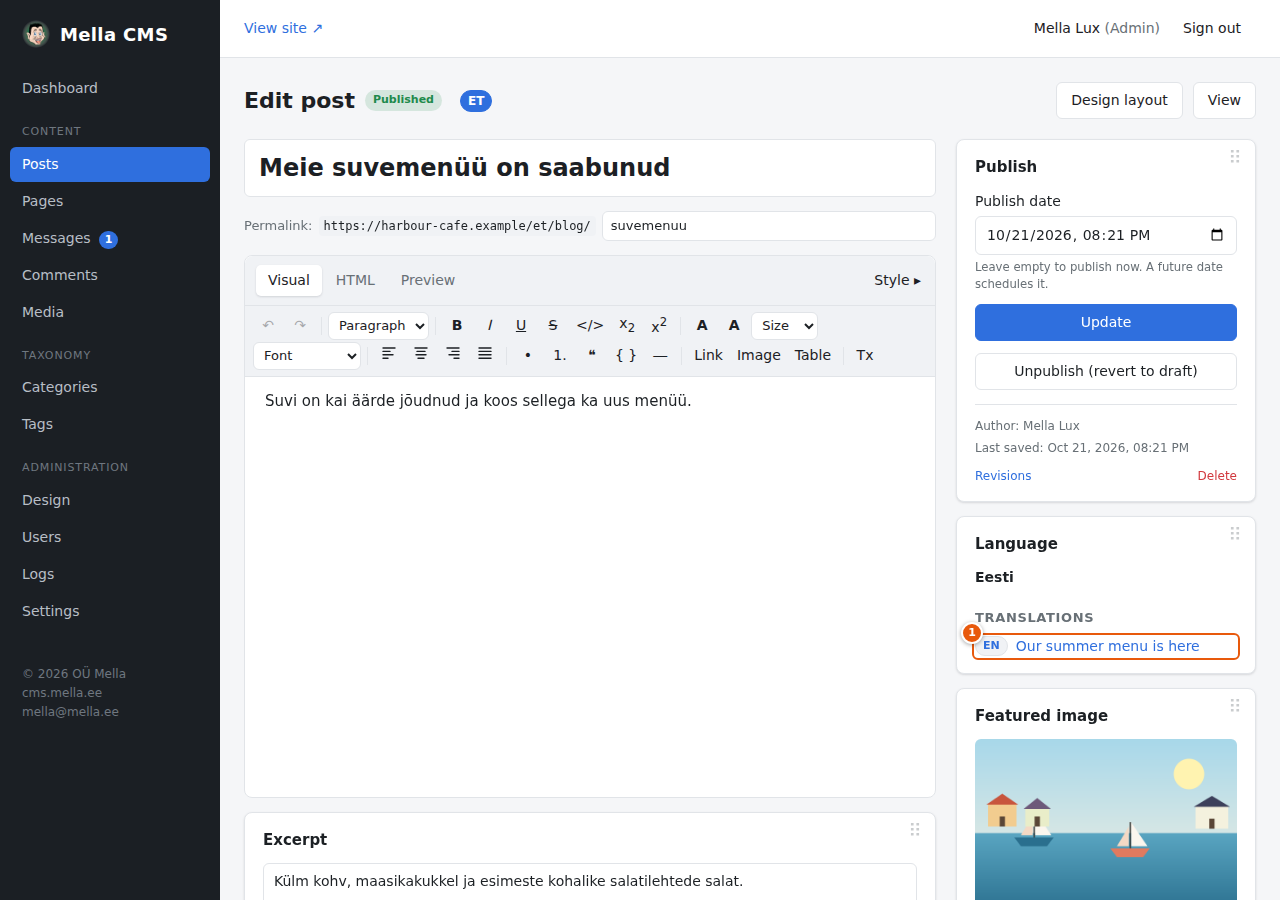
- The translation is now listed in the Language panel of both posts.
The copy starts with the same categories and tags, matched to their translations when those exist. Add translations for categories and tags too, from the Categories and Tags screens.
What visitors see
New multilingual sites get a language switcher in the default header. On a post it links to that post's translations.
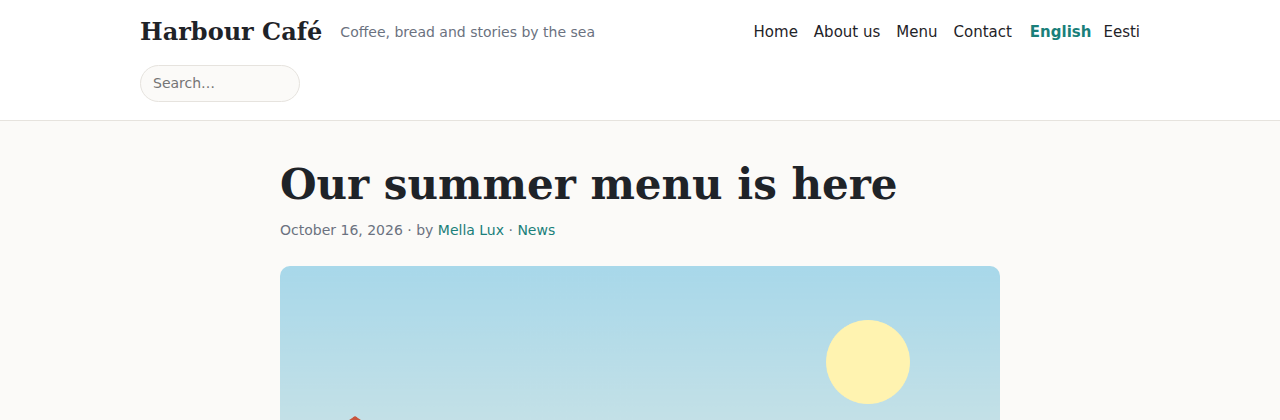
The translated post under its own address:
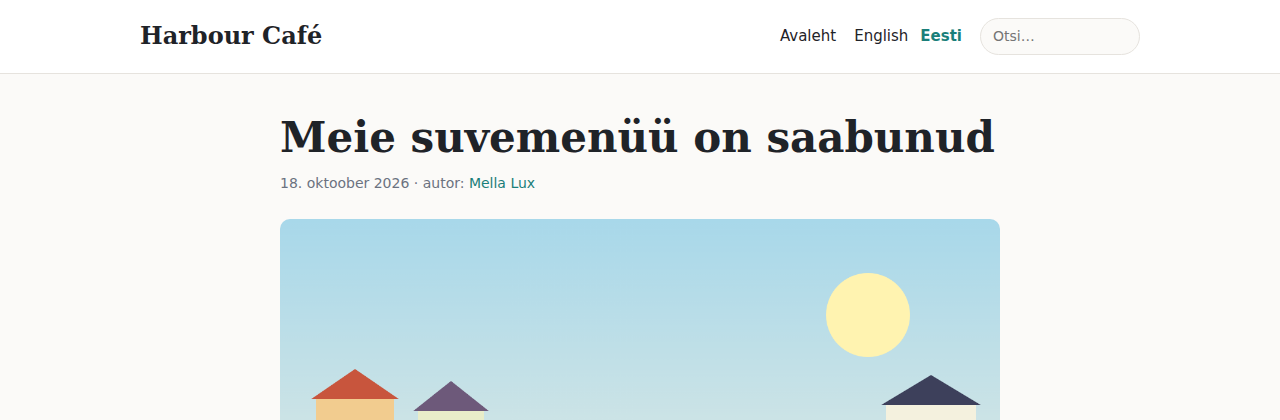
You can place a Language switcher block anywhere in the page builder and choose how it looks: links or a dropdown; names, codes, flags or flags and names; and whether to hide languages that do not have content yet.
Design in every language
Each language can have its own header, footer and page layouts, so that the words in them can be translated. Until a language gets its own design, it shows the design of the default language. The site style (colours, fonts) is shared.
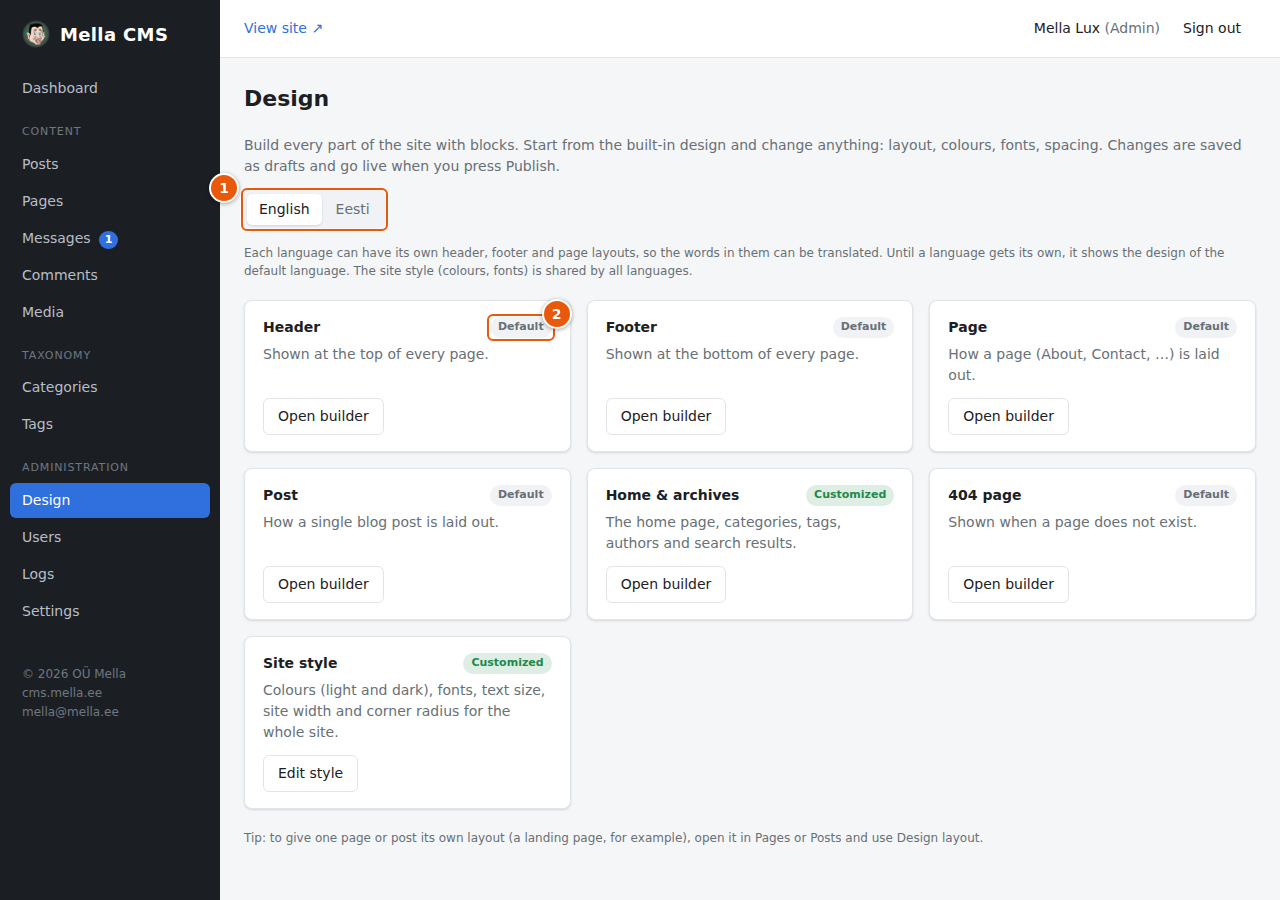
- One tab for every language. Choose the language first, then open a part in the builder.
- The label Same as default language turns into Customized once you publish that language's own design.
Pictures in several languages
The alt text, caption and description of a picture can be written separately in each language (Media):
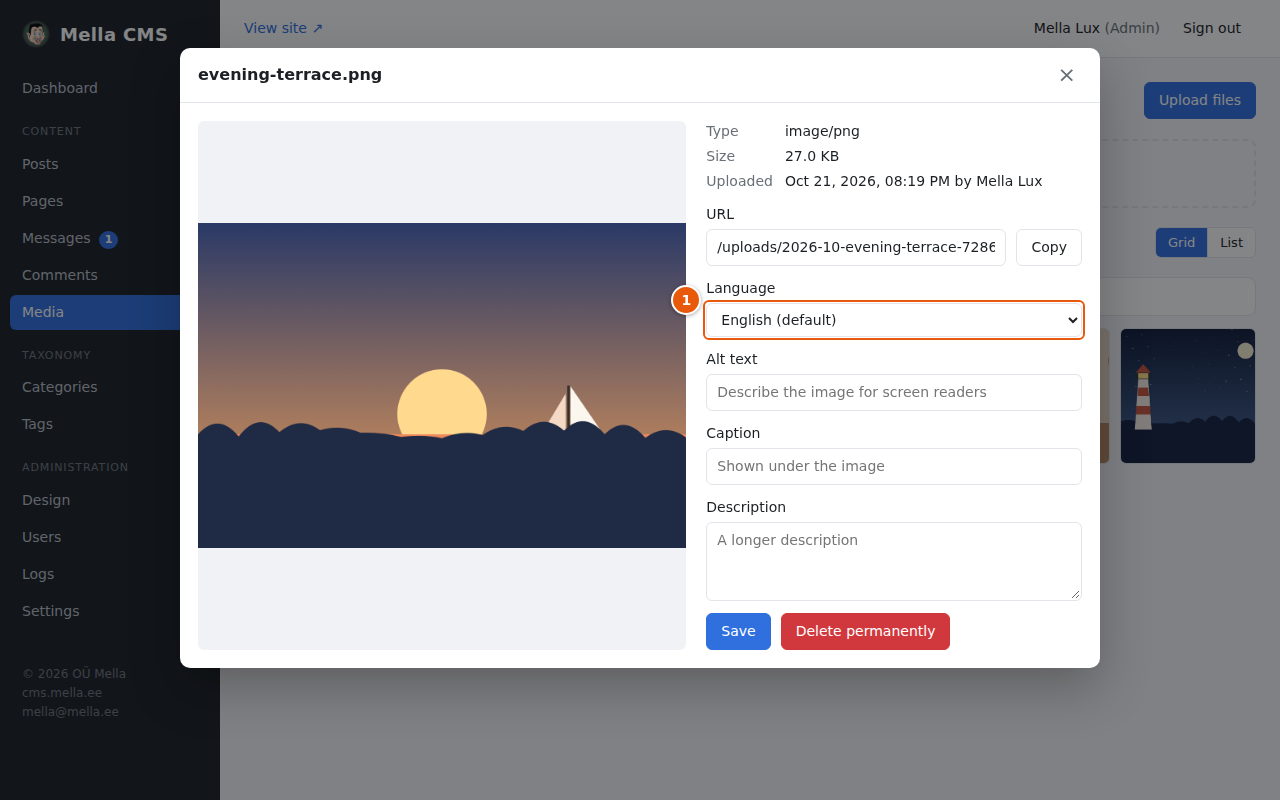
- Language: choose the language you are writing. A tick (✓) shows that a language already has texts. A field that is left empty shows the default language's text in grey.
Home page, search and the sitemap
- The home page chosen in Settings stands for all its translations: each language shows its own.
- Search only finds content in the current language.
- The sitemap lists all languages, with links between the translations for search engines.
The language of the admin
The language of the admin screens is a personal choice and has nothing to do with the languages of the site. See Your profile.