6. Media library
Who: everyone can upload and use media. You can change or delete your own files; editors and admins can change all files.
The media library keeps all pictures and files of your site in one place. Posts, pages, the page builder and the favicon pick files from here.
Which files are allowed
Images (JPG, PNG, GIF, WebP, AVIF), PDF, video (MP4, WebM), audio (MP3), ZIP and tar.gz (.tgz) archives and plain text (TXT) files. Other types are refused. This includes SVG and HTML files, because they can contain scripts. The CMS also checks that a file really is what its name says.
The default limit is 20 MB per file and 20 files per upload. The person who runs the server can change the limits (the total size of the library can be capped too). If a file is refused, the message says why.
Pictures are optimised for you
You can upload a picture at full size. When a page shows it, visitors get a smaller copy in a modern format (AVIF or WebP) that fits their screen, so a 3000 px photo does not slow down a phone. The copies are made automatically the first time they are needed and are removed when you delete the picture. The original stays in the library untouched, and is what opens in the large view (lightbox). GIF pictures are shown as they are.
The library
Open Media in the menu.
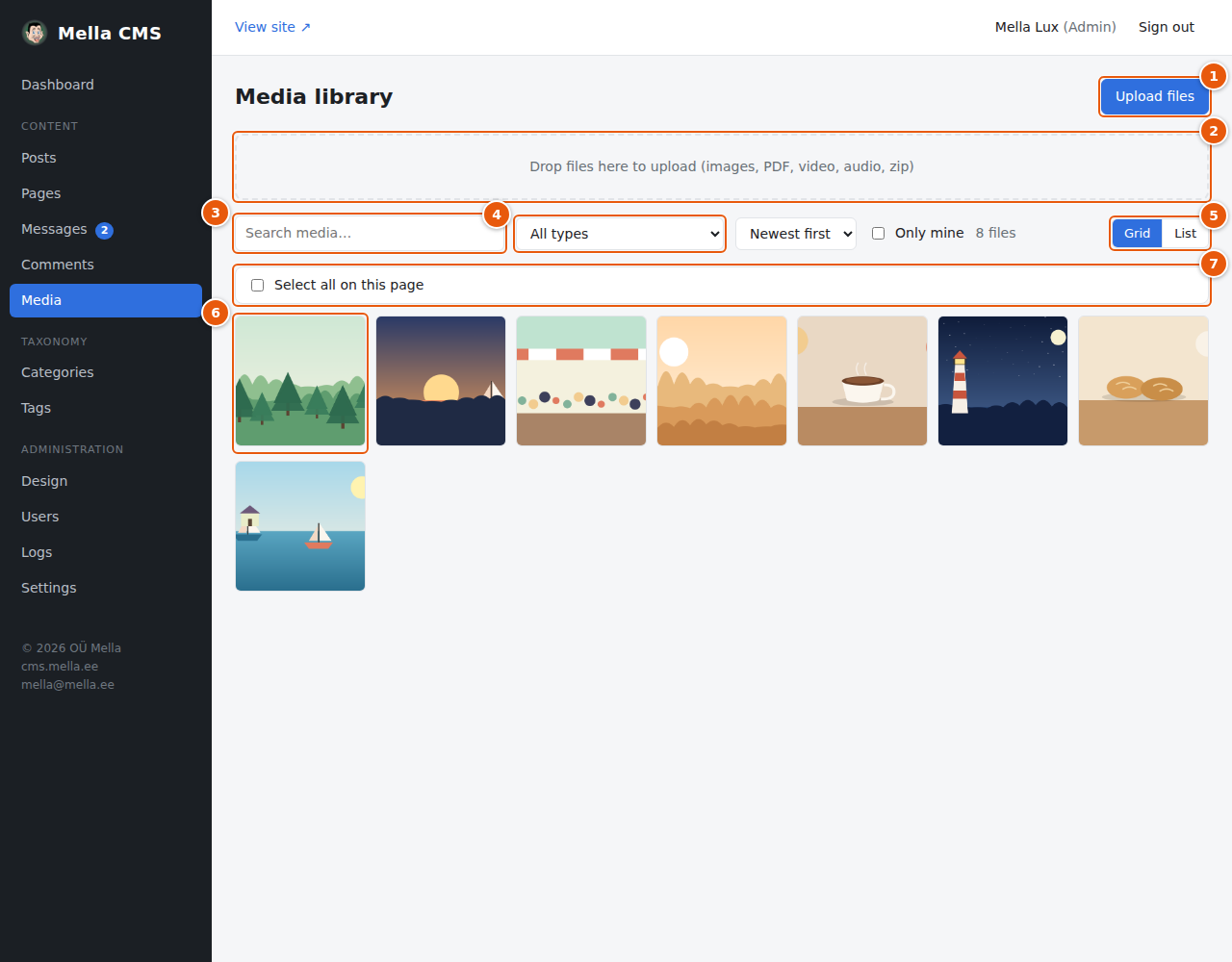
- Upload files: choose files from your computer.
- The drop zone: or simply drag files from your computer onto this area. You can drop several at once.
- Search by file name.
- Filters: All types, Images, Video, Audio, Documents and archives; sort by Newest first, Oldest first, Name or Largest first; and Only mine to show just your uploads.
- Grid / List: the view mode. The CMS remembers your choice.
- A picture: click it to open its details.
- Select all on this page: used for deleting many files at once, see below.
Uploading
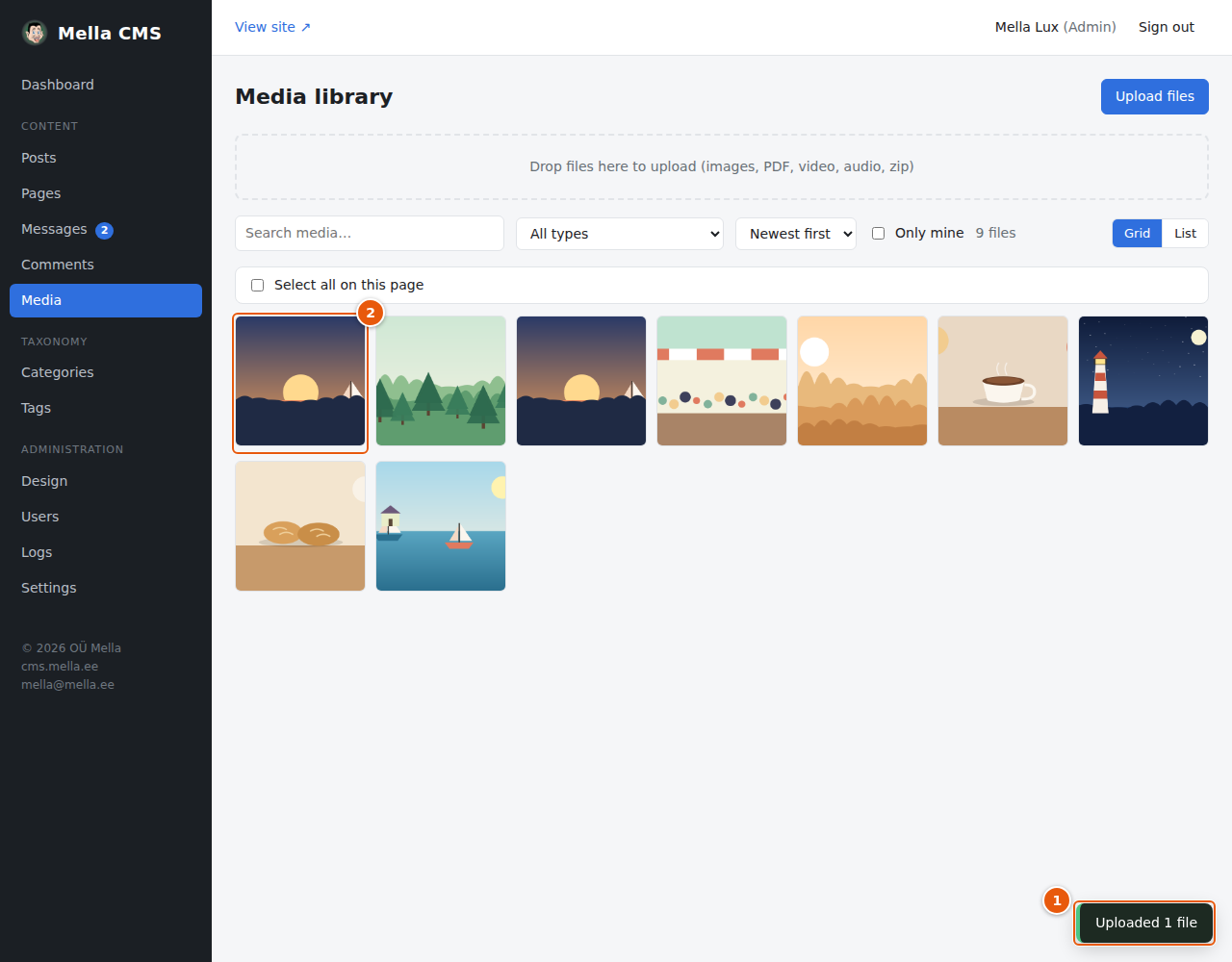
- A message confirms the upload.
- The new file appears first in the grid.
Large photographs from a phone or camera are often much bigger than a web page needs (4000 pixels wide or more). Reduce them to about 1600–2000 pixels wide before uploading to keep your site fast.
The details of a file
Click a picture:
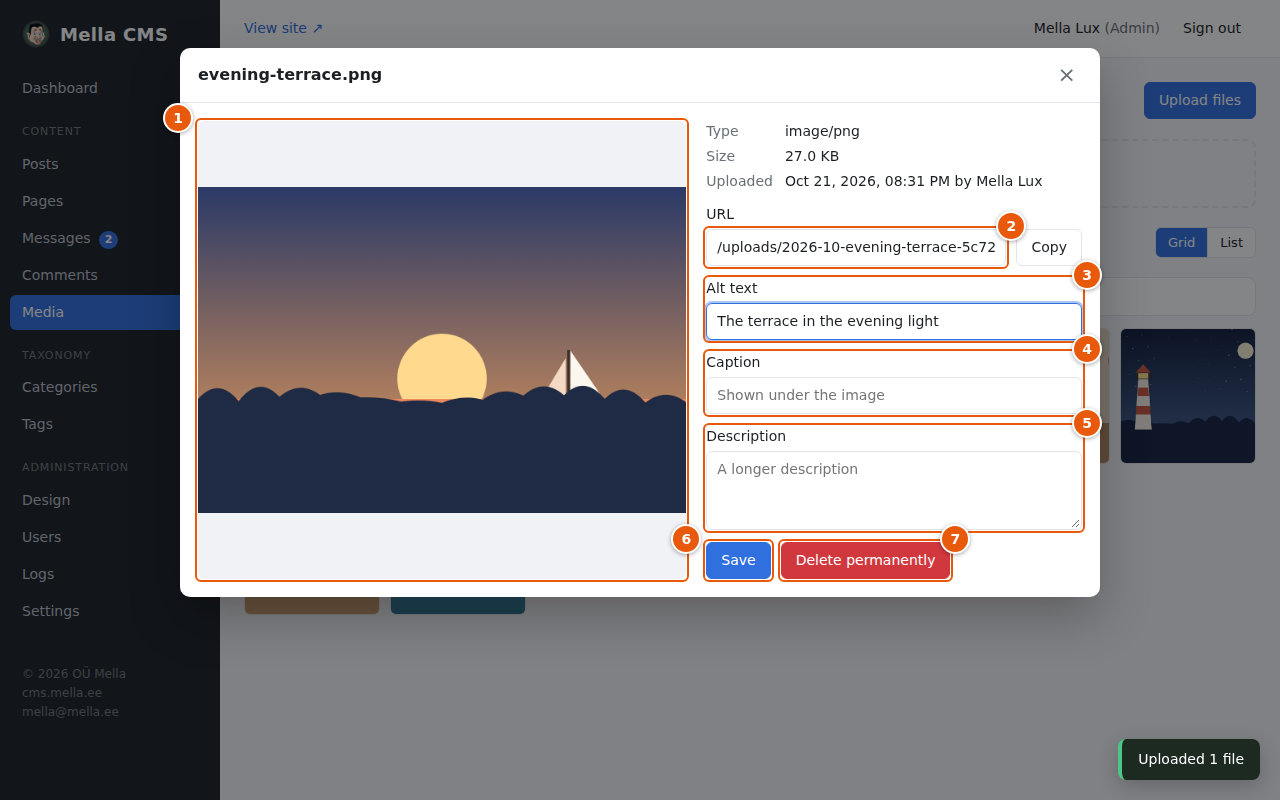
- The preview. Videos and audio files can be played here.
- URL: the address of the file. Copy puts it on the clipboard, for example to use in a link. You do not have to copy it: in the editor's link bar, Choose file… picks a file from here (see Posts).
- Alt text (images only): a short description of what is in the picture, for people who use screen readers and for search engines. Write what you see: “Rye bread straight from the oven”. It is used automatically wherever the picture is placed and has no text of its own.
- Caption: shown under the picture on the site, in the gallery and in the lightbox that opens when someone clicks a picture.
- Description: a longer text for your own use and for some places on the site.
- Save stores the three texts.
- Delete permanently removes the file from the library. Posts and pages that still use it will show a broken picture, so check first.
If the site has several languages, a Language menu above the texts lets you write the alt text, caption and description separately in each language. A language that is left empty uses the text of the default language.
List view and many files at once
The List view shows the file name, type, size, who uploaded it and when.
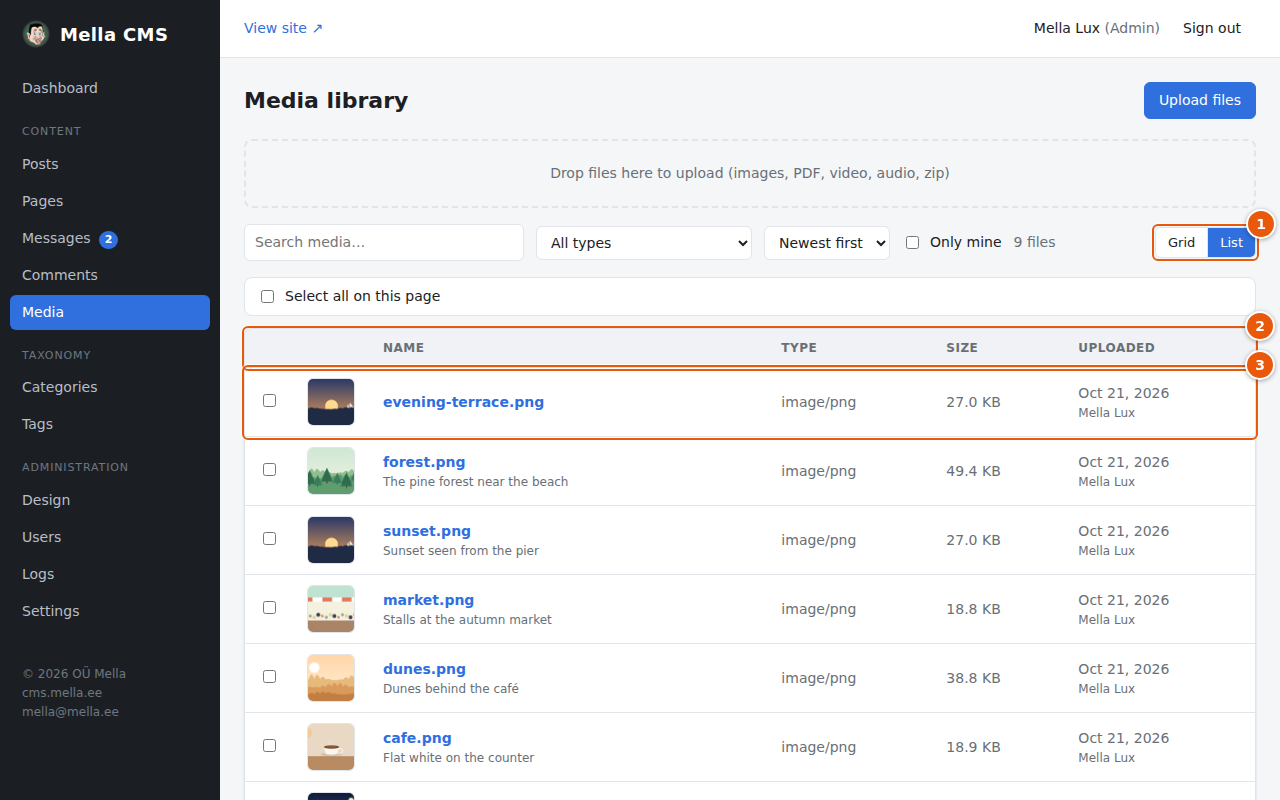
- Switch between Grid and List here.
- The columns. With several languages a Texts column also shows which languages already have alt text.
- A file: click its name to open the details.
To delete several files, tick them. Shift+click selects everything between two files.
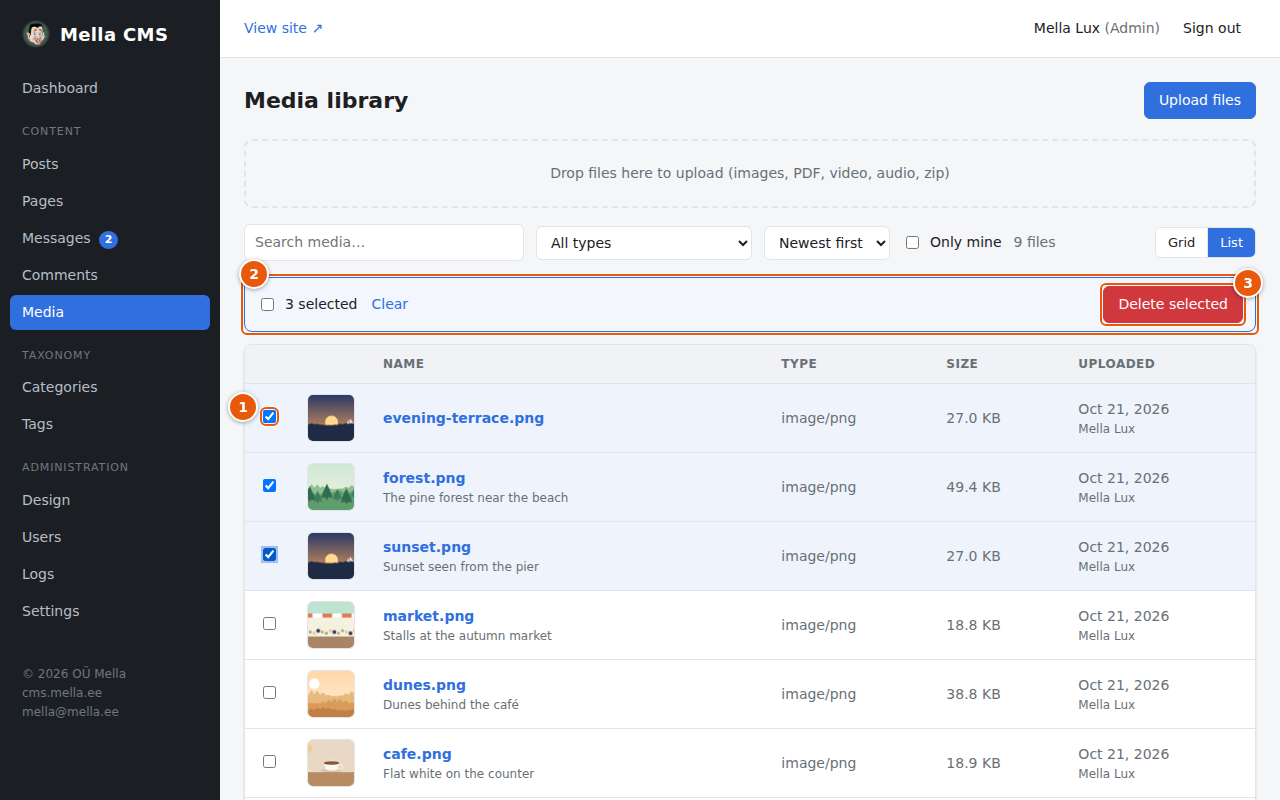
- The ticked rows.
- The bar shows how many files are selected. Clear unselects them.
- Delete selected removes them after you confirm.
You can only select files that you are allowed to delete.