3. Posts
Who: everyone. Authors can write and publish their own posts; editors and admins can work with all posts.
A post is an article, news item or blog entry. Posts are shown newest first on the home page and in archives, and they can be sorted into categories and tags. For content that does not belong to a date (About us, Contact, Prices) use Pages instead.
The list of posts
Open Posts in the menu.
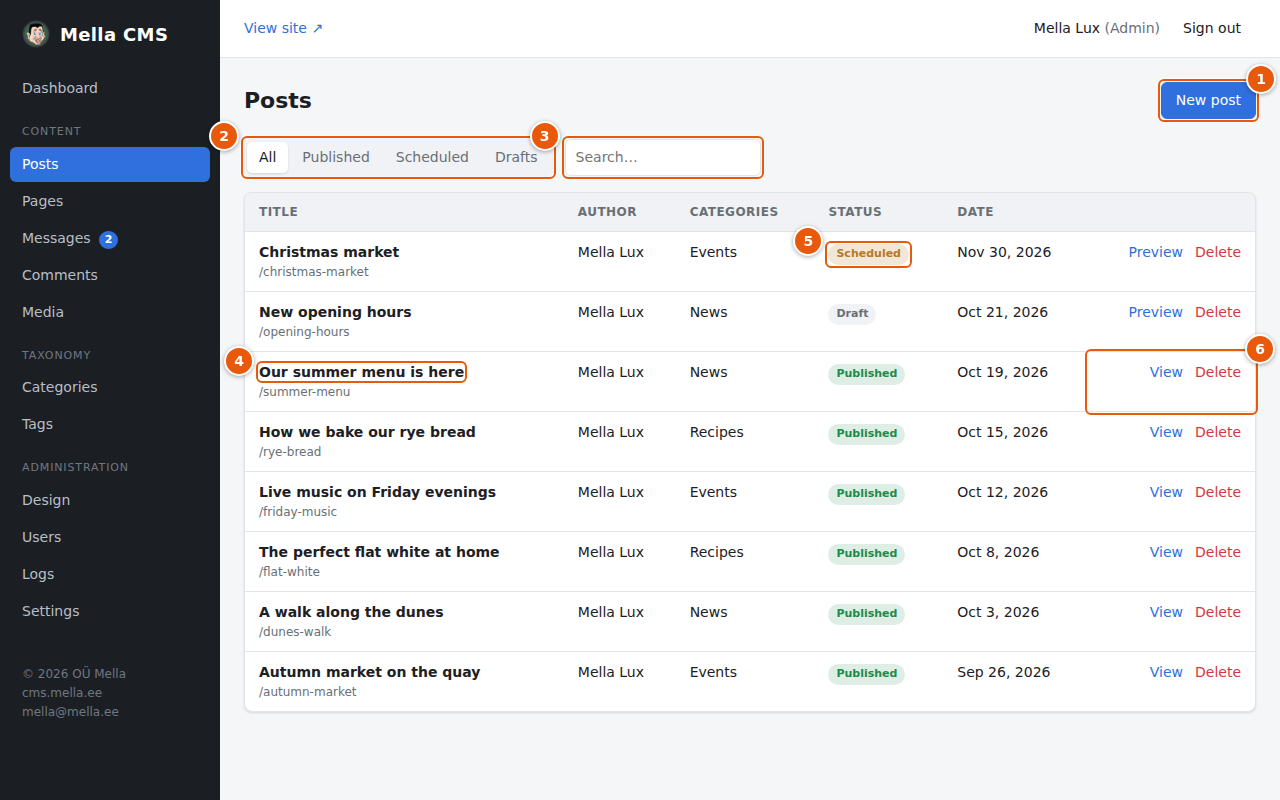
- New post starts a new article.
- Filter by status: All, Published, Scheduled (will be published at a future date) or Drafts (not visible on the site).
- Search looks in titles and texts.
- The title opens the post in the editor. Below it you see its slug, the last part of its web address.
- Status: a green Published, an orange Scheduled or a grey Draft label.
- Actions: View opens the live page of a published post; for drafts and scheduled posts this is Preview, which shows how the post will look. Delete removes the post after you confirm. Deleting cannot be undone.
You can open posts written by other people, but you can only change a post if you wrote it or if you are an editor or admin. Rows you cannot change have no Delete link.
Writing your first post
1. Open an empty editor
Press New post. The editor opens:
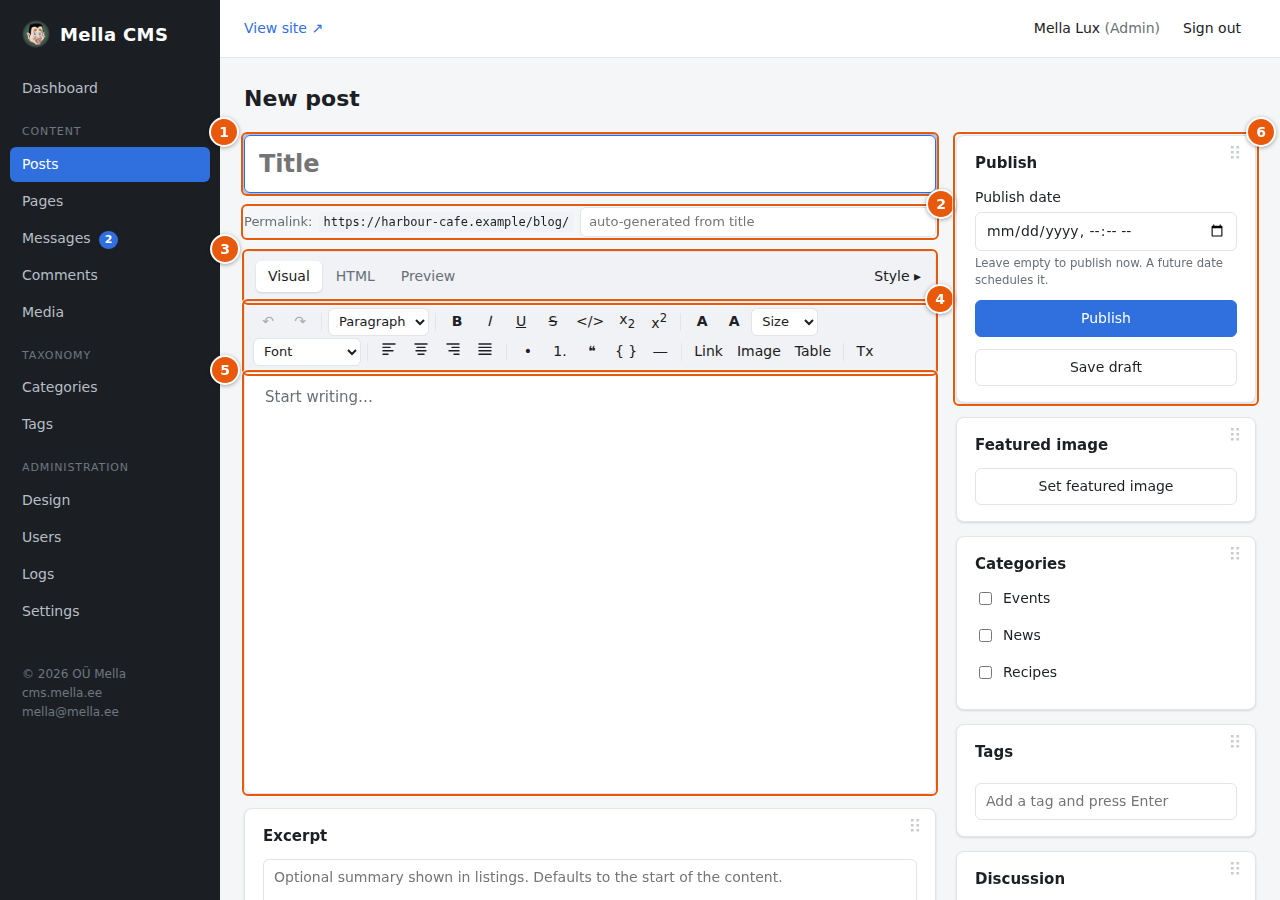
- Title: the name of the post. It is also the headline on the site.
- Permalink: the web address of the post. Leave the field empty and it is made from the title (Weekend brunch becomes
weekend-brunch; accents and Cyrillic letters are converted). You can type your own; if another post already uses it, a number such as-2is added. Change the address only before you publish, because links that other people have saved to the old address would stop working. - Visual / HTML / Preview tabs, and the Style button. You will normally stay on Visual.
- The toolbar with the formatting buttons.
- The writing area.
- The Publish panel and, below it, the featured image, categories and tags.
2. Write and format
Click in the writing area and type. A few quick ways to shape the text:
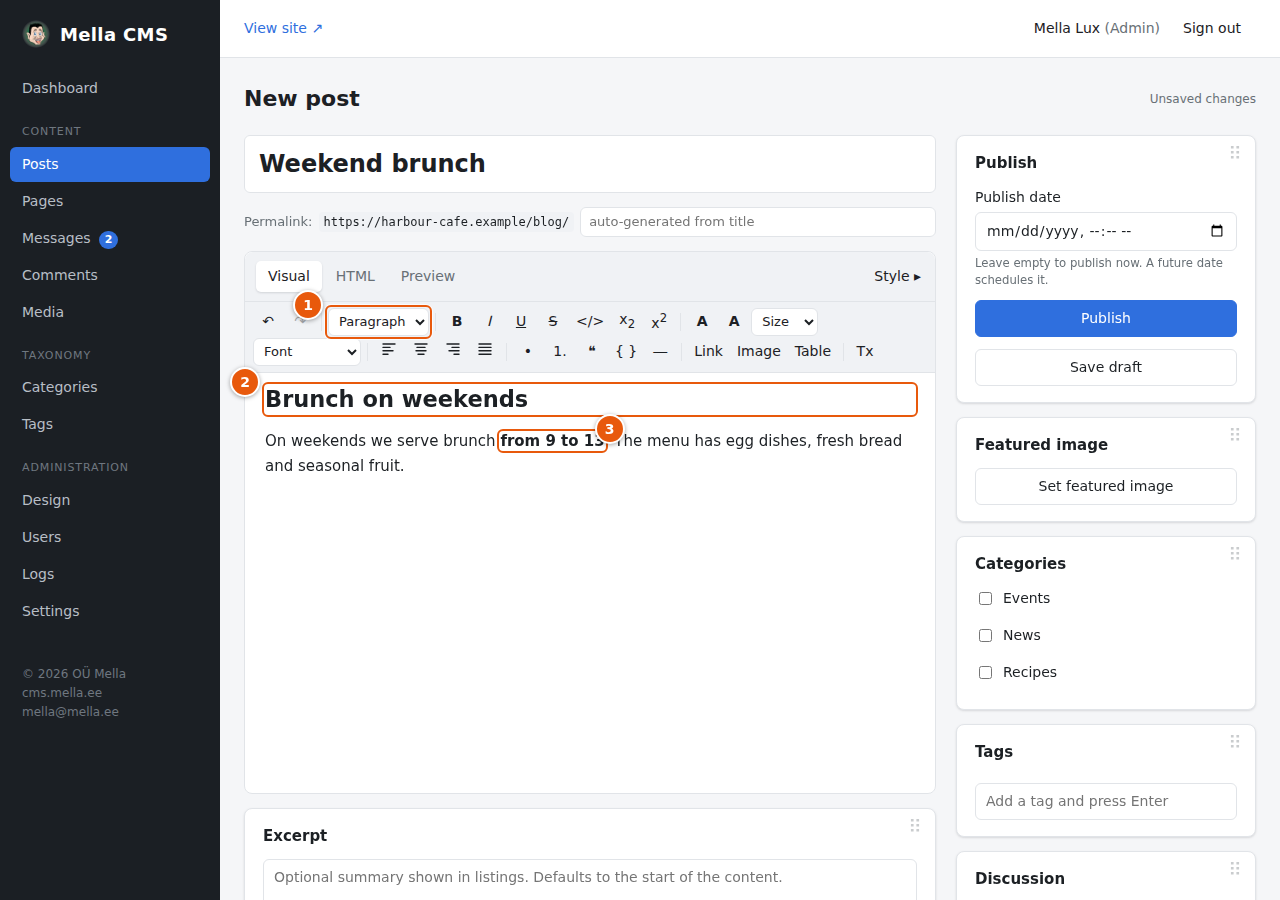
- Block type: choose Paragraph or Heading 1 to Heading 4. Use headings to divide a long text into parts; people and search engines both like that.
- A heading looks bigger than the paragraphs.
- Bold text. Select words and press the B button, or Ctrl+B (⌘B on a Mac).
Shortcut: type
##(two hash signs and a space) at the beginning of a line to make it a heading,-for a bulleted list and1.for a numbered list.
3. Add a link
Select the words that should become a link, then press Link in the toolbar or Ctrl+K.
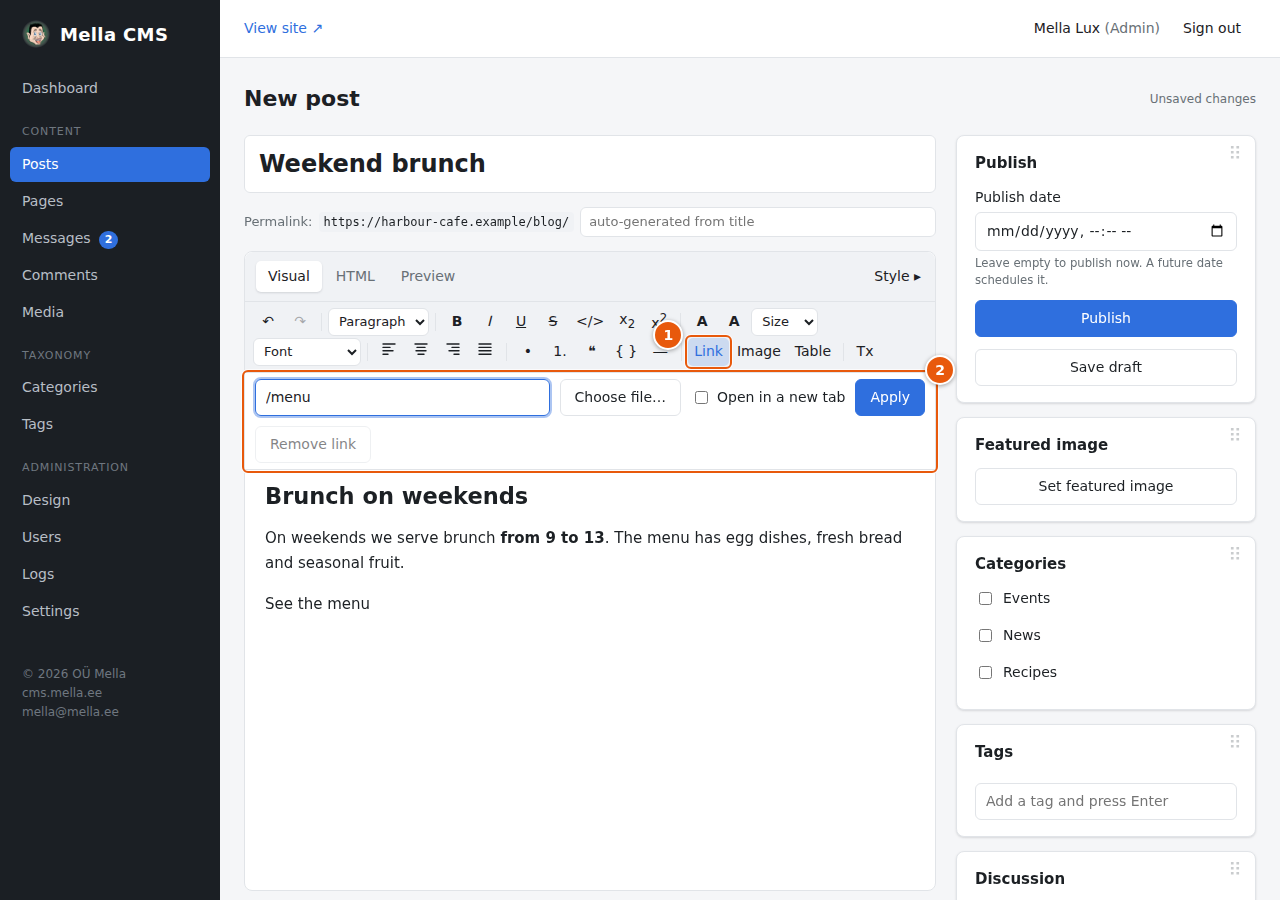
- The Link button.
- The link bar. Type the address and press Apply. Use a full address (
https://example.com) for other sites, or a path such as/menufor a page of your own site.mailto:andtel:links also work. Choose file… picks a file from the media library instead (see below). Tick Open in a new tab to open the link in a new browser tab. To take a link away, select it and press Remove link.
Link to a PDF or another file
Press Choose file… in the link bar. The media library opens, showing documents (PDF, ZIP and text files) instead of pictures.
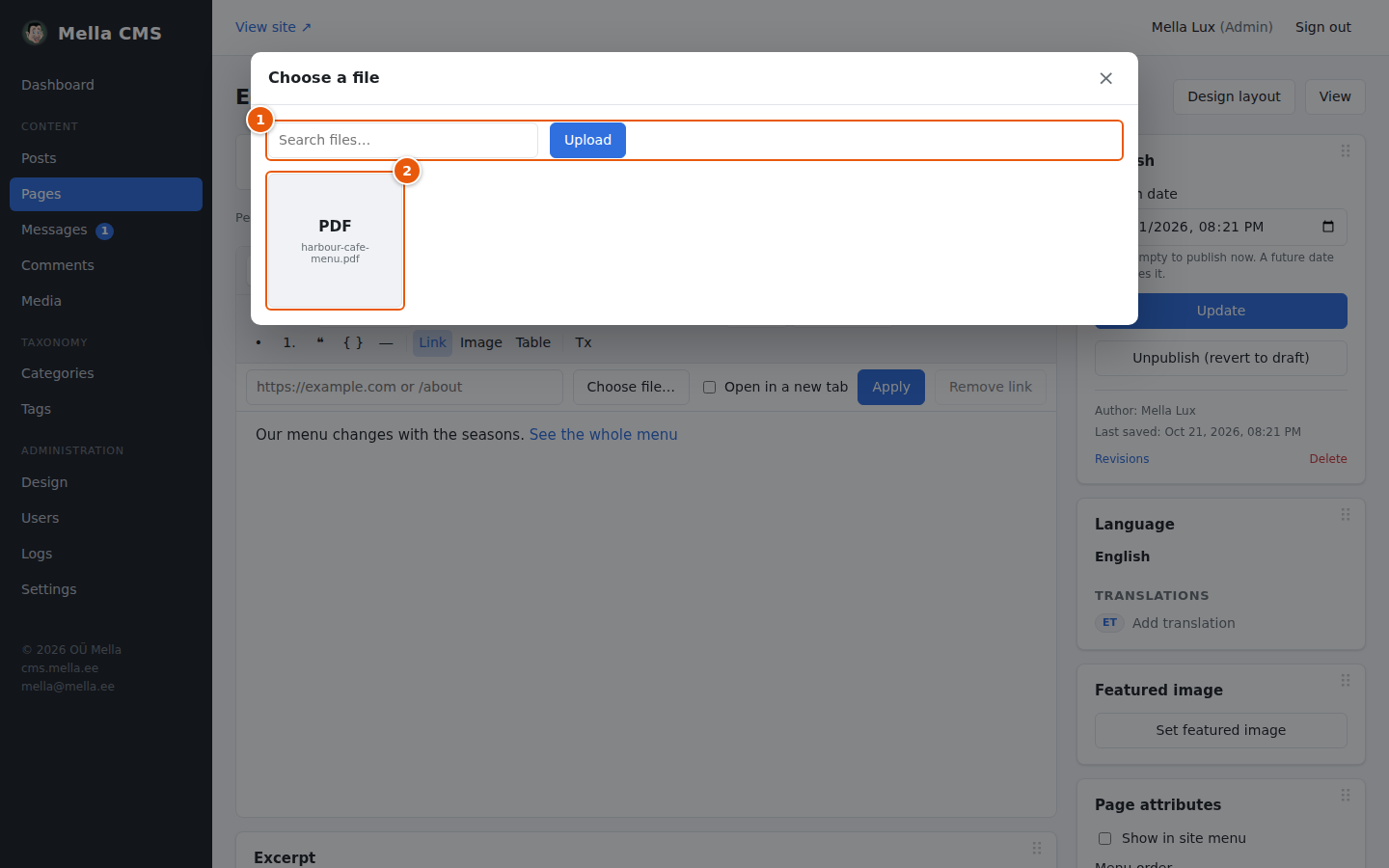
- Search for a file or Upload a new one here.
- Click the file. Its address goes into the link bar.
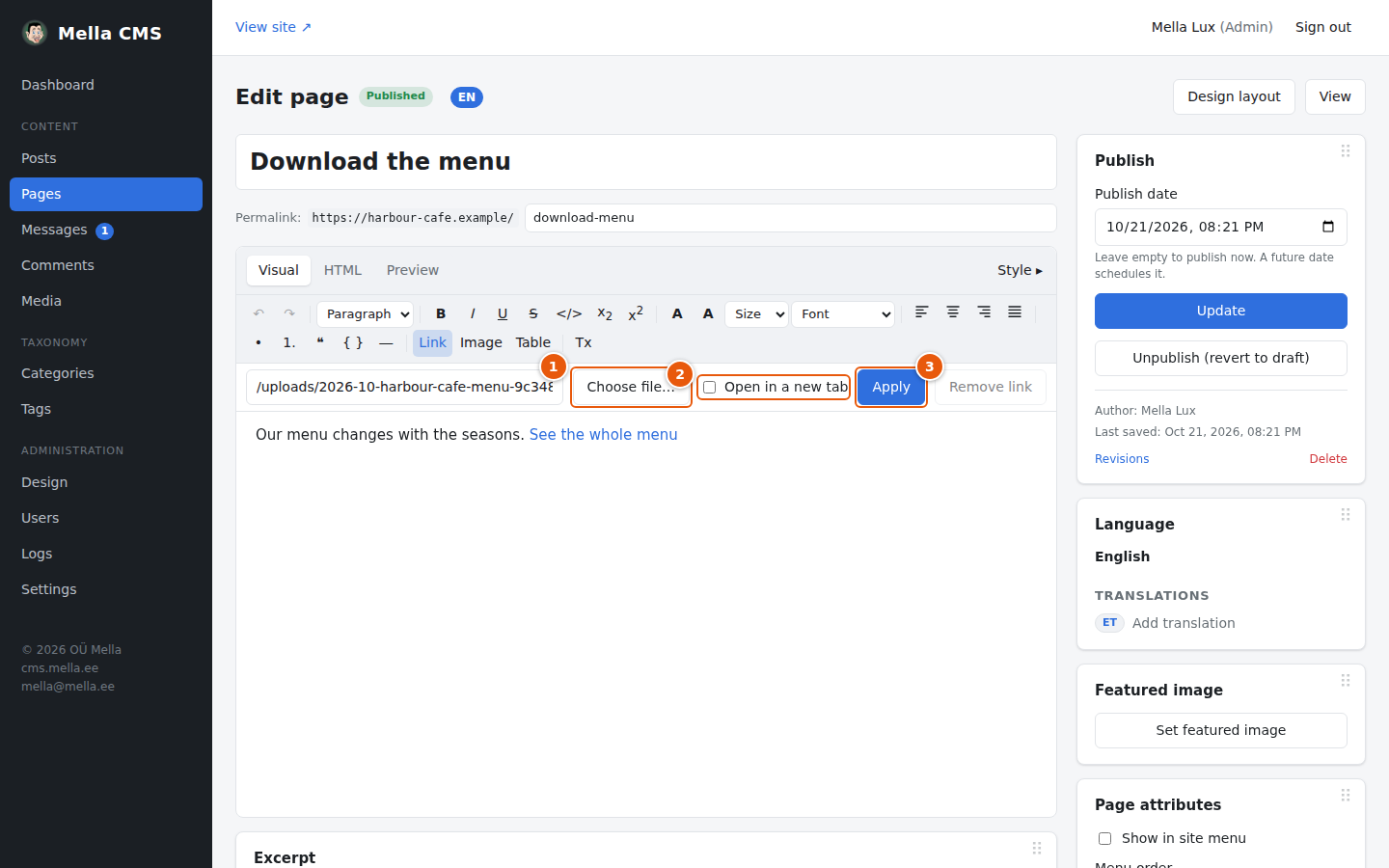
- Choose file… again, to pick another file.
- Open in a new tab. Leave it empty to show a PDF on the page (see below).
- Apply makes the link.
A visitor who clicks a link to a PDF of your site sees the PDF on the page, in a viewer with a button (↗) that opens it in a new tab and a button (×) that closes it. Esc closes it too.
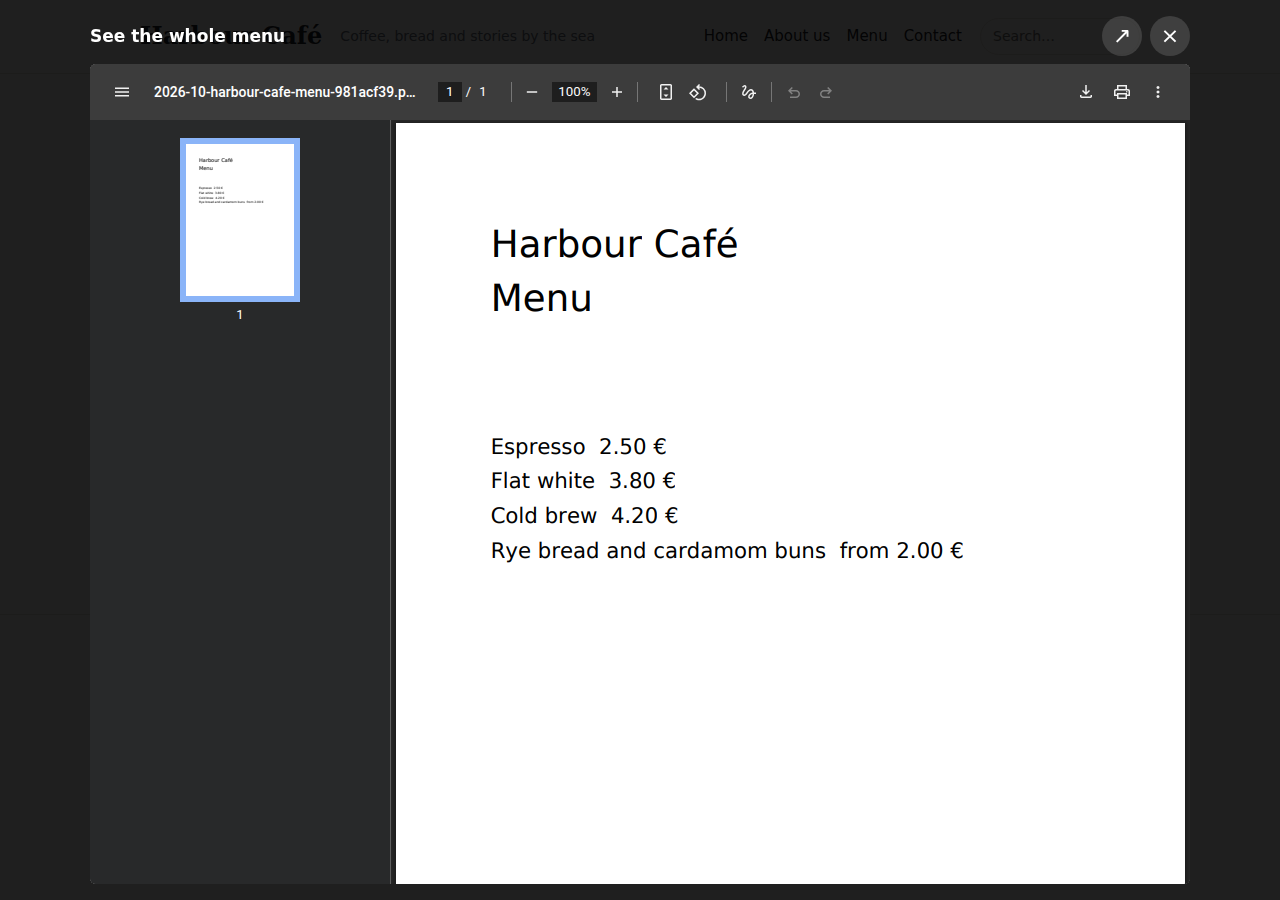
If Open in a new tab is ticked, the PDF opens in a new browser tab instead. On phones and tablets, and in browsers that cannot show a PDF inside a page, it always opens in a new tab. Other files (ZIP, text) are simply downloaded or opened by the browser. The same applies to the link of a button or picture in the page builder: use File… next to the link field to pick a file.
4. Add a picture
Put the cursor where the picture should appear and press Image. The media library opens:
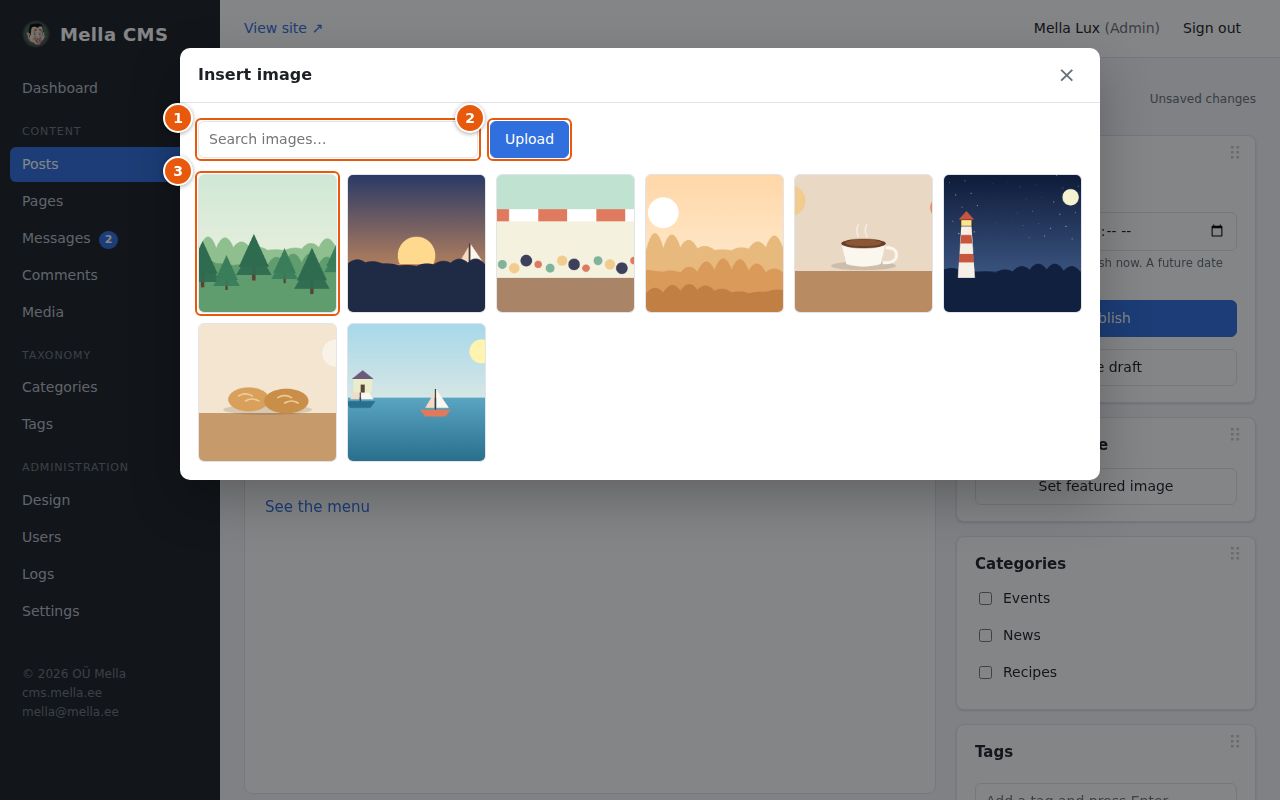
- Search the library by name.
- Upload a new picture from your computer. It is added to the library and ready to use.
- Click the picture you want. It is inserted at once.
A picture that has an alt text in the library gets it automatically (see Media). The picture can be moved, resized and given spacing with the Style panel, see The editor in detail.
5. Choose the featured image, categories and tags
The panels on the right belong to the whole post:
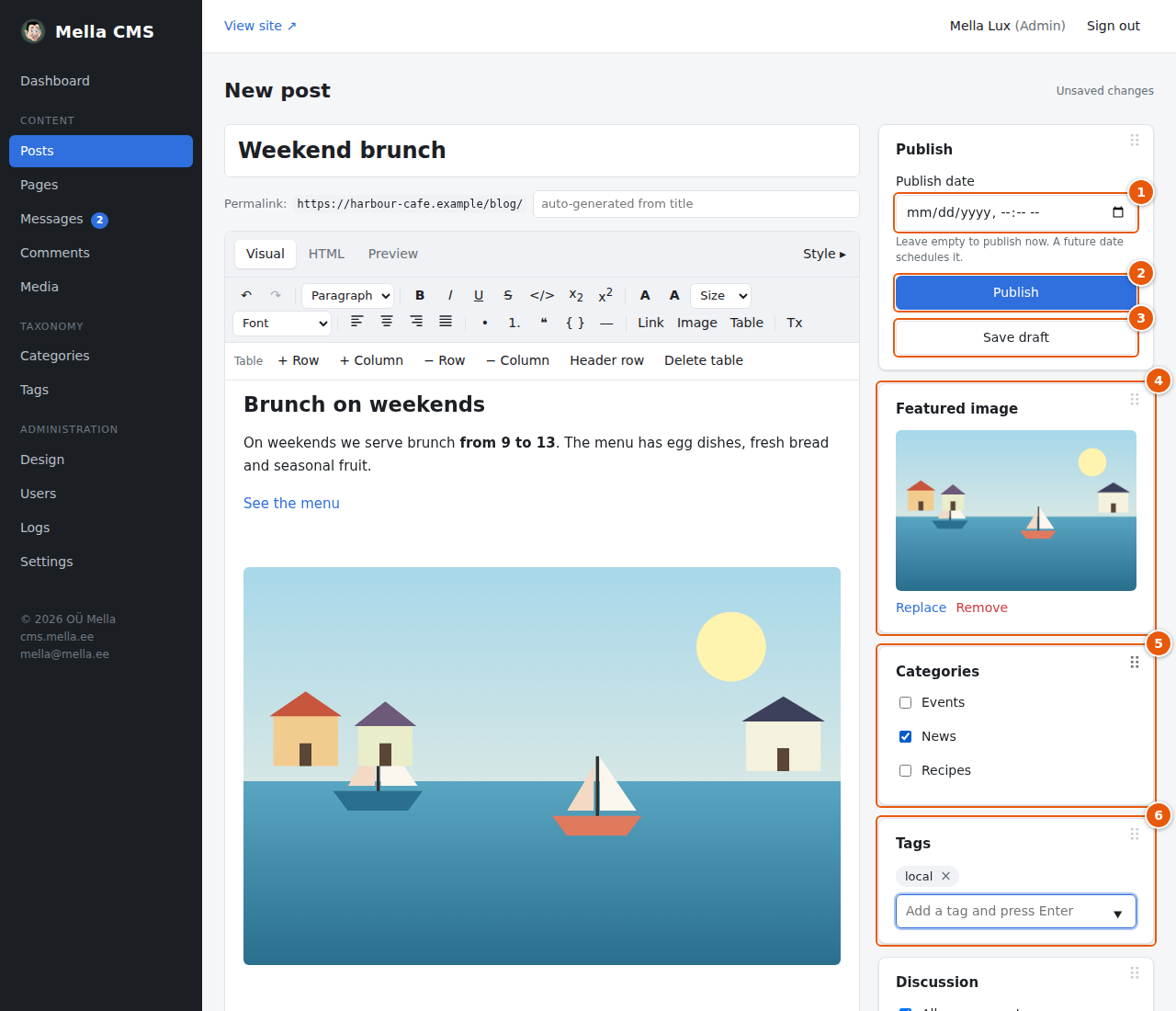
- Publish date: leave empty to publish immediately. See "Schedule" below.
- Publish: makes the post visible on the site.
- Save draft: keeps the post private for now.
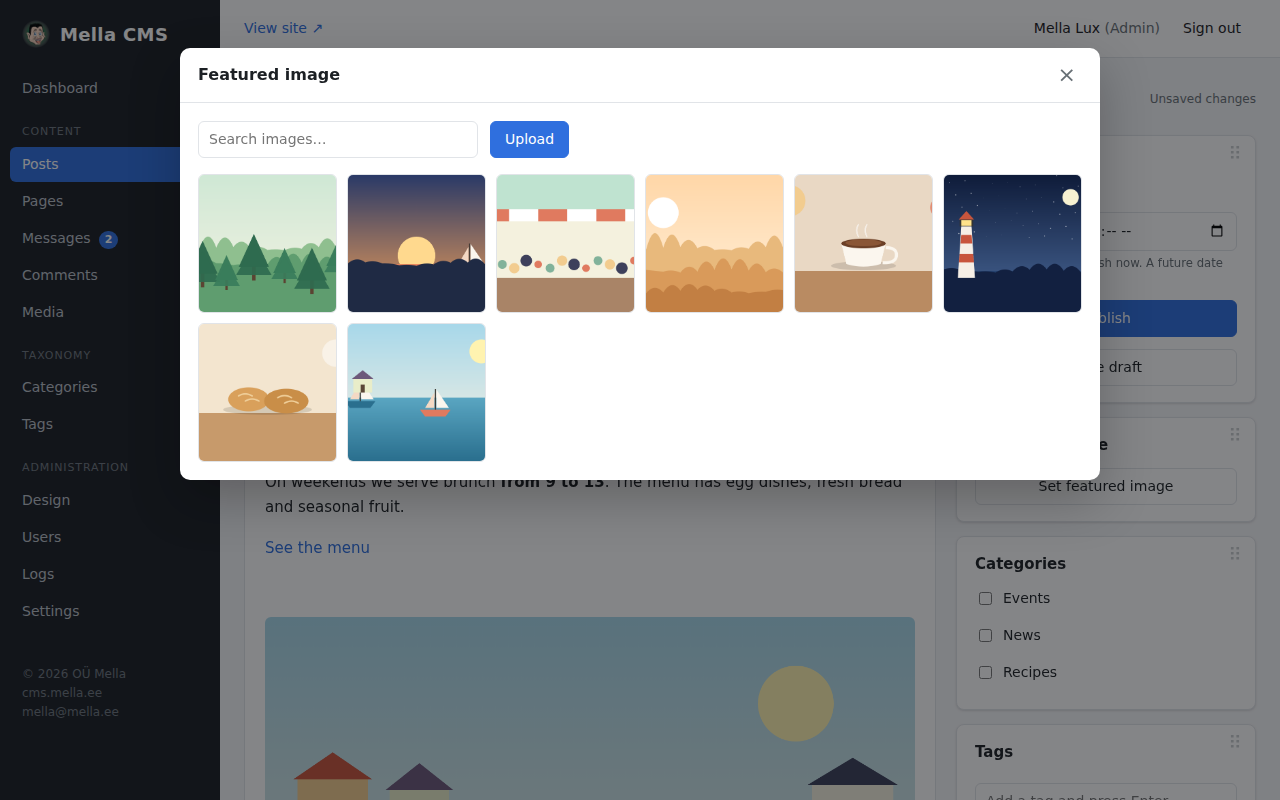
- Featured image: the main picture of the post. It is shown at the top of the post and in lists. Click Set featured image and choose a picture, or use Replace and Remove.
- Categories: tick one or more. Categories are the main sections of your site (Categories and tags).
- Tags: type a word and press Enter. Existing tags are suggested as you type; a new word creates a new tag (only editors and admins can create new tags; authors pick from the existing ones). Click × on a tag to remove it.
6. Publish
When you are happy, press Publish.
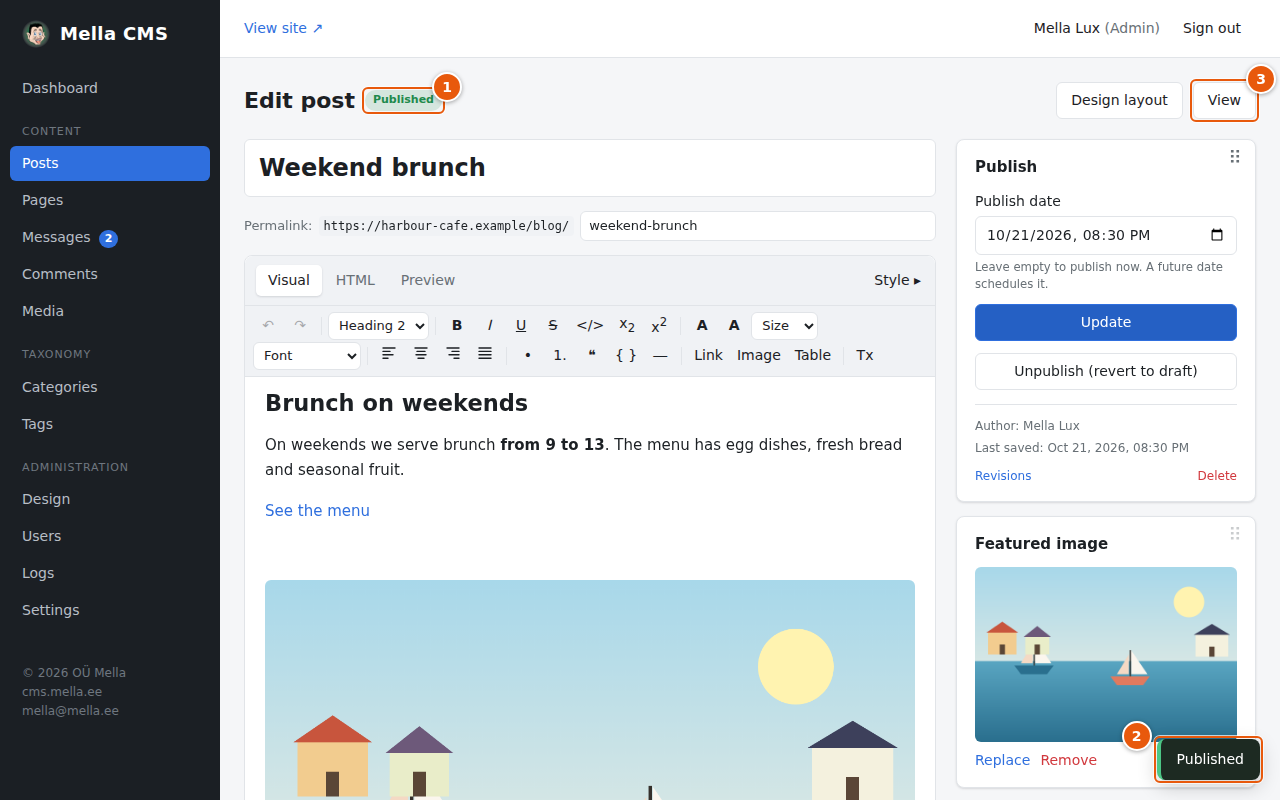
- The label next to the title changes to Published.
- A short message at the bottom of the screen confirms that the post was saved.
- View opens the post on the public site.
The same post, as visitors see it:
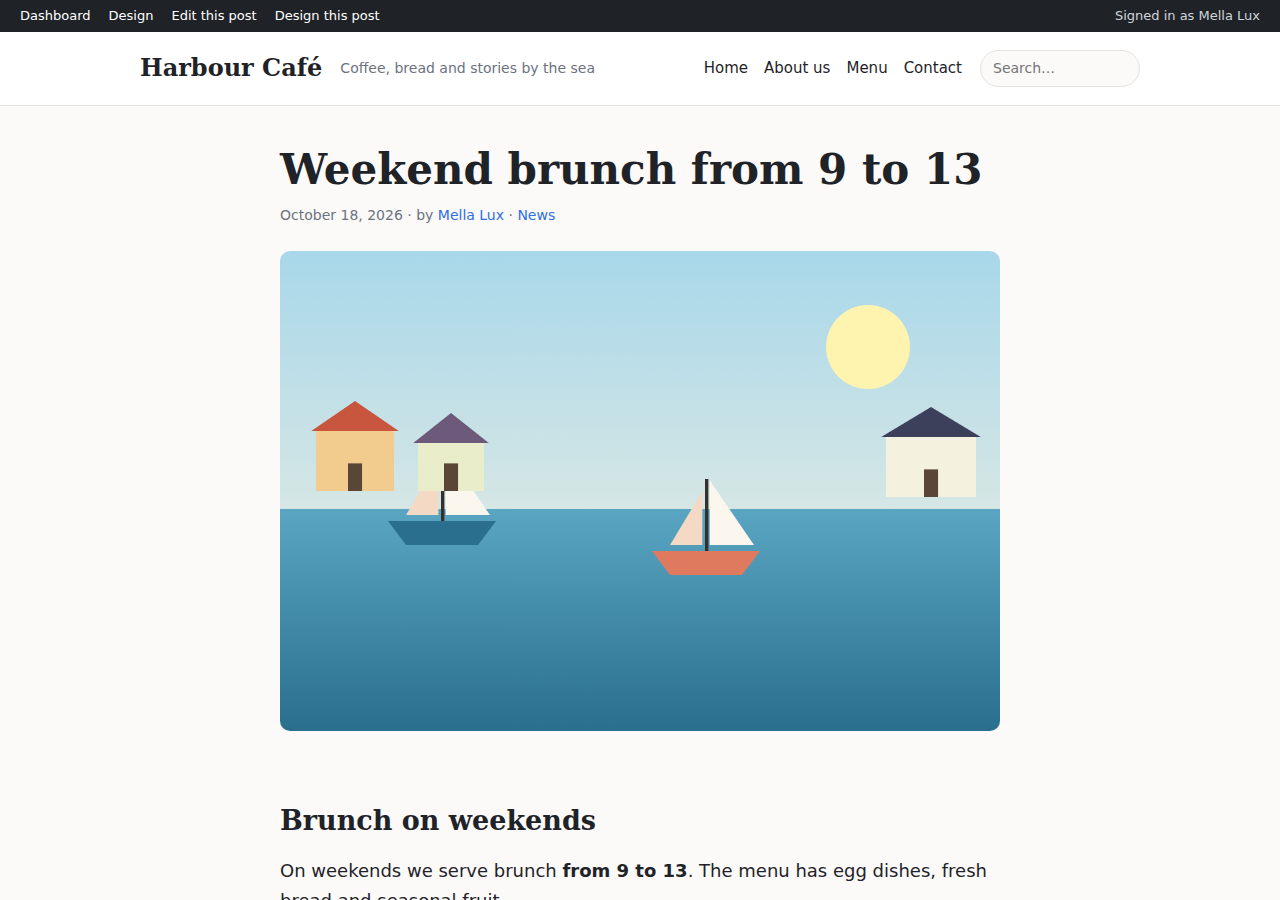
When you are signed in, a dark admin bar is shown at the top of the public site with links back to the admin. Visitors do not see it.
Draft, scheduled or published?
| Status | Visible on the site? | How to get it |
|---|---|---|
| Draft | No. Only you can see it with Preview. | Press Save draft. |
| Scheduled | Not yet. It appears on its own at the chosen time. | Pick a date and time in the future, then press Schedule. |
| Published | Yes. | Press Publish (the date can be empty, or in the past). |
Scheduling a post
Set Publish date to a moment in the future. The button changes from Publish to Schedule:
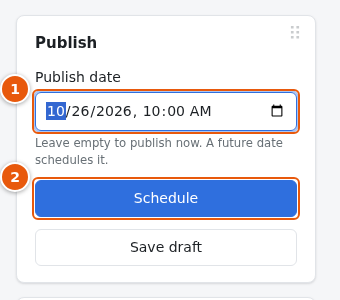
- The date and time.
- The button now says Schedule. The post stays hidden until that time and then goes live by itself.
Changing a published post
Open the post, make your changes and press Update. The old version is kept as a revision. If you want to take a post off the site for a while, press Unpublish (revert to draft); it becomes a draft and nothing is lost.
Going back to an earlier version (revisions)
Every time you save a change to the title, the excerpt or the text, the previous version is stored. The last 50 versions are kept. Press Revisions under the Publish panel:
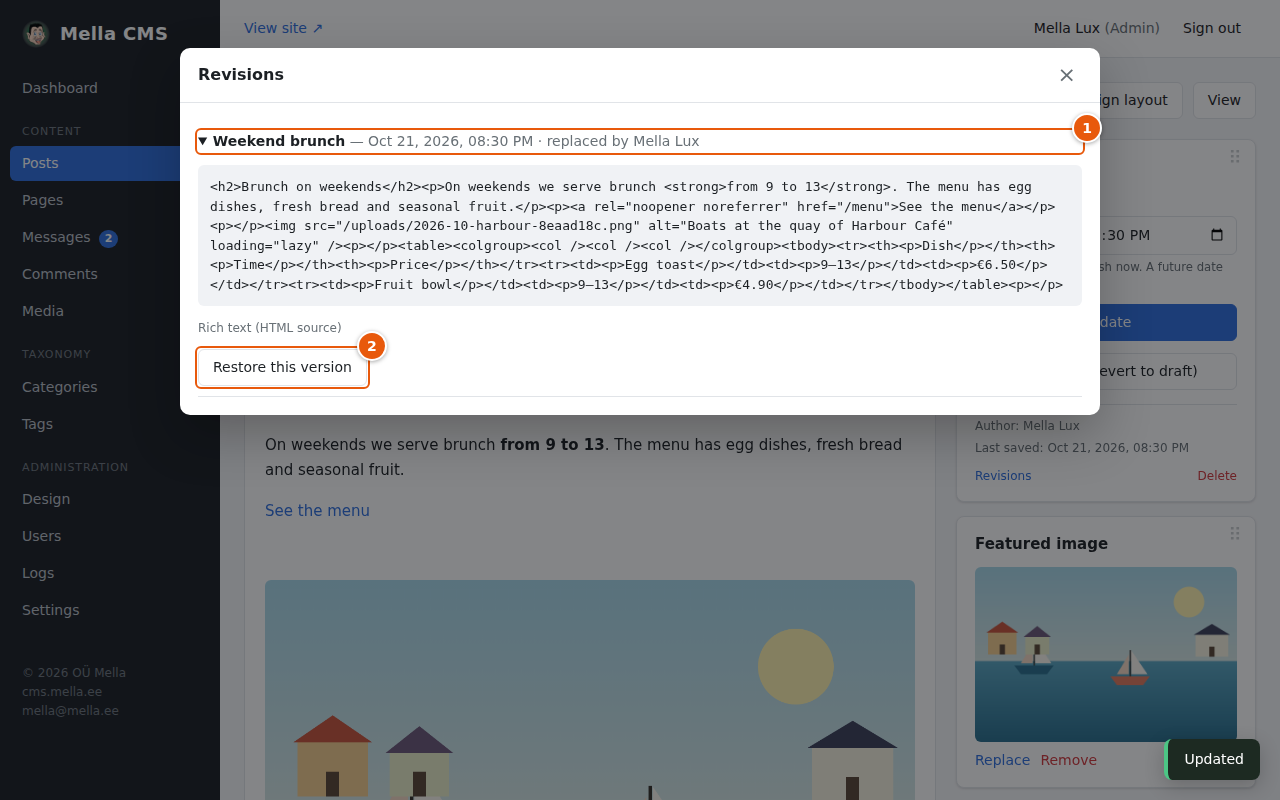
- Click a row to see the text of that version (as HTML source) and who replaced it.
- Restore this version brings it back. The version you are replacing is saved as a revision too, so you can always undo a restore.
Comments and star ratings
When comments and ratings are switched on in Settings, readers can comment on a post and rate it with one to five yellow stars. Each post has a Discussion panel in the editor with two checkboxes, Allow comments and Allow star ratings; untick one to turn it off for that post only (the comments and stars then disappear from it).
Comments are not shown at once: they wait under Comments in the menu (a number next to it counts those waiting). Open the page and press Approve, Mark as spam or Delete. A comment you write yourself while signed in is shown right away, and no email is sent about it, so to try the approval, comment signed out. If Settings say so, you also get an email for every new comment.
Under every comment there is a Reply link: the answer is shown below the comment it answers, up to three levels deep. If you mark a comment as spam or delete it, its replies go with it. A long discussion is split into pages with links to the earlier and later comments.
The stars and the comments appear where the post design has the Post rating and Comments blocks (group Post in the builder). The built-in design has both; if you saved your own post design earlier, add the blocks to it once.
Saving and leaving
- Ctrl+S (⌘S) saves the post.
- When you have changes that are not saved, the page says Unsaved changes next to the buttons, and your browser asks before you close the tab.
- When you open a new post and then leave without saving, nothing is created.
Deleting a post
Open the list, press Delete on the row (or Delete in the Publish panel of the editor) and confirm. The post and its revisions are gone for good. Images that were used in it stay in the media library.