10. Settings
Who: admins.
Settings holds the options that apply to the whole site. They are grouped into folded sections; click a heading to open it.
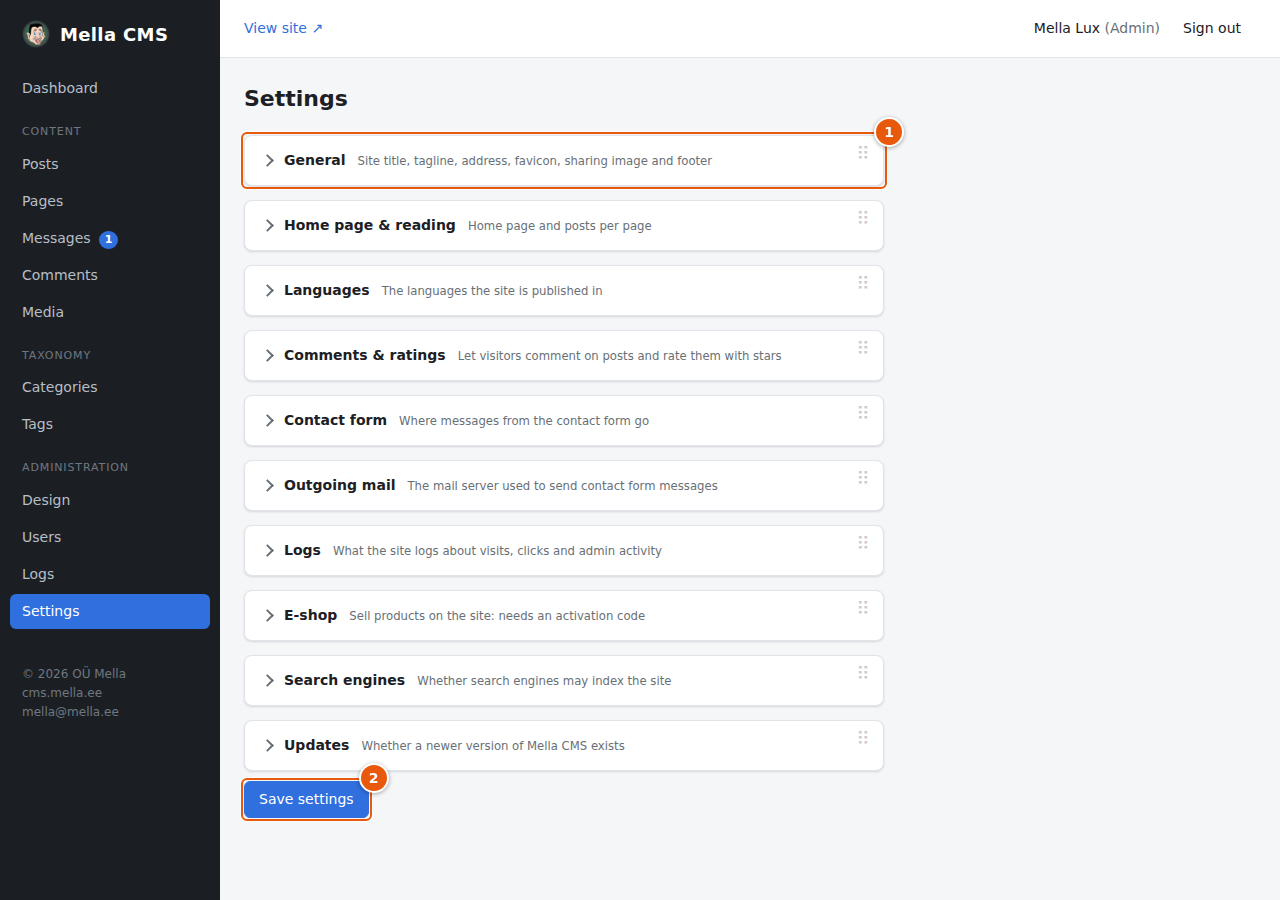
- A section. Click the heading to open or close it. Several can be open at the same time.
- Save settings saves all sections at once. Changes in any section are only stored when you press it.
If a field is invalid (for example an email address without an @), the section that contains it is opened for you and the field is marked.
Moving the cards. The sections are cards, and so are the panels of the dashboard, the logs, your profile and the post editor. Drag a card by the small grip at its top right corner to another place, or focus the grip and use the arrow keys. The arrangement is remembered in this browser only; Reset the arrangement of the cards at the bottom of the page brings the original back.
General
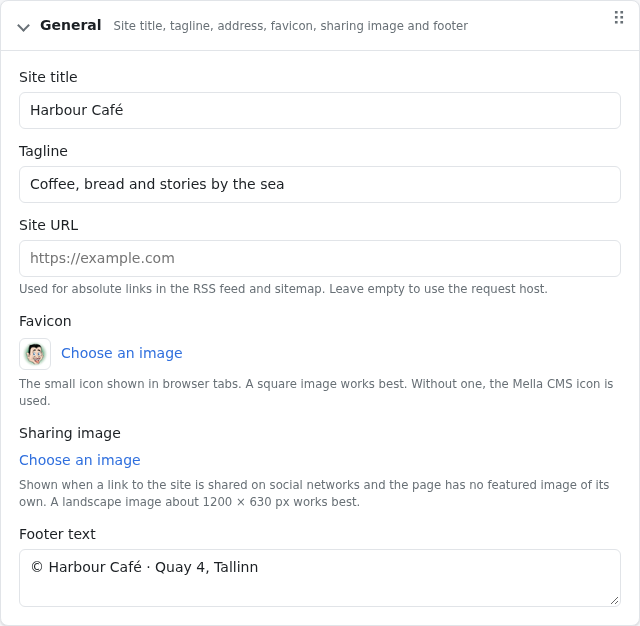
- Site title: the name of the site. It is shown in the header and in the browser tab.
- Tagline: a short phrase beside the title in the default header.
- Site URL: the full web address of the site, for example
https://harbour-cafe.example, without a slash at the end. It is used to build absolute links in the RSS feed and the sitemap, and in the password reset emails. Fill it in once the site has its real address. - Favicon: the small icon shown in browser tabs. Choose a square image from the media library with Choose an image. Without one, the Mella CMS icon is used.
- Sharing image: the picture shown in the preview when a link to the site is shared on social networks or in messengers and the page has no featured image of its own. A post or page that has a featured image uses that instead. A landscape image about 1200 × 630 px works best. A large picture is shared as a 1200 px wide JPEG automatically.
- Footer text: the text at the bottom of every page, for example
© Your name.
Home page & reading
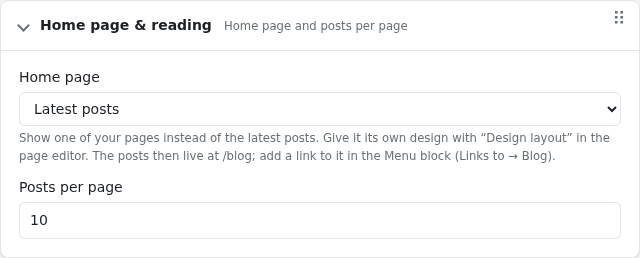
- Home page: Latest posts (the default) shows your newest posts on the front page. Choose one of your pages to use it as the front page instead. The posts then move to
/blog; add a link to it in the Menu block (Links to → Blog, see Design). The page can have its own layout with Design layout. With several languages each language shows its own translation of the page. - Posts per page: how many posts are listed on one page of the home page, archives and search results (1–100). Further posts are on the next pages.
Languages
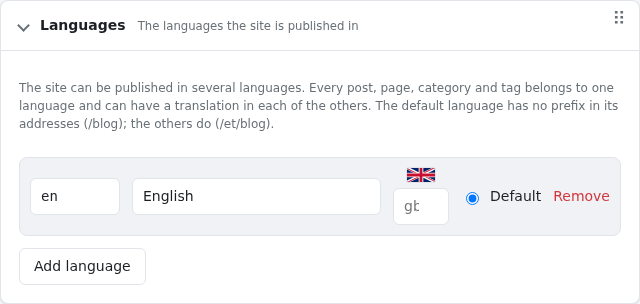
The languages the site is published in. The default is one language and nothing changes until you add another. See Languages.
Comments & ratings
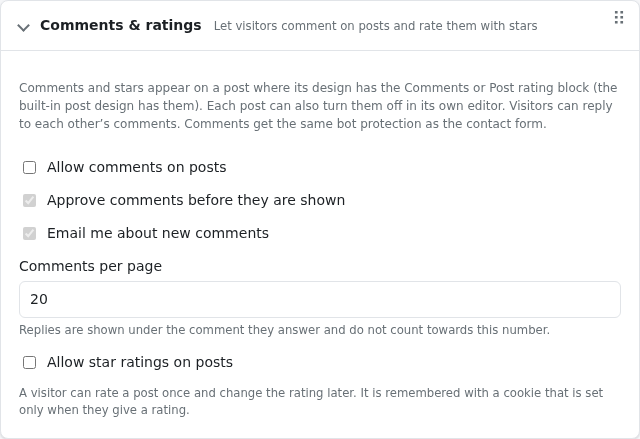
- Allow comments on posts and Allow star ratings on posts: the site-wide switches. Both are off until you turn them on. A single post can still turn them off in its own editor.
- Approve comments before they are shown: new comments from visitors wait under Comments until you approve them.
- Email me about new comments: every new comment from a visitor is sent to the Contact form email below (it also needs Outgoing mail to be set up). Comments written by signed-in staff are not mailed.
- Comments per page: how many comments of their own a page of a post shows. Replies are shown under the comment they answer and do not count.
A visitor can rate a post once and change the rating later. A small cookie remembers it; it is set only when someone gives a rating. Comments get the same bot protection as the contact form.
Contact form
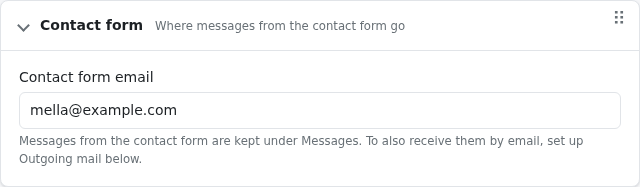
- Contact form email: the address that receives a copy of the messages from the contact form. All messages are also kept under Messages. For a copy to be sent by email, mail must be set up in the next section. A single contact form block can have its own address.
Outgoing mail
The mail server that the site uses to send email: for the contact form copies and for password reset links.
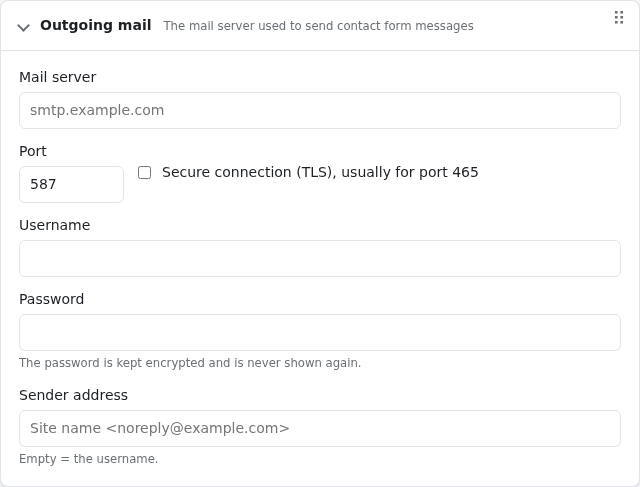
Ask your email provider or hosting company for the values.
- Mail server: for example
smtp.example.com. - Port (usually 587) and Secure connection (TLS): tick it for port 465.
- Username and Password: the login of the mail account. The password is stored encrypted and is never shown again. Leave the field empty to keep the stored one, or tick Remove the stored password.
- Sender address: what the receiver sees as the sender, for example
Harbour Café <noreply@harbour-cafe.example>. If it is empty, the username is used.
Two cases where you cannot change this here:
- If the person who runs the server has set the mail up in the server's configuration, the fields are grey and say so.
- If the server has no encryption key (
SETTINGS_KEY), the password field is disabled and explains what to do. The person who runs the server needs to set it once (see the main README).
Logs
What the site records about visits, clicks and activity. See Logs.
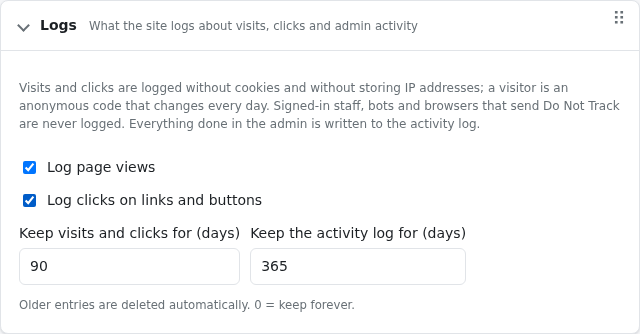
- Log page views and Log clicks on links and buttons: switch the visit and click recording on or off. They are recorded without cookies and without storing IP addresses.
- Keep visits and clicks for (days) and Keep the activity log for (days): older entries are deleted automatically. 0 keeps them forever.
E-shop
Sell products on the site: the shop needs an activation code, the currency and shipping costs are set here, and so are the Stripe and PayPal keys and where order notices go. It is described step by step in The e-shop.
Search engines

- Allow search engines to index this site: when it is ticked, Google and others may list your site. Untick it while the site is being built, or if it should stay private; the site then asks search engines to stay away.
Updates
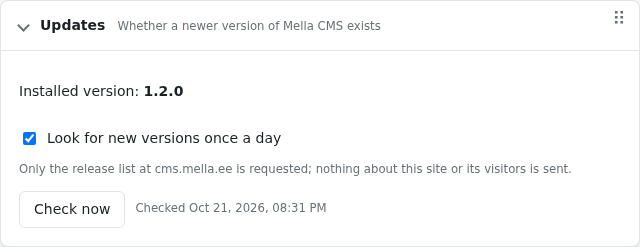
- Look for new versions once a day: when a newer version of Mella CMS exists, administrators see a notice at the top of the admin with what is new. The check only asks the release list at cms.mella.ee; nothing about your site or visitors is sent. Check now asks straight away.
- Update to … installs the new version from here, when the person who runs the server has set that up (the server's
.envneedsUPDATE_RESTART_CMD, see the main README). You are asked first. The window shows the steps: it downloads the new version, backs up your data, replaces the code and restarts the server. The site is out of reach for a few seconds, and then the page reloads by itself. If the new version does not start, the old one is put back automatically and the window says so. - Without that setting the notice is only an announcement: whoever looks after the server installs the update by running
./update.shin the install folder; it backs up your data first.
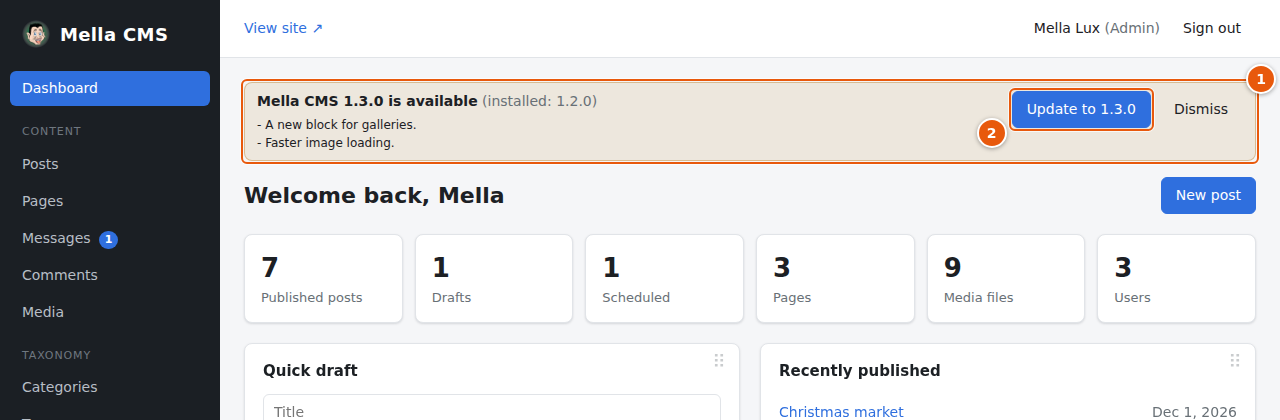
- The notice. Shown to administrators at the top of every admin screen until you press Dismiss (it comes back for the next version). It says what is new.
- Update to …: installs the new version, as described above. The button is there only when the server is set up for it.