1. Getting started
Who: everyone. This chapter explains how to set up a new site, sign in and find your way around.
First-time setup
The very first time the site is opened, it has no users yet. Go to the admin address of the site (/admin, for example https://your-site.example/admin) and Mella CMS shows a setup screen instead of a sign-in form.
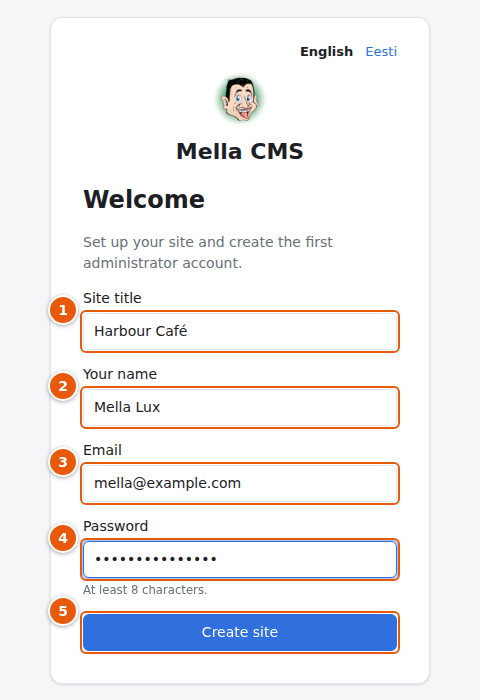
- Site title: the name of your site. It appears in the header of every page and in browser tabs. You can change it later in Settings.
- Your name: shown as the author of your posts.
- Email: you will use it to sign in, and password reset links are sent to it.
- Password: at least 8 characters. Use a long phrase that you do not use anywhere else.
- Create site: creates the first administrator account and signs you in.
The setup also creates a small amount of sample content (a post called Hello world, a page called About and a category called General) so that the site is not empty. You can edit or delete all of it.
Important: do this right after installing. Until the first account exists, anyone who finds the
/adminaddress could create it.
The language of the screen can be switched with English | Eesti in the top corner of the card.
Signing in
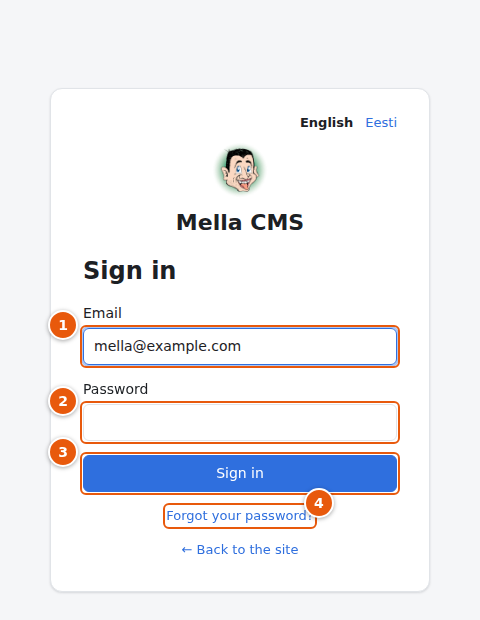
- Email: the address of your account.
- Password.
- Sign in.
- Forgot your password?: see below.
After 3 wrong passwords in a row the account is locked for 15 minutes, even if the next attempt is correct. This protects the site against guessing. Just wait and try again. An administrator can unlock the account sooner by setting a new password for it (see Users).
The link ← Back to the site at the bottom takes you to the public site.
Forgot your password?
Click Forgot your password?, type your email and press Send reset link.
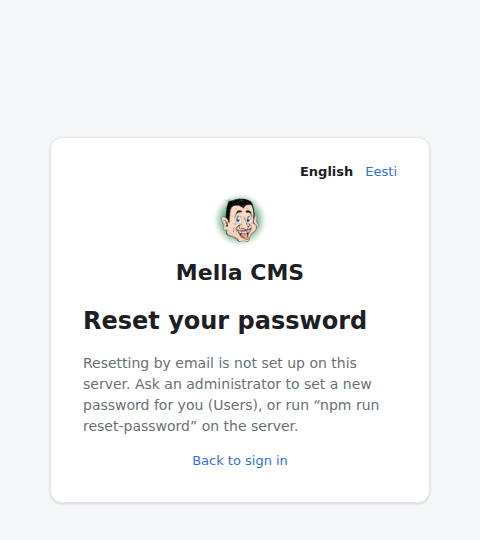
If the site can send email, the CMS sends a link for choosing a new password. The link works once and for one hour. For safety the CMS gives the same answer whether or not the address belongs to an account.
If the screen says that resetting by email is not set up, ask an administrator to set a new password for you in Users. If you are the only administrator, the person who runs the server can set a new password with a command (see the main README).
Finding your way around
Once you are signed in, every screen has the same layout:
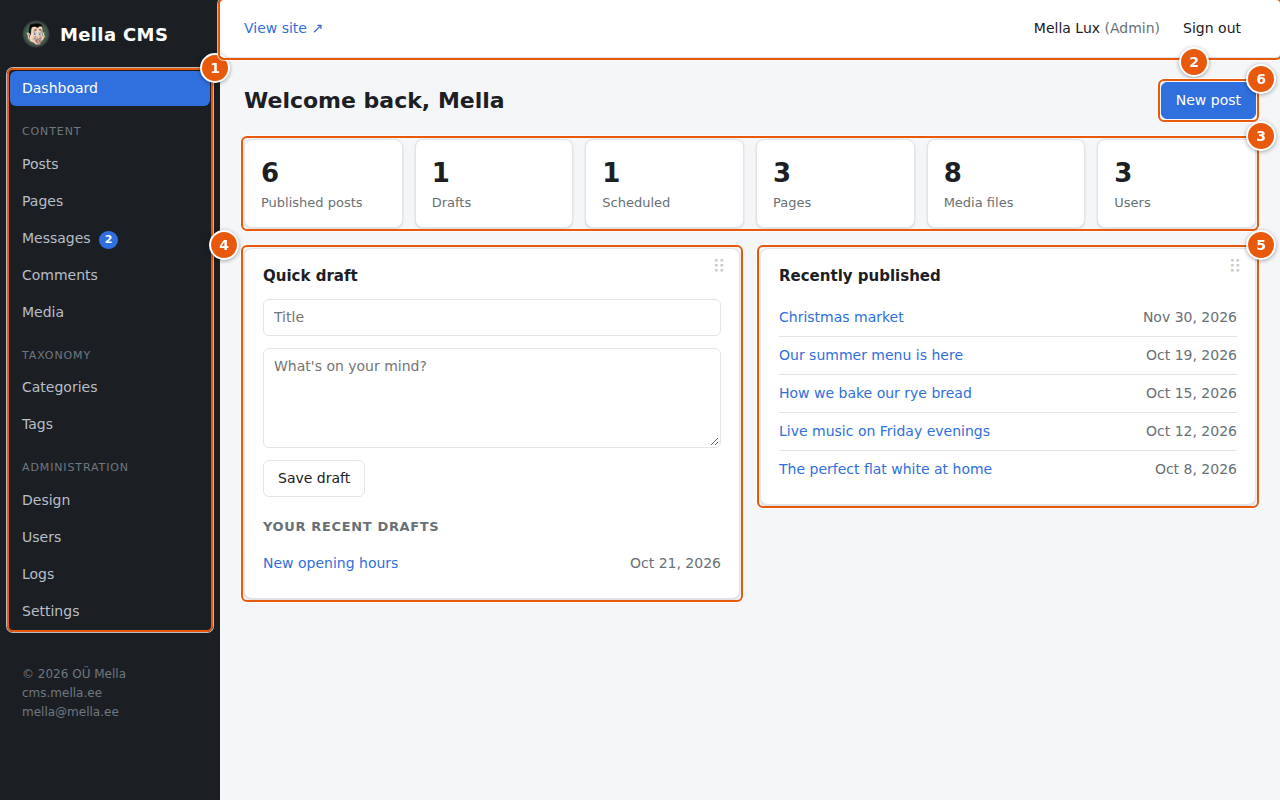
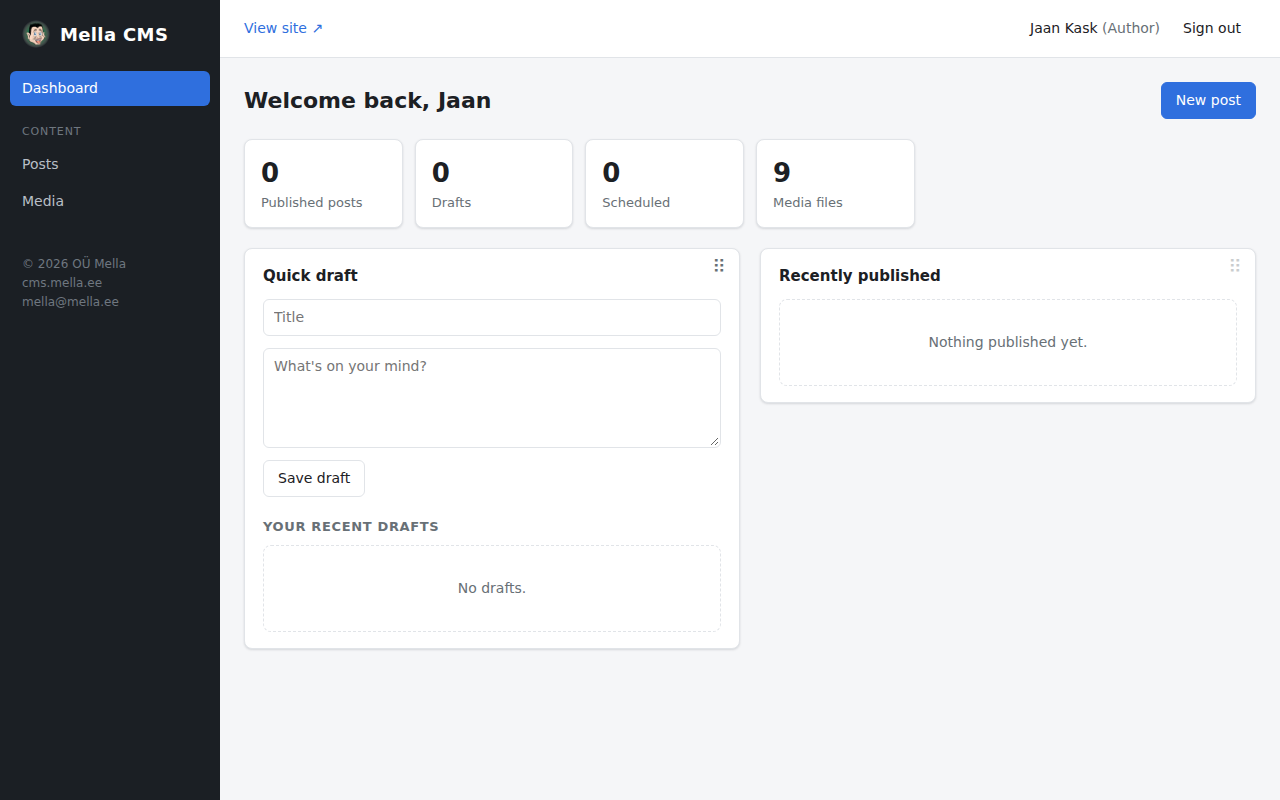
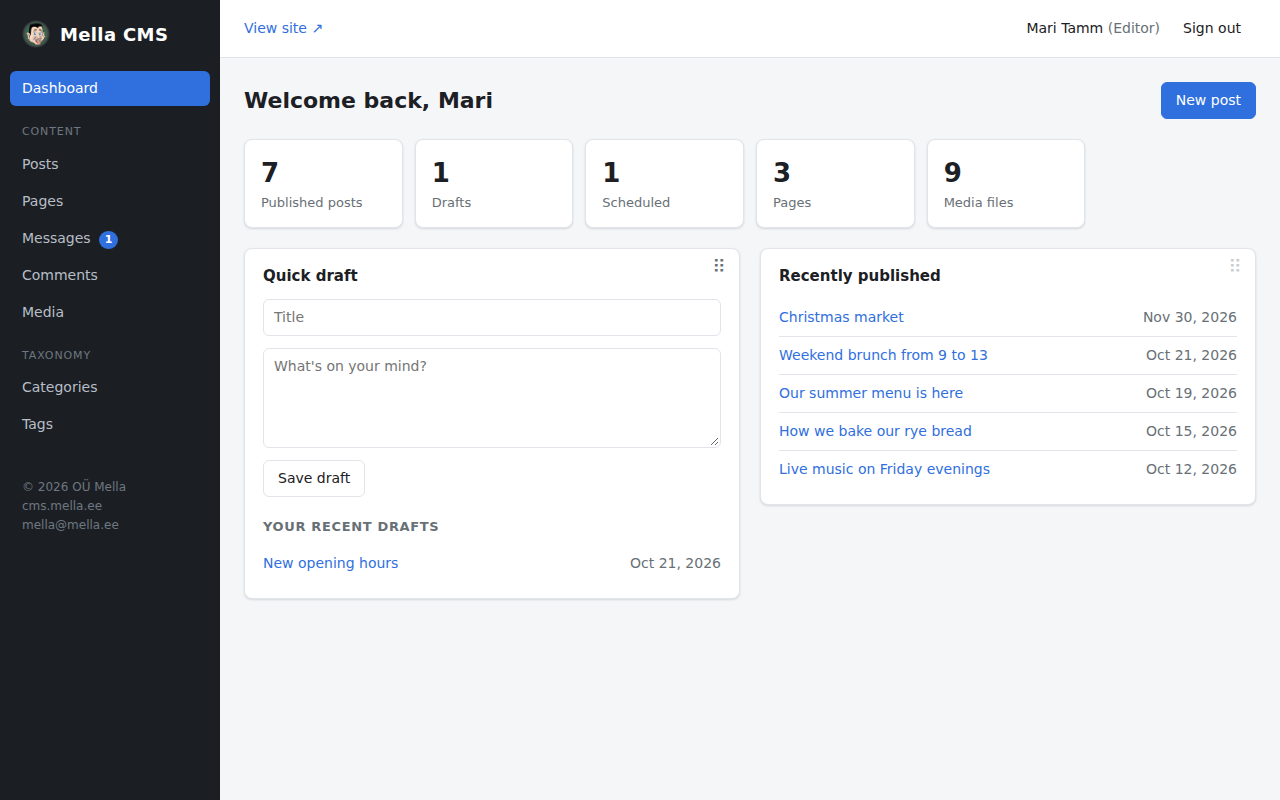
- The menu on the left. It is grouped into Content (Posts, Pages, Messages, Media), Taxonomy (Categories, Tags) and Administration (Design, Users, Logs, Settings). What you see depends on your role (see below). A small number next to Messages is the count of unread messages.
- The top bar: View site opens the public site, your name (click it to open your profile), and Sign out.
- The work area, where the selected page is shown.
On a phone or a narrow window the menu is hidden behind the ☰ button at the top left.
Roles: what can each person do?
Every account has one of three roles. An administrator chooses it when creating the account (see Users).
| Author | Editor | Admin | |
|---|---|---|---|
| Write, edit and publish their own posts | ✔ | ✔ | ✔ |
| Edit and delete other people's posts | ✔ | ✔ | |
| Pages | ✔ | ✔ | |
| Categories and tags (create, edit) | pick existing ones | ✔ | ✔ |
| Messages from the contact form | ✔ | ✔ | |
| Upload media | ✔ | ✔ | ✔ |
| Change or delete media | own uploads | all | all |
| Design, Users, Logs, Settings | ✔ |
The next two pictures show the same dashboard for an author and for an editor. Notice how much shorter the menu is.
| An author sees | An editor sees |
|---|---|
 |
 |
If you cannot see a menu item that this guide mentions, your role does not include it. Ask an administrator.
Signing out and the language of the admin
Press Sign out in the top bar when you use a shared computer. Sessions last 14 days.
The admin screens are available in English and Estonian. By default the CMS follows the language of your browser; you can pick one yourself in your profile. This does not change the language of the public site, which is set in Languages.