9. Design: the page builder
Who: admins. (Editors and admins can also give a single page its own layout, see A different layout for one page.)
The whole public site is built from blocks: a heading, a picture, a button, a list of posts, columns that hold other blocks, and so on. In Design you place and change these blocks visually, on a live copy of your real site. You do not need to know any code.
Some ideas to keep in mind:
- Every part of the site is a template. There is one for the header, the footer, pages, posts, the home page and archives (categories, tags, authors and search results) and the 404 page (shown when a page does not exist). Change a template once and it changes everywhere it is used.
- Nothing changes until you edit it. The built-in design is the starting point. If you never open Design, your site simply uses it.
- Draft first, then publish. Changes are saved as a draft that only you can see in the builder. Visitors see them after you press Publish.
The Design page
Open Design in the menu.
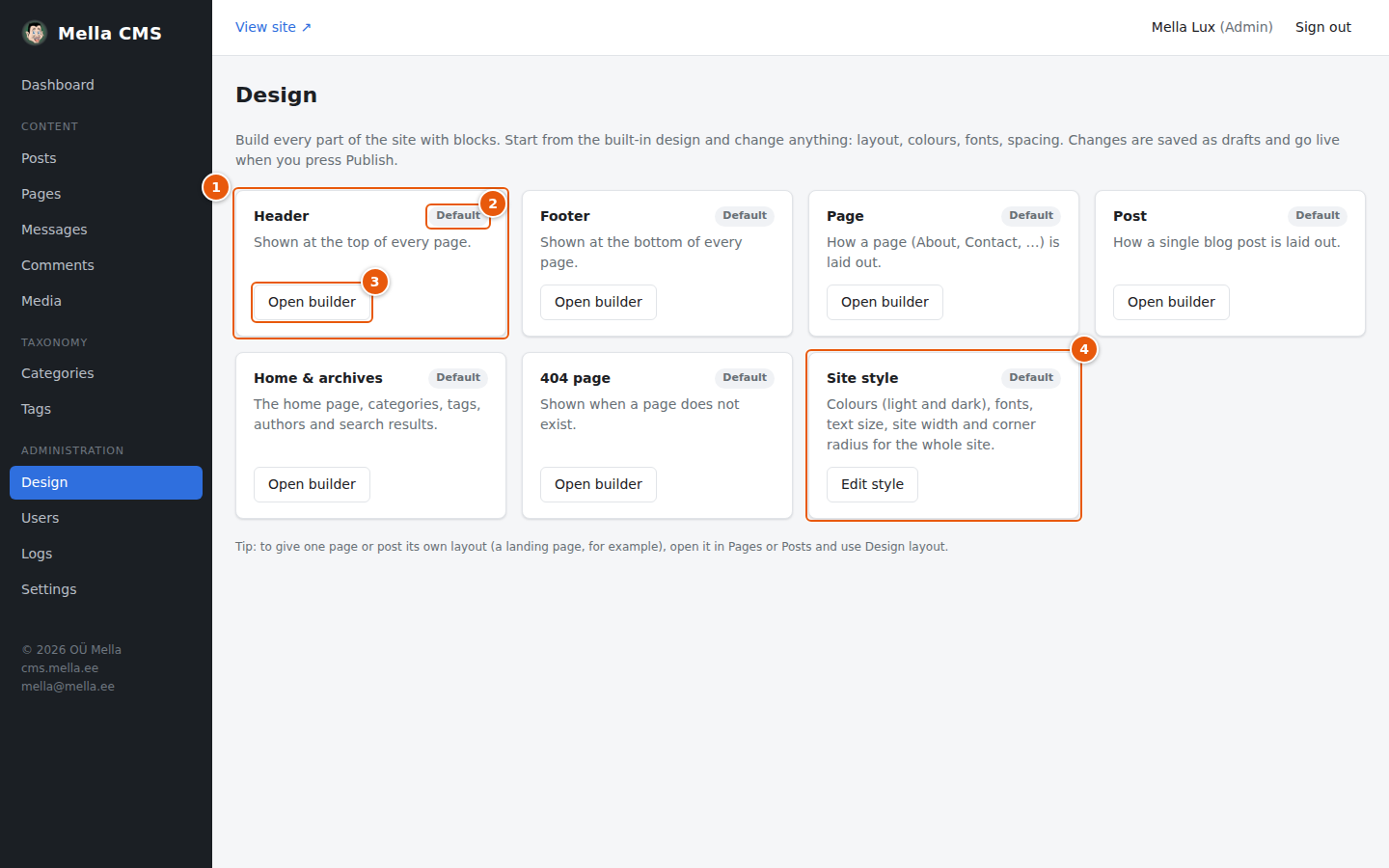
- A card for every part of the site: Header, Footer, Page, Post, Home & archives and 404 page, and a card for Site style.
- A label shows the state of that part:
- Default: the built-in design is used.
- Customized: your own design is live.
- Draft: you have saved changes that are not published yet.
- Same as default language: (only on sites with several languages) the language uses the design of the default language.
- Open builder opens the visual builder for that part.
- Site style has its own editor for colours, fonts and sizes (see below).
A tour of the builder
Press Open builder on Home & archives. The builder fills the whole window:
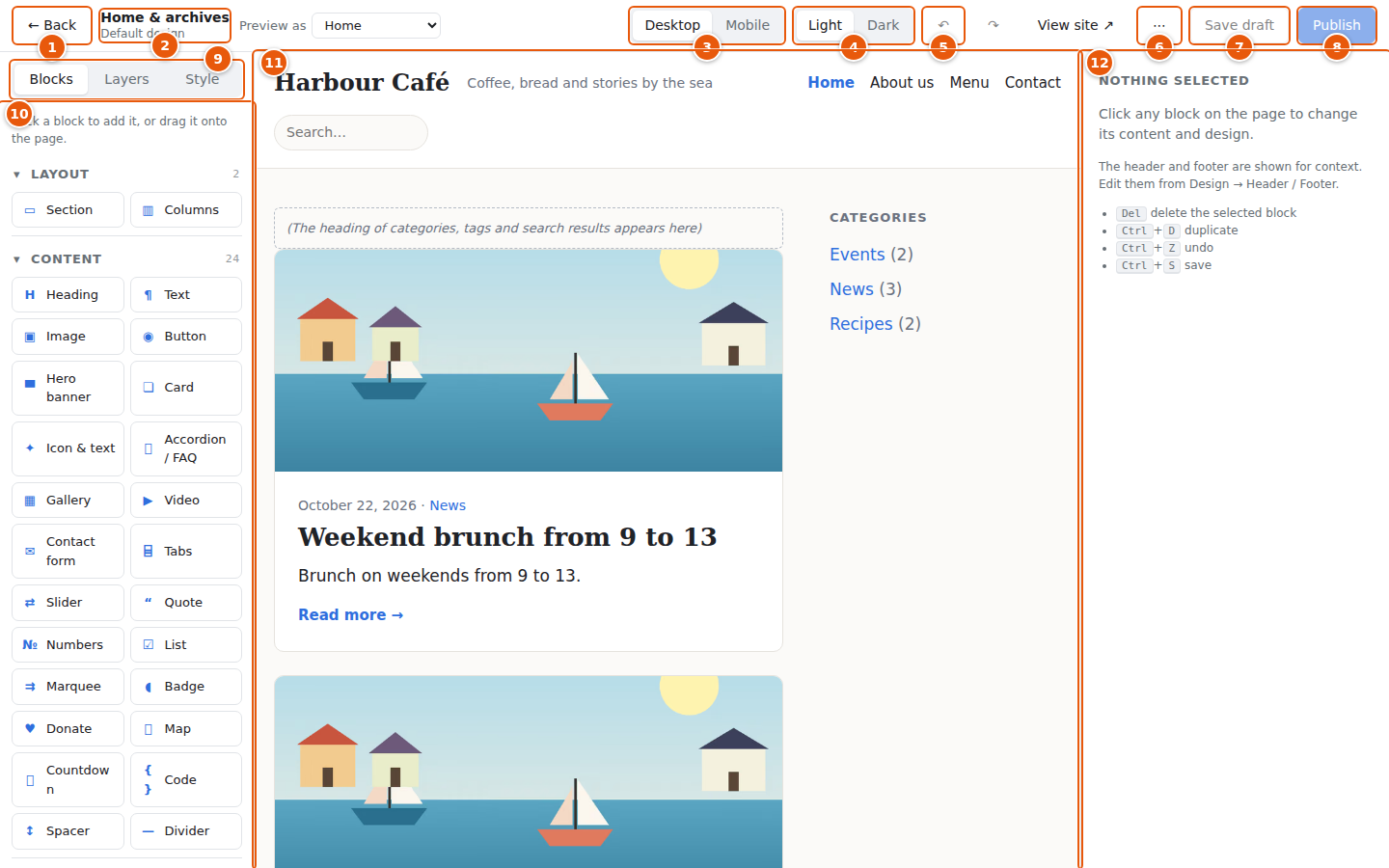
- ← Back returns to the Design page. If you have unsaved changes, the CMS asks first.
- The title and the status of what you are editing. The status says Default design, Unsaved changes, Draft saved · not live yet or Live.
- Desktop / Mobile switches the width of the preview, so you can see how the page looks on a phone.
- Light / Dark: preview the page in light or dark colours (when the site style follows the visitor's device).
- Undo and redo (Ctrl+Z, Ctrl+Shift+Z). Every change can be undone.
- ⋯ More actions: Discard unpublished changes and Reset to the default design.
- Save draft: saves your work without making it live.
- Publish: makes your work live.
- The tabs of the left panel: Blocks, Layers and Style (site style).
- The left panel with the blocks you can add (the palette).
- The canvas: the real site in a live preview. Click anything to select it.
- The right panel shows the settings of the selected block.
Above the canvas you may also see a menu such as Preview as (Home, Category page or Search results) for Home & archives, or Preview with (choose which post or page the preview shows) for Post and Page. These only change what the preview shows; they never change your site.
Selecting and changing a block
Click a block on the canvas. It gets a blue outline and a small toolbar, and its settings appear on the right:
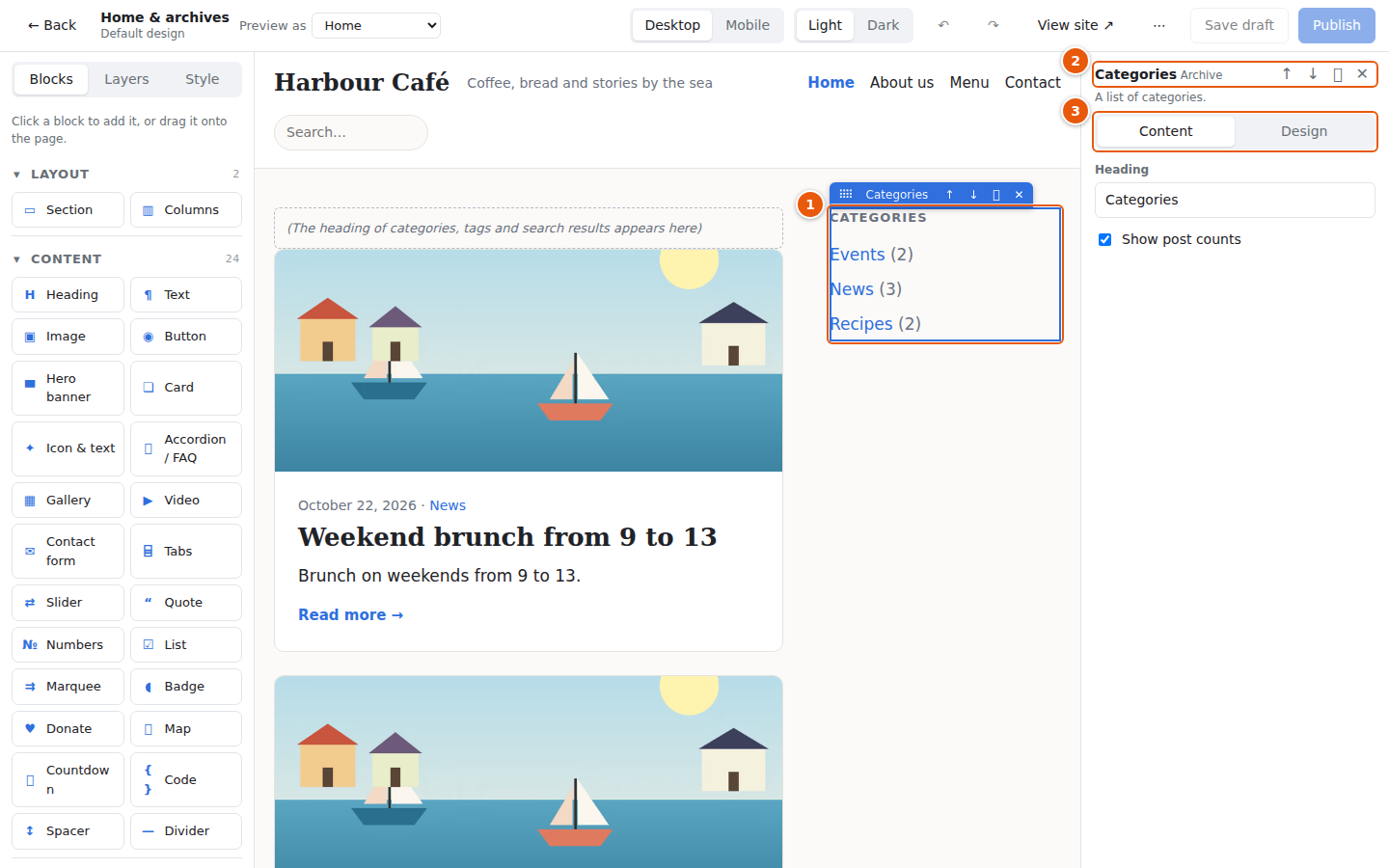
- The selected block. (Press Esc or click an empty part of the page to deselect.)
- The name of the block and its actions: ↑ and ↓ move it, ⧉ duplicates it and ✕ deletes it.
- Content / Design. Content has the block's own settings (text, link, image…). Design is about how it looks (below).
Useful keys while a block is selected: Del deletes it, Ctrl+D duplicates it, Alt+↑ / Alt+↓ move it, Ctrl+Z undoes and Ctrl+S saves.
Adding a block
The left panel lists the blocks in groups (Layout, Content, Site, Post / page, Archive). The groups can be folded with their headings. A list of all blocks is at the end of this chapter.
- Click a block to add it. It is placed after the selected block, inside the same container. If nothing is selected, it is added at the end of the page.
- Or drag it onto the canvas. A blue line shows where it will land. Empty sections and columns are marked Drop blocks here.
- Drag a block by the ⠿ handle on its toolbar to move it, or reorder blocks in the Layers tab (below).
Changing the width of columns
Select a Columns block (or one of its columns) and the canvas shows its twelve-unit grid as faint vertical bands. A blue handle sits on the edge between each pair of neighbouring columns.
- Drag a handle left or right to give one column more room and its neighbour less. The widths snap to the grid, a label shows the new split (for example 8 | 4), and every column keeps at least one unit. Esc cancels the drag.
- You can also type a number in the column's Width (of 12) field in the right panel.
- No handles are shown when the columns use Custom column sizes or when they are stacked, because the grid does not apply then.
Example: a hero banner at the top of the home page
- Open the builder for Home & archives, make sure nothing is selected, and click Hero banner in the palette. A banner is added at the end of the page.
- Press ↑ in the right panel until it is at the top.
- Fill in the settings:
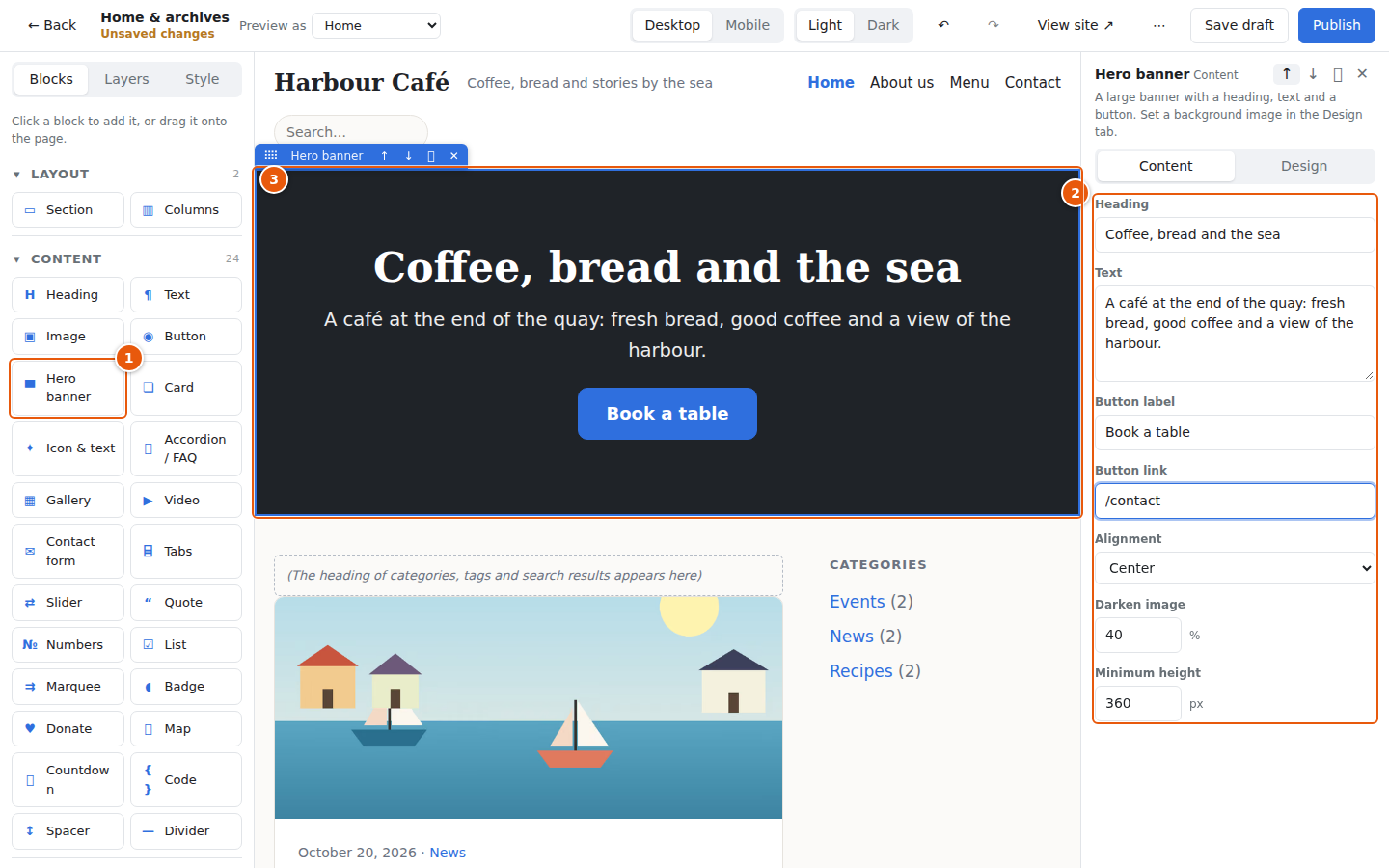
- The block you clicked in the palette.
- Its settings: Heading, Text, Button label, Button link, alignment, how much to darken the background picture, and the minimum height.
- The banner on the canvas, updated as you type.
The Design tab
Select a block and open the Design tab for the look of the block.
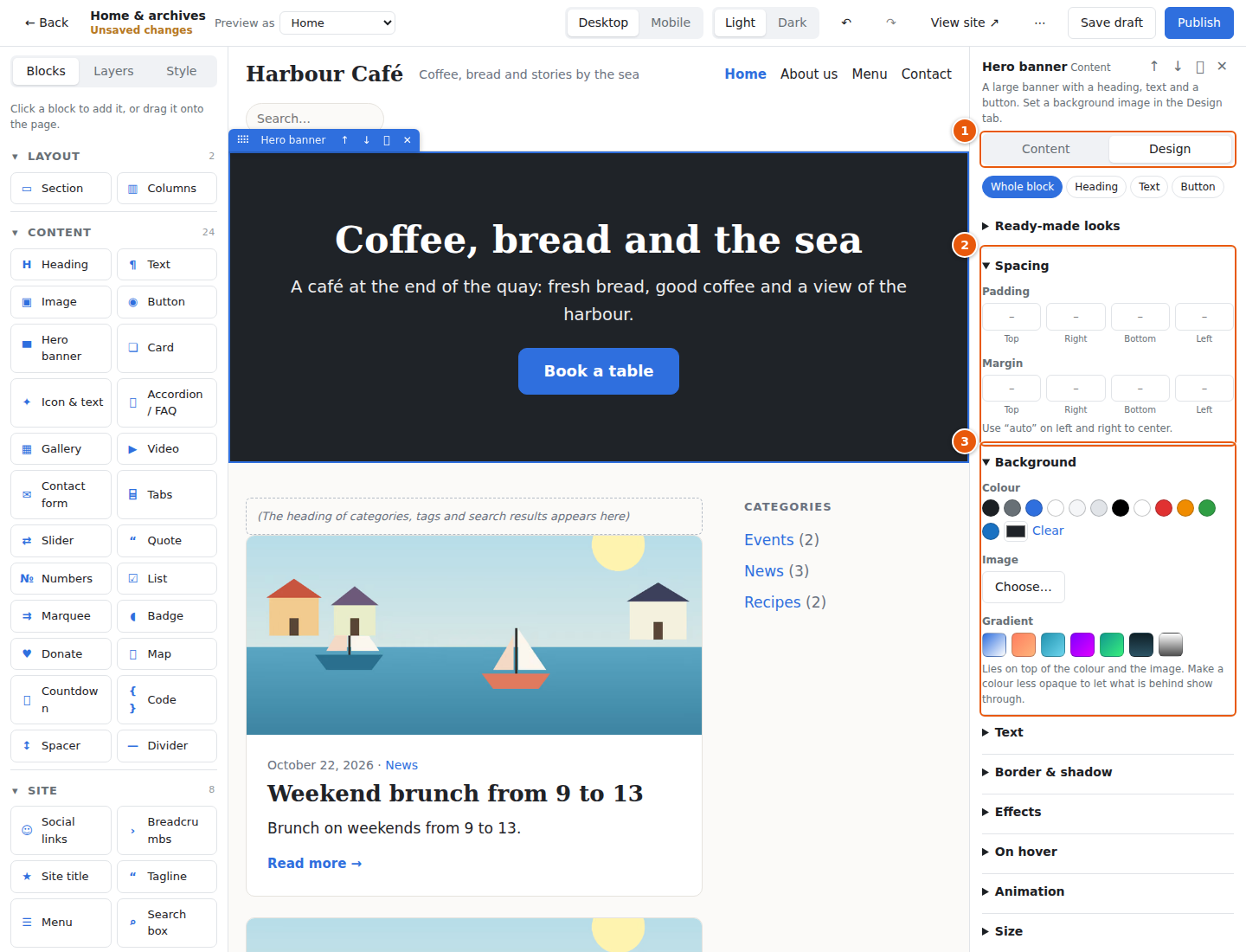
- Content / Design tabs. Under them, the buttons Whole block, Heading, Text, Button choose what to style. A block such as the hero banner has parts, and you can style each one on its own.
- Spacing: padding is the space inside the block, margin the space outside it. Type a number in pixels; type
autoon left and right to centre a narrow block. - Background: choose a colour, a picture or a gradient.
The other groups below are folded; click a heading to open one:
- Text: colour, size, font, weight, alignment, line height.
- Border & shadow: border colour and thickness, rounded corners, shadow.
- Effects, On hover and Animation: see Gradients, effects and animation.
- Size: width, minimum height, and so on.
- Visibility & advanced: hide the block on desktop or on mobile, and a Custom CSS box for people who know CSS. Only safe properties are accepted; the box lists the ones that were ignored.
Choose a picture as a background with Choose…:
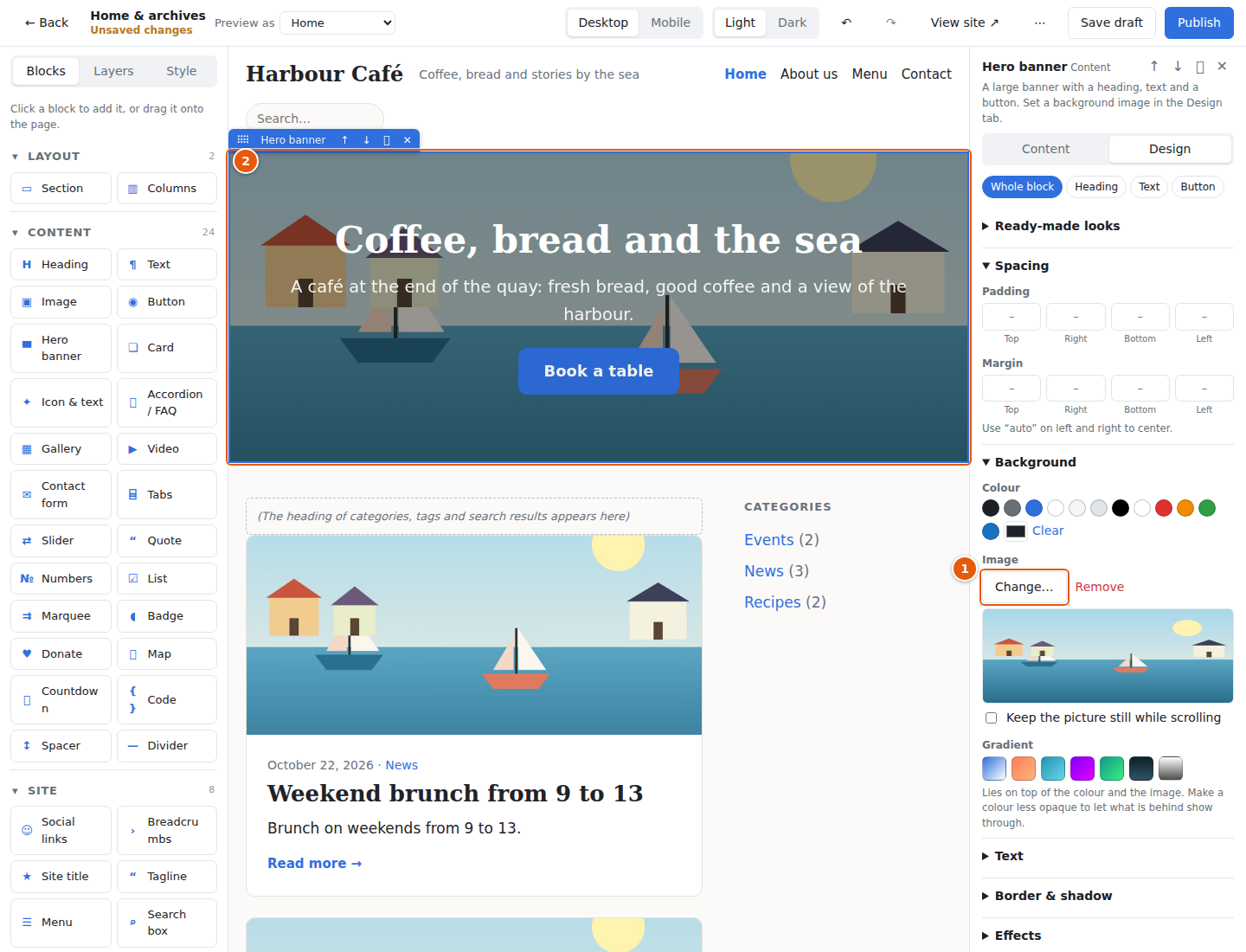
- Change… replaces the picture; Remove takes it away. The picture opens from the media library.
- The banner now has a picture. The hero's Darken image setting (in Content) keeps the text readable.
Gradients, effects and animation
These are all in the Design tab and apply to the whole block, text and pictures included (a few can also be set for one part of a block, see Hover on a part). They are drawn from a fixed set of safe choices, so you cannot break the page with them.
Ready-made looks
The first group in the Design tab, Ready-made looks, applies several settings at once. Click one to start from it, then change whatever you like below.
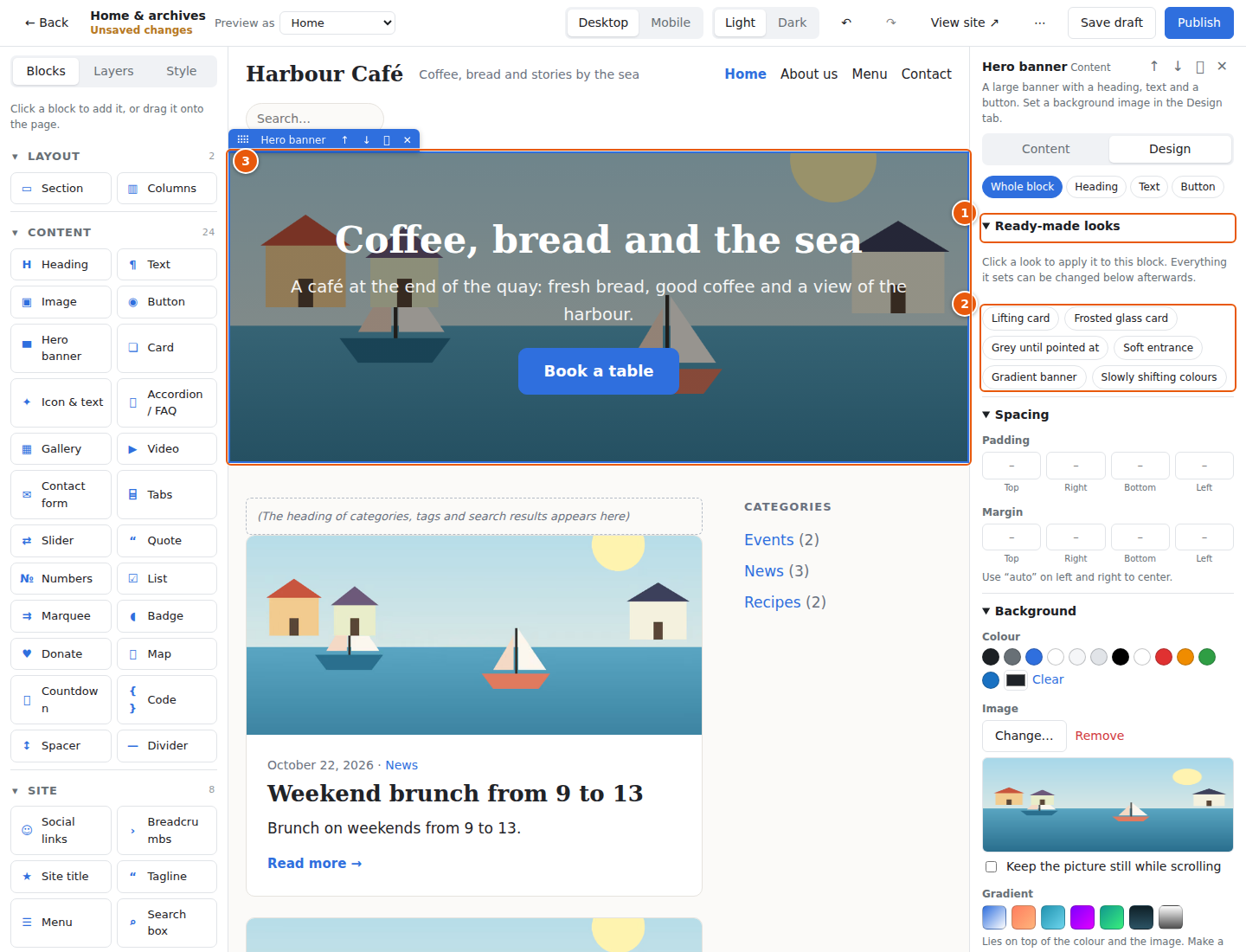
- Ready-made looks. Click the heading to open the list.
- The looks: Lifting card, Frosted glass card, Grows when pointed at, Grey until pointed at, Soft entrance, Blocks one after another, Gradient banner, Slowly shifting colours, Floating and Draws the eye. Point at one to read what it does. Only the looks that suit the block are listed: Blocks one after another, for instance, appears on blocks that hold other blocks. A look adds to what the block already has and only replaces what it sets itself. Take off all gradients, effects and animations (shown once the block has any) removes them again and leaves spacing, colours, text and picture alone.
- The block you are changing.
Gradient
In the Background group, the Gradient row lays a colour fade over the block. Click one of the ready-made gradients to start from it, then change it as you like. A gradient lies on top of the background colour and on top of a background picture.
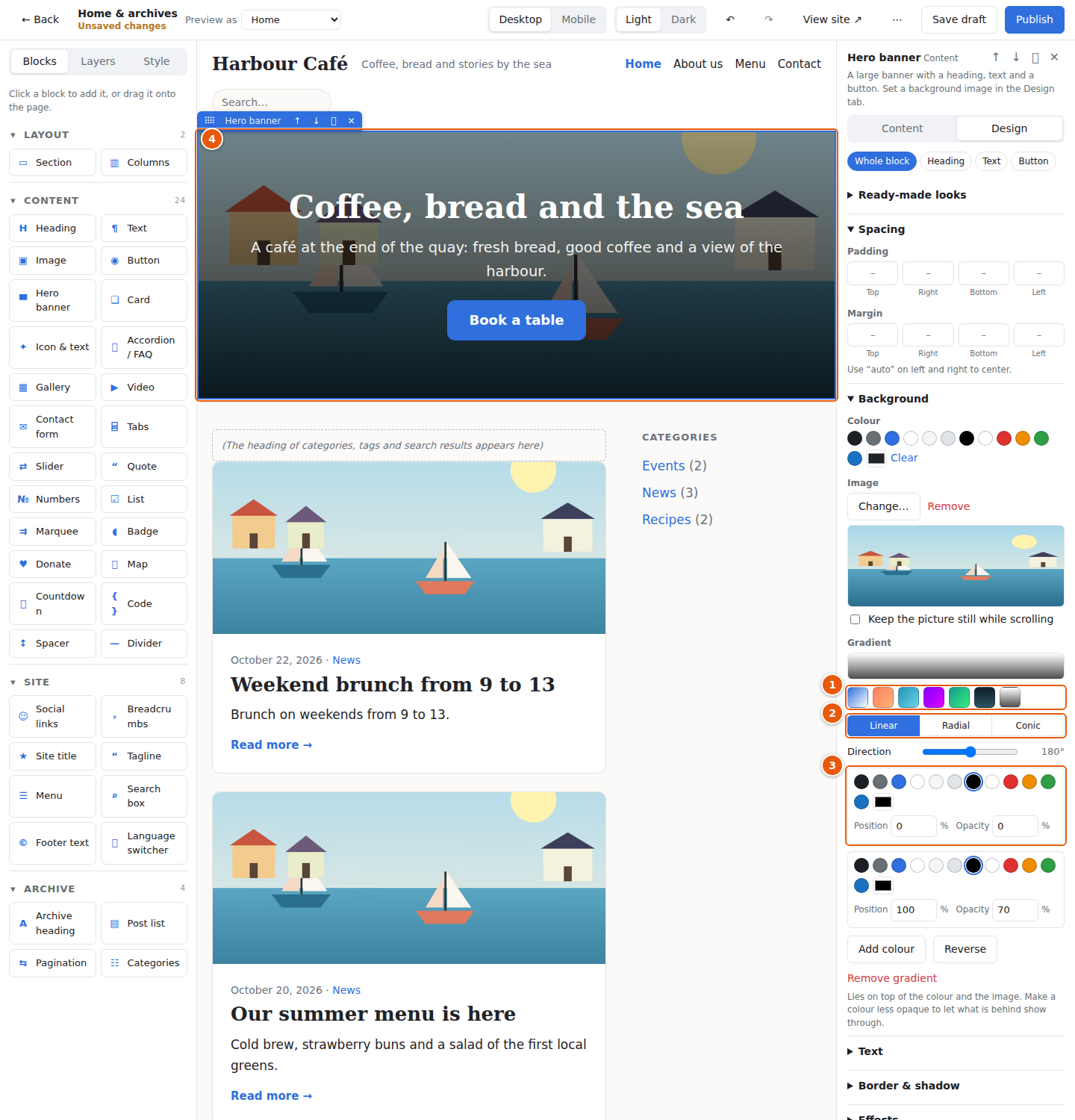
- Ready-made gradients. Shade for text fades a picture into dark at the bottom, which keeps text on a photo readable.
- Linear, Radial or Conic. A linear gradient also has a Direction (an angle in degrees); a conic one has a Start angle.
- The colours, from two to five. For each: its colour (the site's own colours follow your site style, including dark mode), its Position along the gradient in percent, and its Opacity. A colour with less opacity lets what is behind it show through, which is how a picture fades out. Add colour adds another, Reverse turns the gradient around and Remove gradient takes it away.
- The result on the banner. Here a transparent-to-dark gradient sits on the picture.
Two more things belong here:
- Gradient text is a row in the Text group. It colours the letters with a gradient instead of one colour. On a part (a banner's heading, a card's title) the gradient runs over the words; on a whole block it runs over the width of the block, so move the last colour's Position to the left for short text.
- Keep the picture still while scrolling appears under Image when the block has a background picture: the picture stays put while the page slides over it. It works on large screens only, and not for visitors who prefer less motion.
Effects
The Effects group changes how the block looks, always:
- Blur, Brightness, Contrast, Colour strength and Grayscale are sliders. A slider at its middle value (100%, or 0 for blur and grayscale) does nothing.
- Frosted glass (Blur behind) blurs what is behind the block, like frosted glass. It shows only when the block's own background is see-through: give the block a colour or a gradient with less opacity.
- Blend with what is behind mixes the block's colours with the ones below it (Multiply, Screen, Overlay and others).
- Reset effects removes them all.
On hover
The On hover group is what the block does while a visitor points at it.
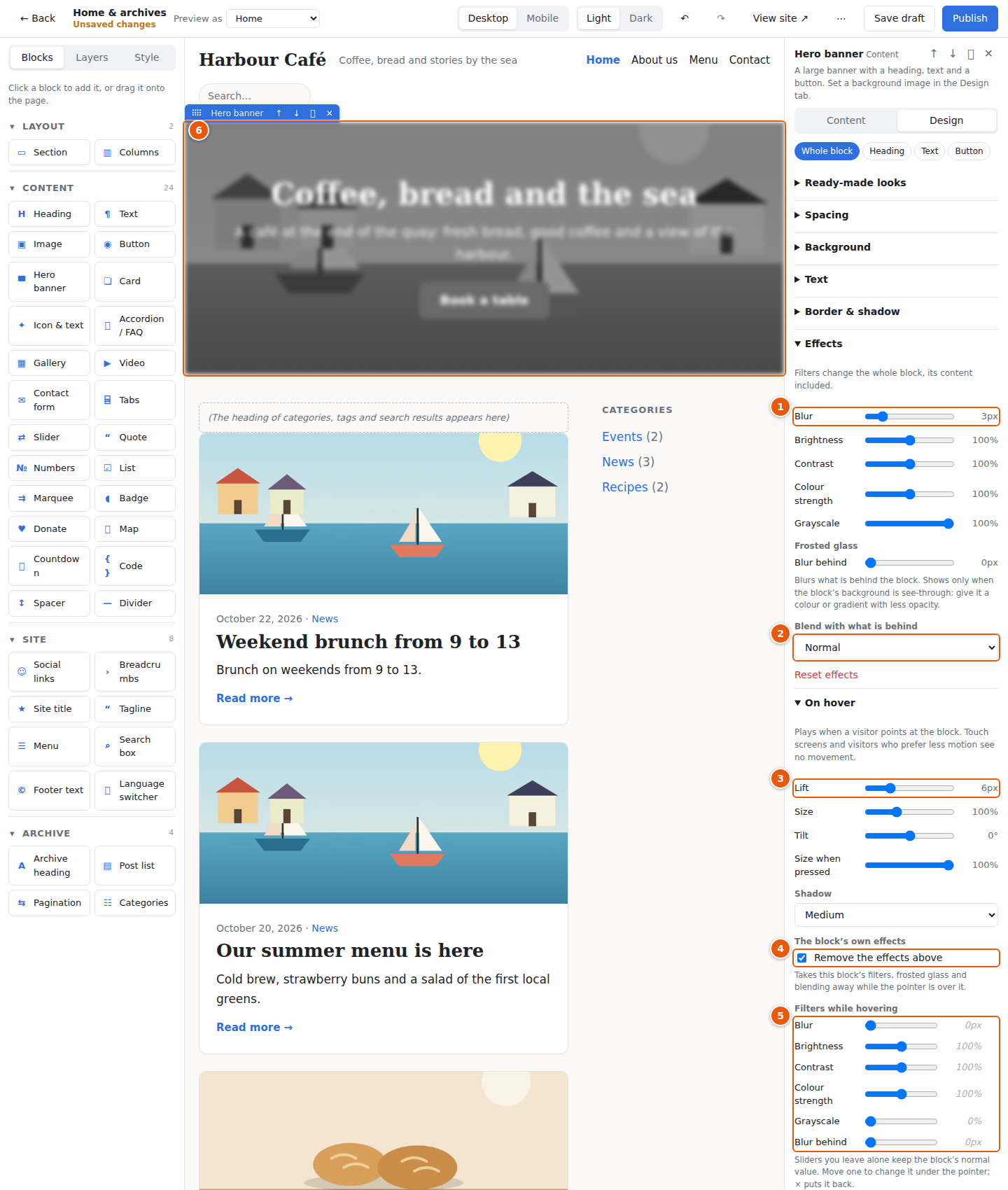
- A filter slider in Effects. Here the banner is blurred and grey.
- Blend with what is behind.
- Lift, Size, Tilt and Shadow move and change the block under the pointer. Size when pressed makes it a little smaller while it is pressed (a click or a tap, so it also works on touch screens). Speed sets how long a change takes.
- Remove the effects above takes the block's filters, frosted glass and blending away under the pointer. A grey picture becomes colourful when it is pointed at. (It is greyed out while the block has no effects.)
- Filters while hovering change a single filter under the pointer, for example blur from 8 px down to 2 px instead of removing it. A dimmed slider means "the same as without hover"; move it to set a value, and click × to put it back.
- The banner on the canvas. Point at it in the builder to try the hover effect.
Touch screens have no pointer, so they never show a hover effect (pressing still works). Visitors who ask their device for less motion see no lift, size or tilt.
Hover on a part
A block with parts (see The Design tab: the buttons under Content / Design) can give each part its own hover effect. Choose the part, for example a card's Image, and open On hover.
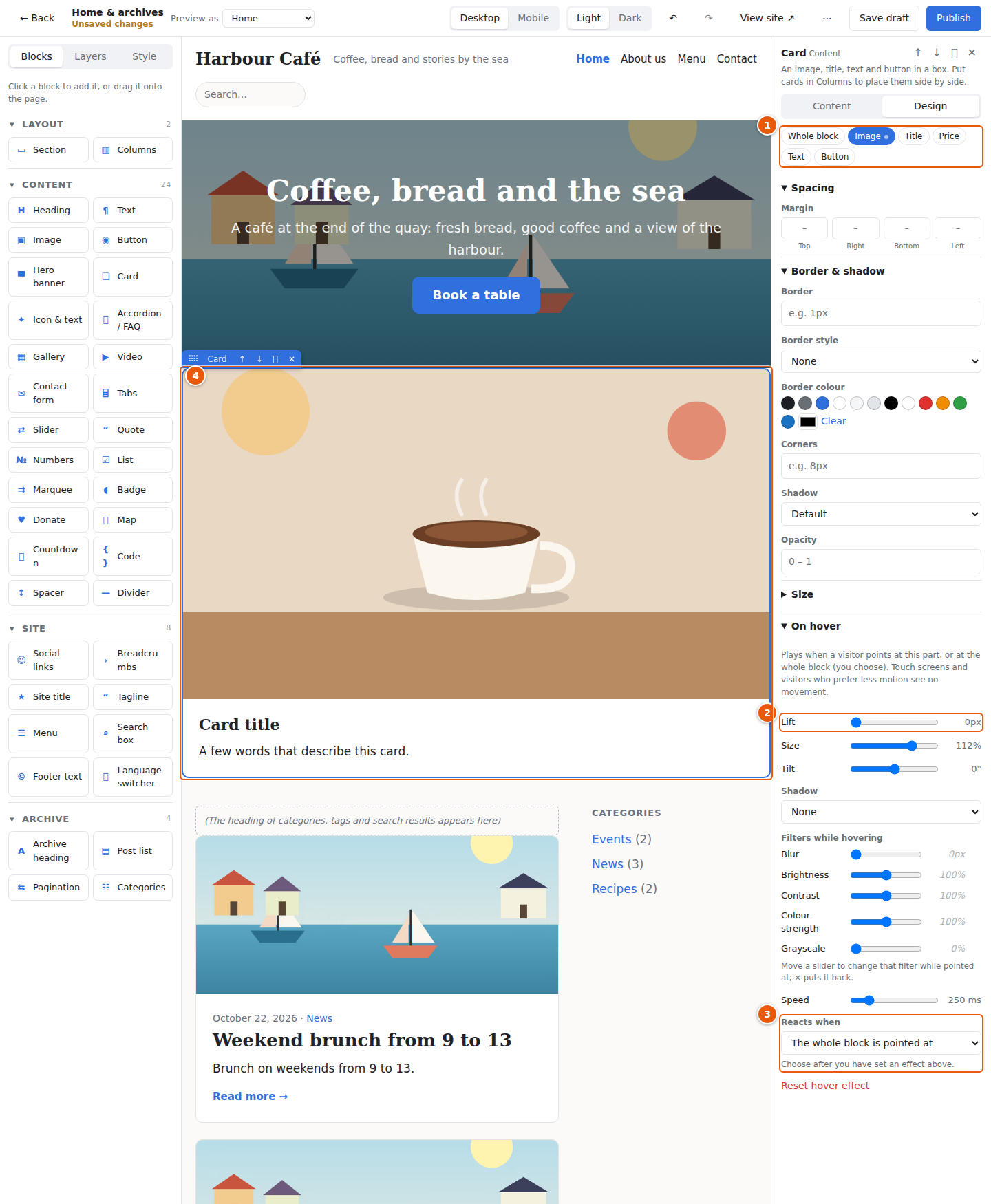
- The parts of the block. Whole block is the block itself.
- The same Lift, Size, Tilt, Shadow and Filters while hovering as for a block.
- Reacts when says what sets it off: The whole block is pointed at (the card's picture zooms as the card does, the default for pictures) or This part is pointed at (a button lifts on its own, the default for the rest). Set an effect first, then choose.
- The card on the canvas. A picture that zooms stays inside its frame.
Animation
The Animation group has parts that can be used together.
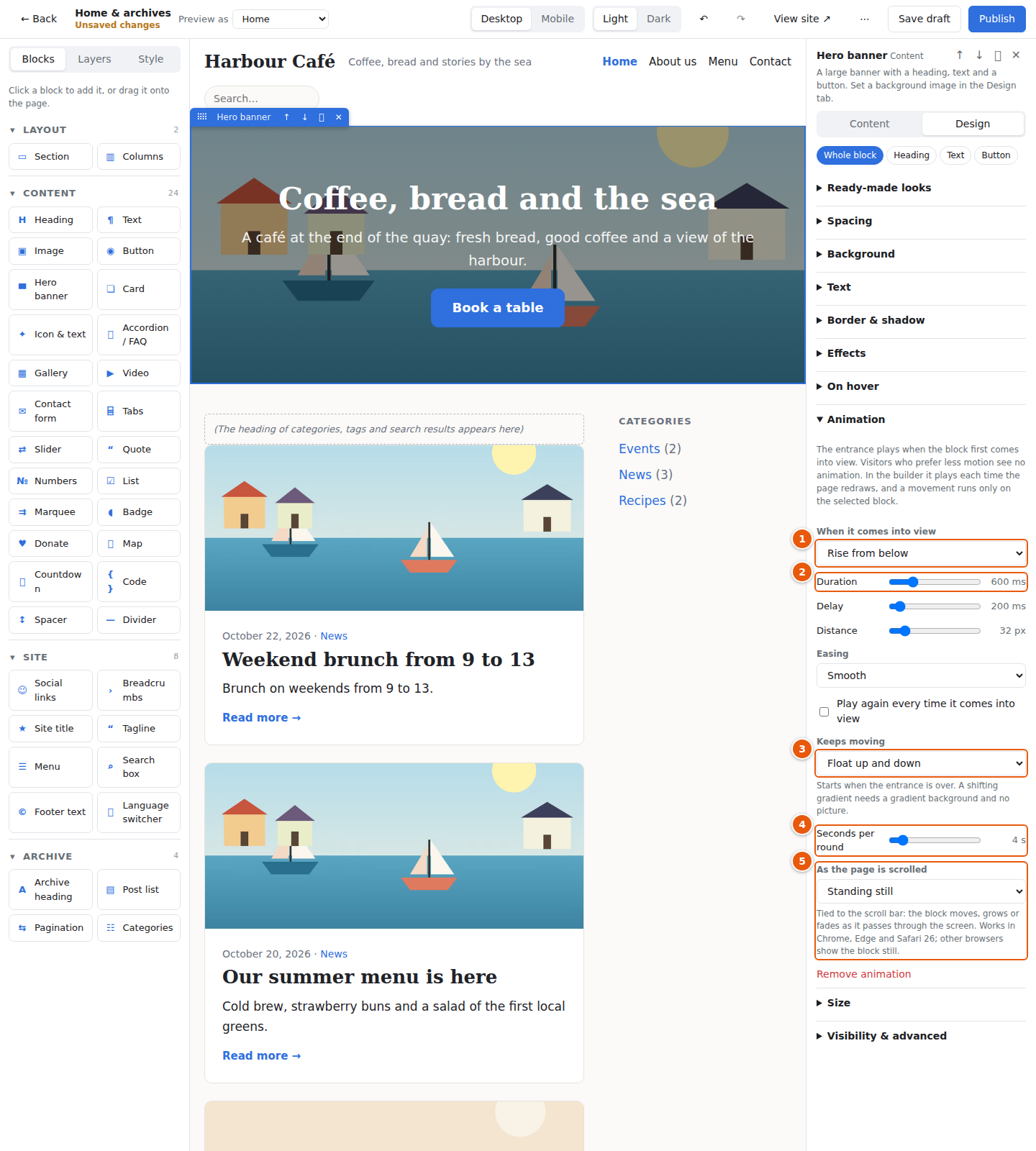
- When it comes into view plays when the block first scrolls into sight: Fade in, Rise from below, Drop from above, Slide in from the left or the right, Zoom in, Sharpen from blurred, Flip up, Turn in, Bounce in, Wipe from the left or Wipe upward.
- Duration and Delay; for the sliding ones also Distance. Easing is Smooth, Overshoot a little, Gentle or Even. Tick Play again every time it comes into view to repeat it each time the block returns to the screen. Give neighbouring blocks slightly different delays and they appear one after another.
- Keeps moving goes on for as long as the page is open: Float up and down, Pulse, Swing, Spin, Heartbeat, Shake now and then or Shifting gradient (this one needs a gradient in Background and no background picture). It starts when the entrance is over.
- Seconds per round is how long one turn, swing or float takes.
- As the page is scrolled ties a movement to the scroll bar: Drift slower than the page, Grow as it comes in or Fade in and out. It works in Chrome, Edge and Safari 26; other browsers show the block still.
A block that holds other blocks (a Section, Columns or a Column) also has Blocks inside, one after another: each block inside comes in with the entrance you choose, a little after the one before (Time between blocks). A block inside that has an entrance of its own keeps it. This is the quickest way to make a row of cards appear one by one.
Remove animation takes them all away.
In the builder the entrance plays again whenever the page redraws, for example when you change a setting, so you can see it straight away. A movement runs only on the block you have selected, so that the others do not distract you.
Visitors who ask their device for less motion see no animation at all. A block with an entrance animation stays invisible until the page's script shows it; if that script cannot run, such blocks appear by themselves after a couple of seconds.
Layers
The Layers tab shows the structure of the page as a tree of blocks inside blocks. Click an entry to select that block, and drag entries to reorder or move them. This is the easiest way to select a block that is hard to click, or to move something into a different section.
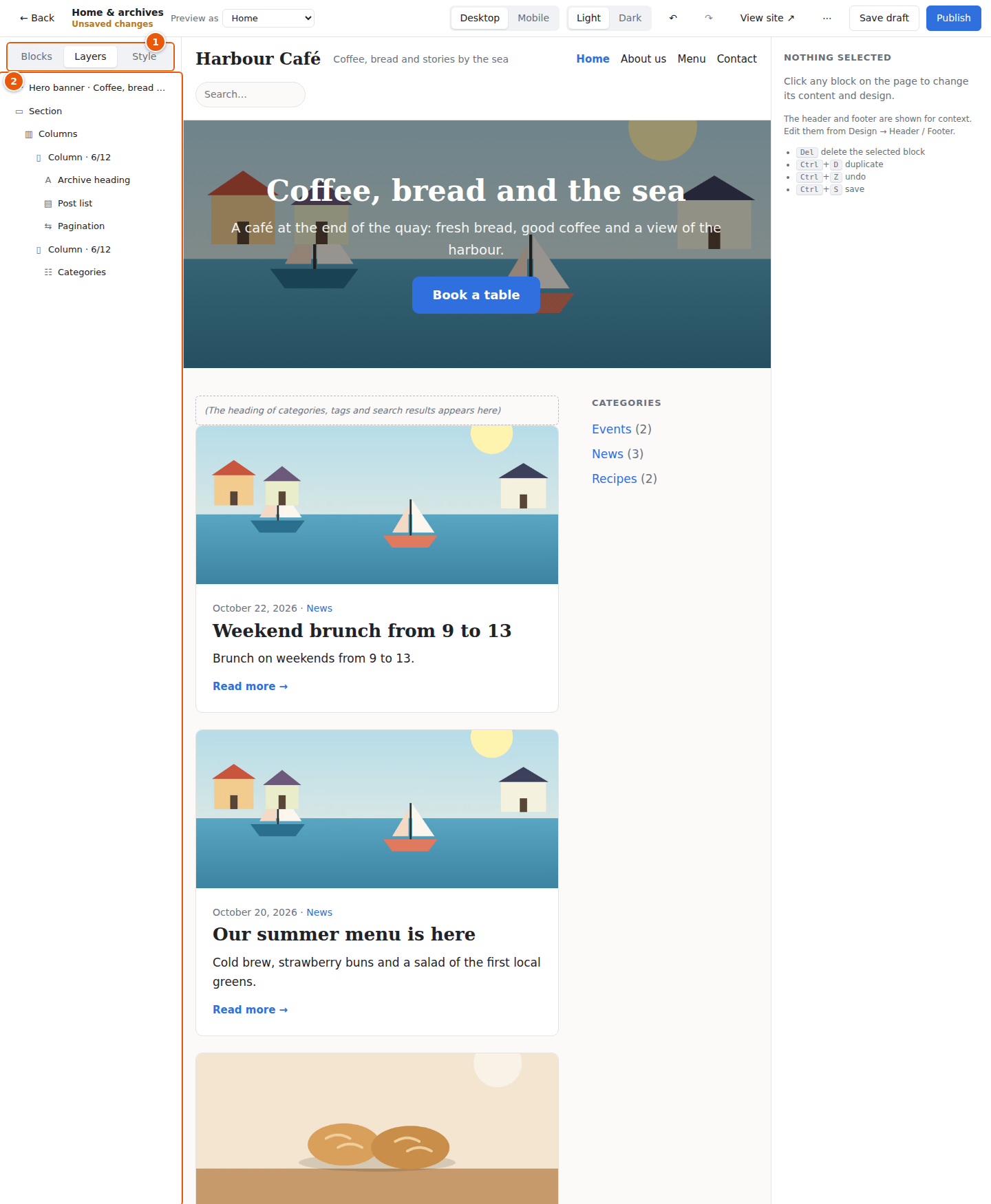
- Switch between Blocks, Layers and Style.
- The tree. The selected block is highlighted.
Mobile and dark mode
Press Mobile to see the page at the width of a phone.
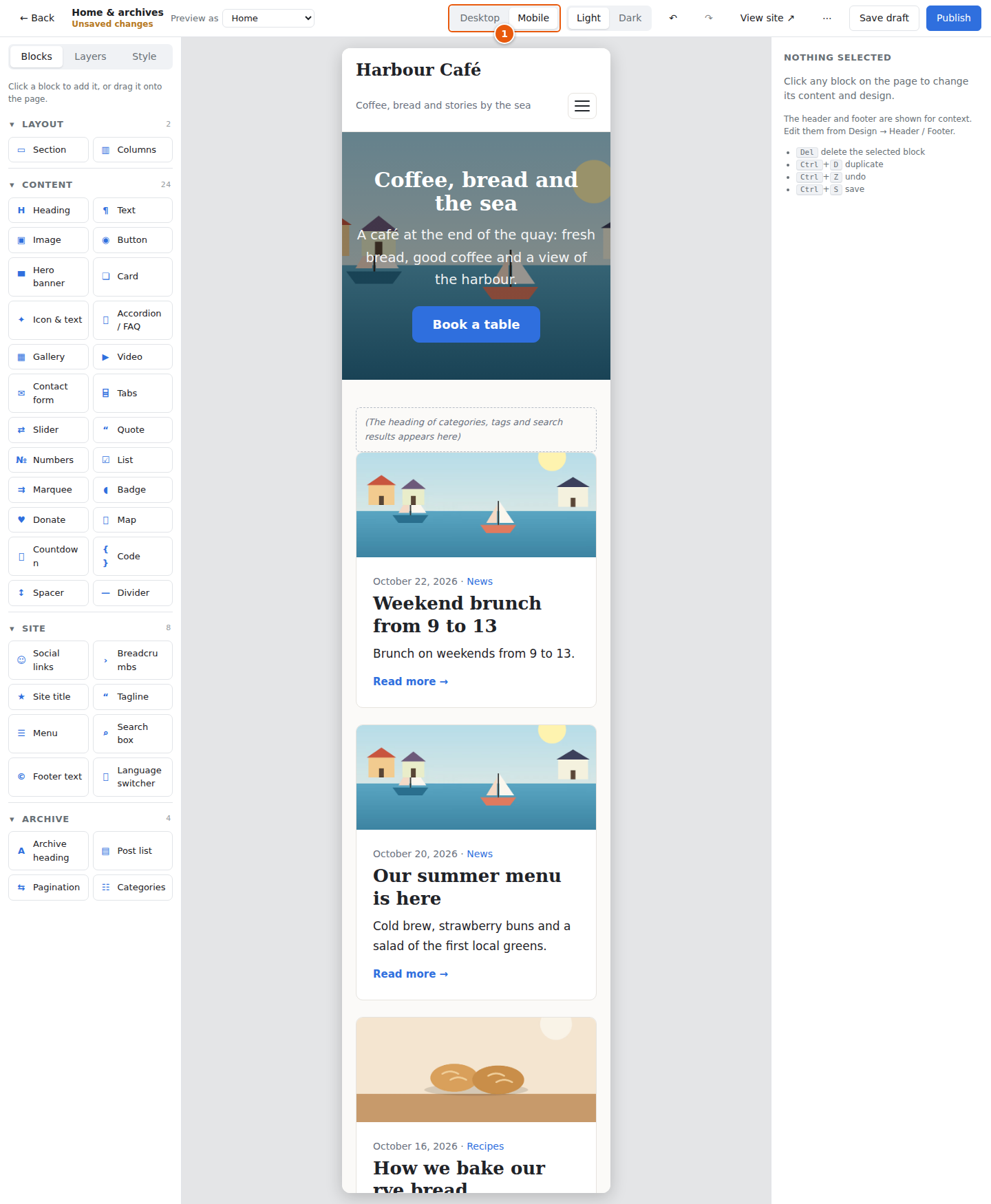
- Switch between Desktop and Mobile.
While Mobile is selected, the Design tab says Editing mobile overrides (screens up to 800px). Empty fields use the desktop value. So you can, for example, use smaller padding or hide a block on phones without touching the desktop design. Columns stack on top of each other on small screens by themselves.
When the Light / Dark buttons are shown, they preview the site in the visitors' light or dark colours:
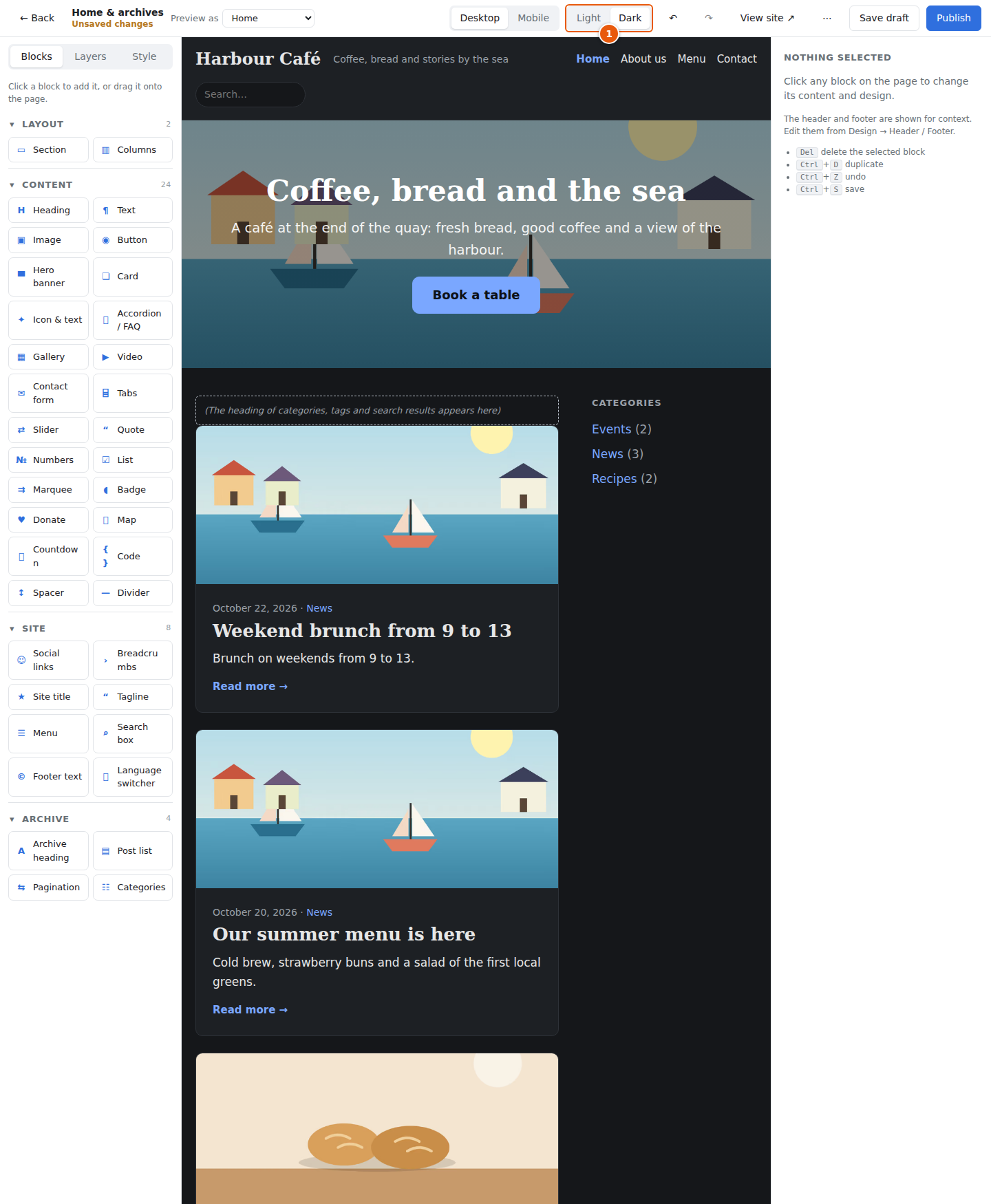
- Switch between Light and Dark. This is only a preview and is not saved.
Saving, publishing and going back
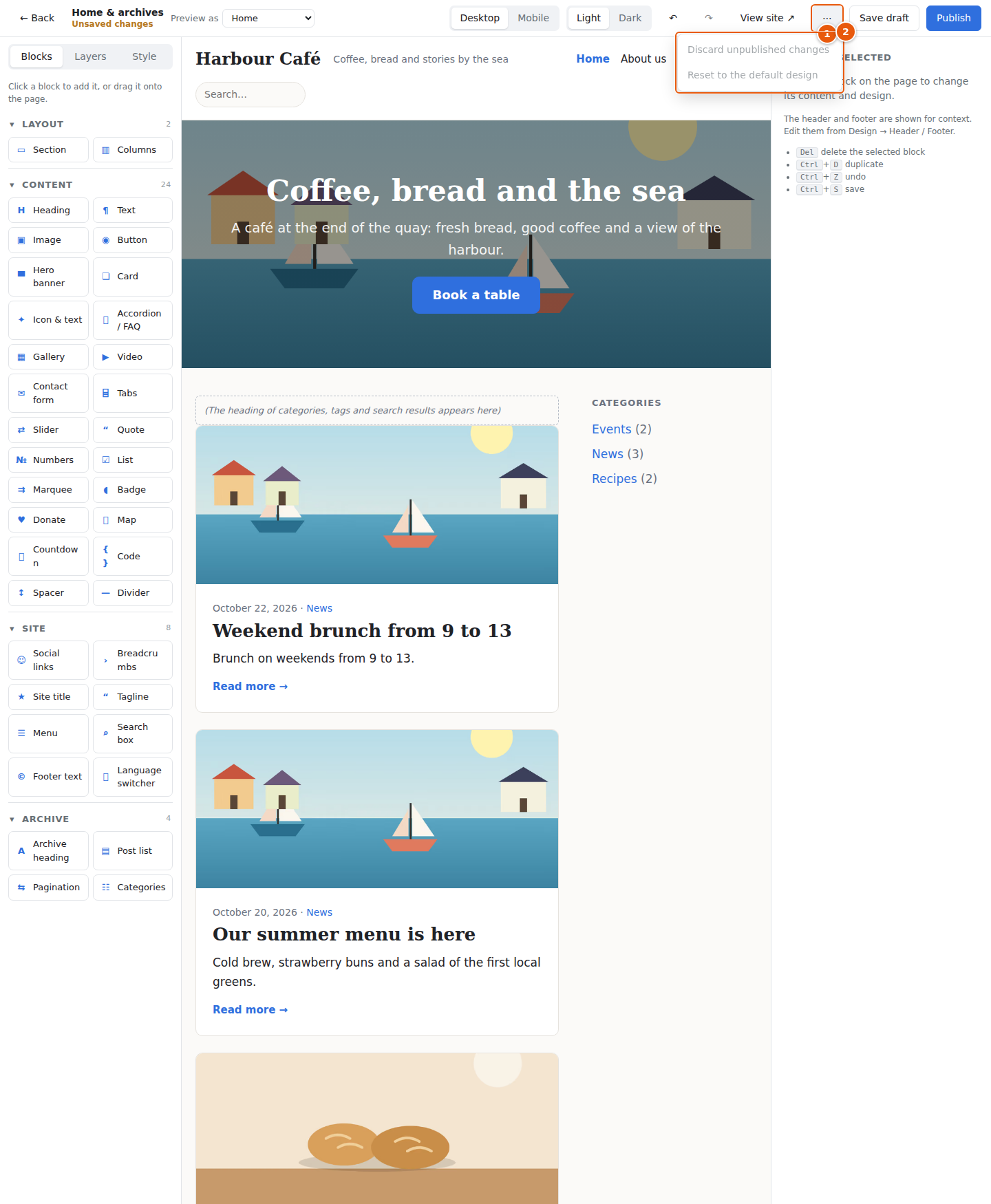
- ⋯
- Discard unpublished changes throws away your draft and returns to the live design. Reset to the default design removes your customisation of this part and goes back to the built-in design.
Press Save draft (or Ctrl+S). The status changes to Draft saved · not live yet:
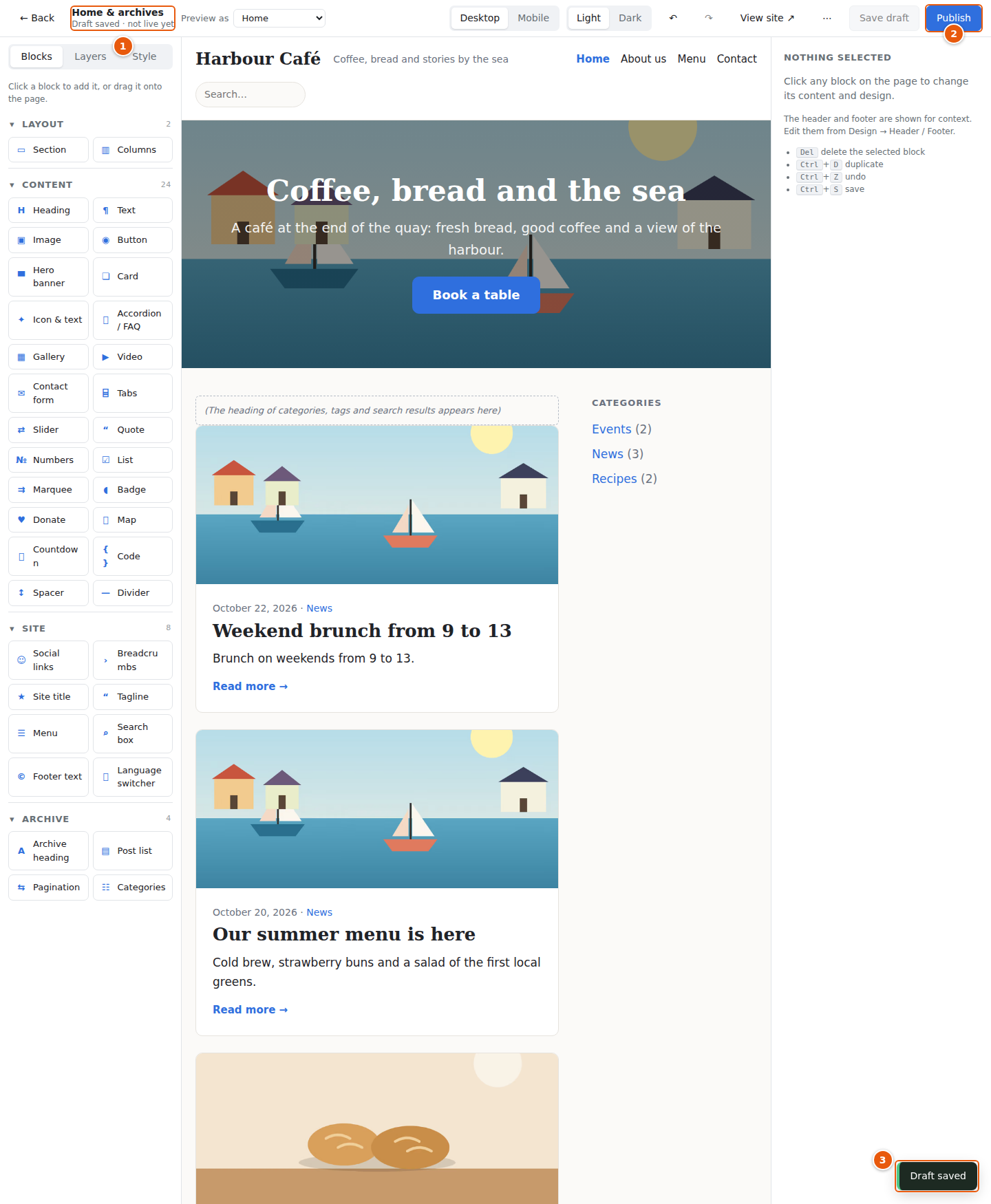
- The status under the title.
- Publish is now available.
- A message at the bottom confirms the save.
When you press Publish, the CMS asks you to confirm and the design goes live:
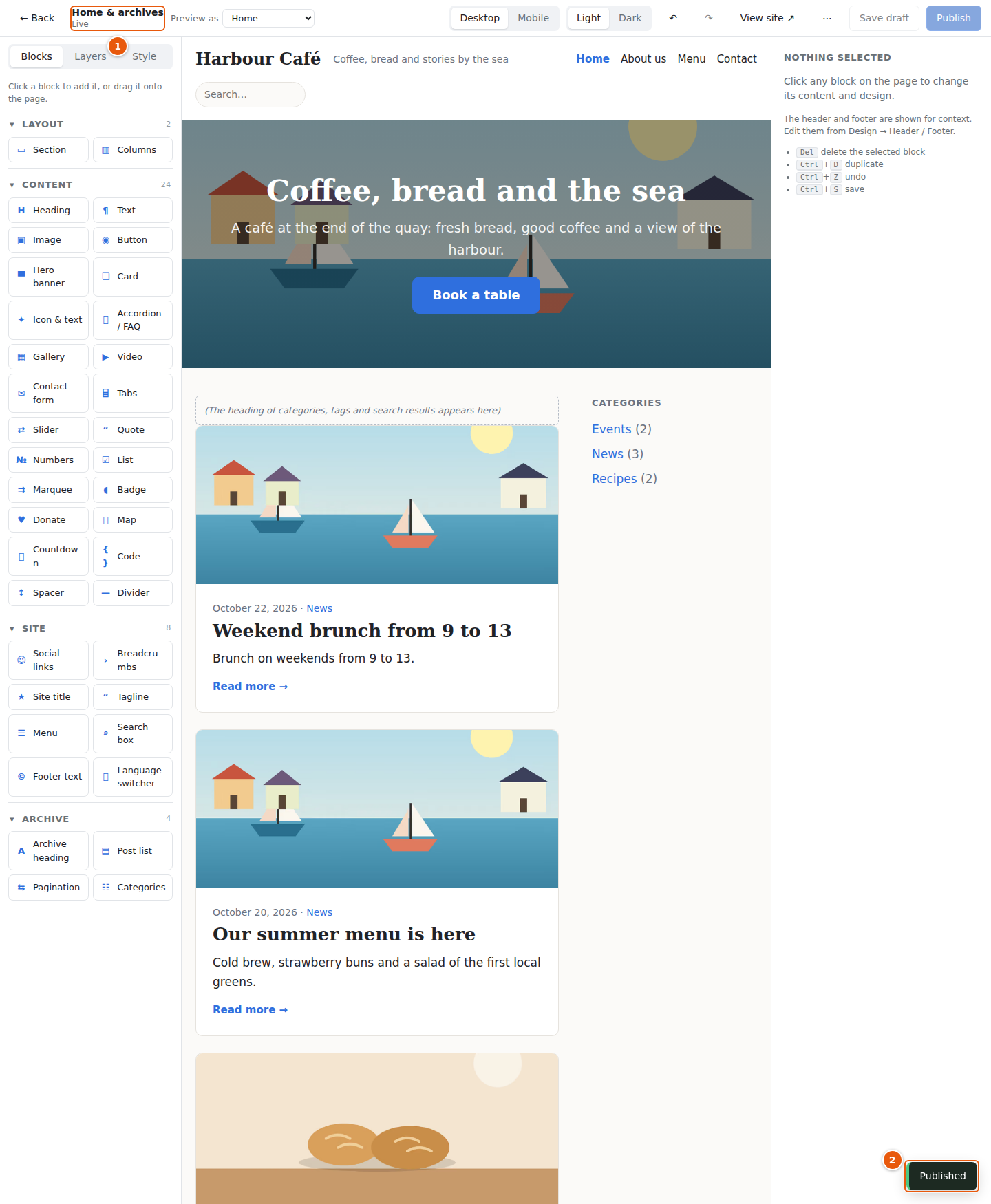
- The status is Live.
- A message confirms the publication.
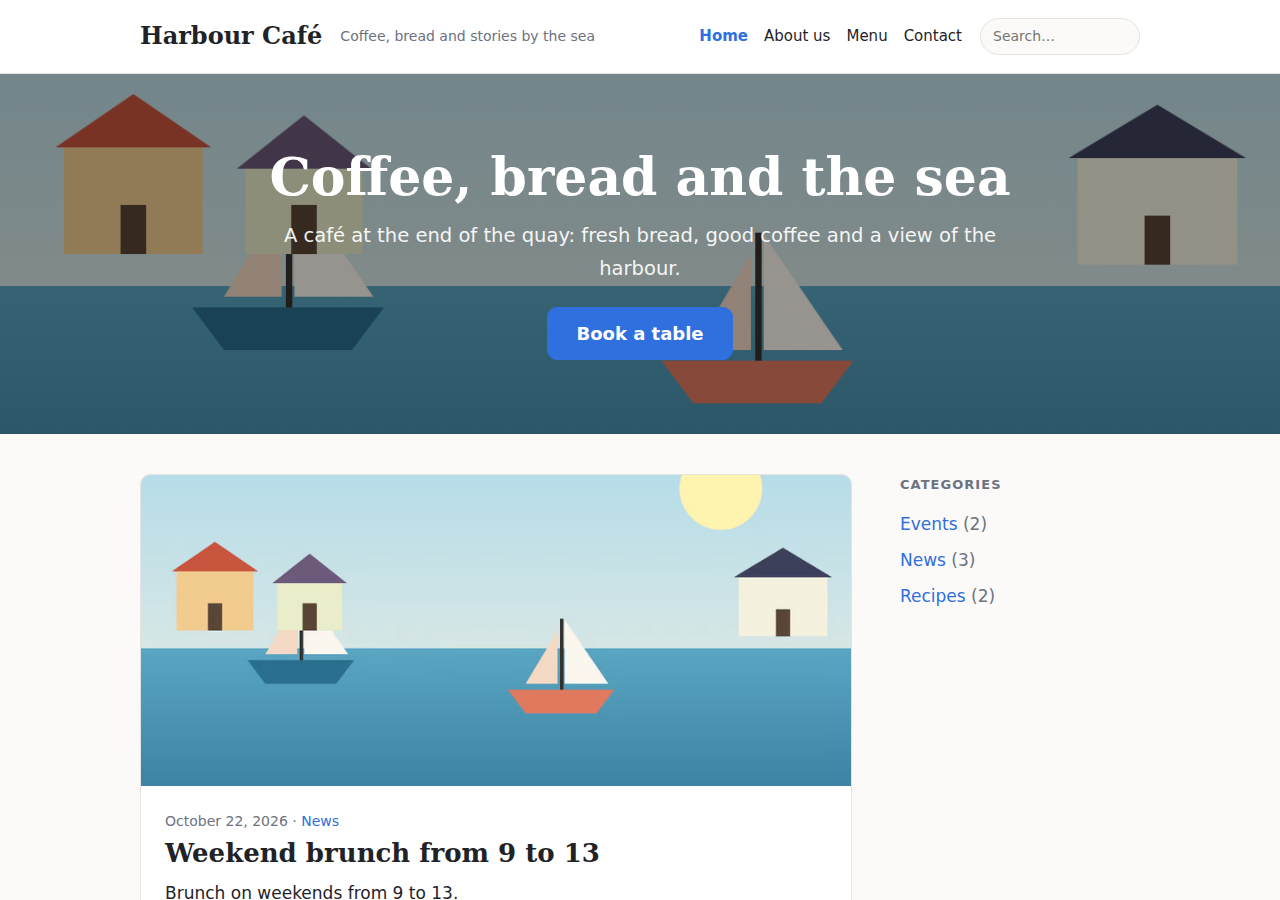
Visitors now see the new banner:
A draft is kept even if you close the builder; come back later and continue (changes you have not saved with Save draft are lost). Each part (header, footer, pages…) has its own draft. Publish makes the part you are working on live, together with the site style if you have changed it. Drafts of other parts stay drafts until you publish them from their own builder.
The header and the menu
The Header template holds the site title, the tagline, the menu and the search box. Open Header → Open builder and click the menu:
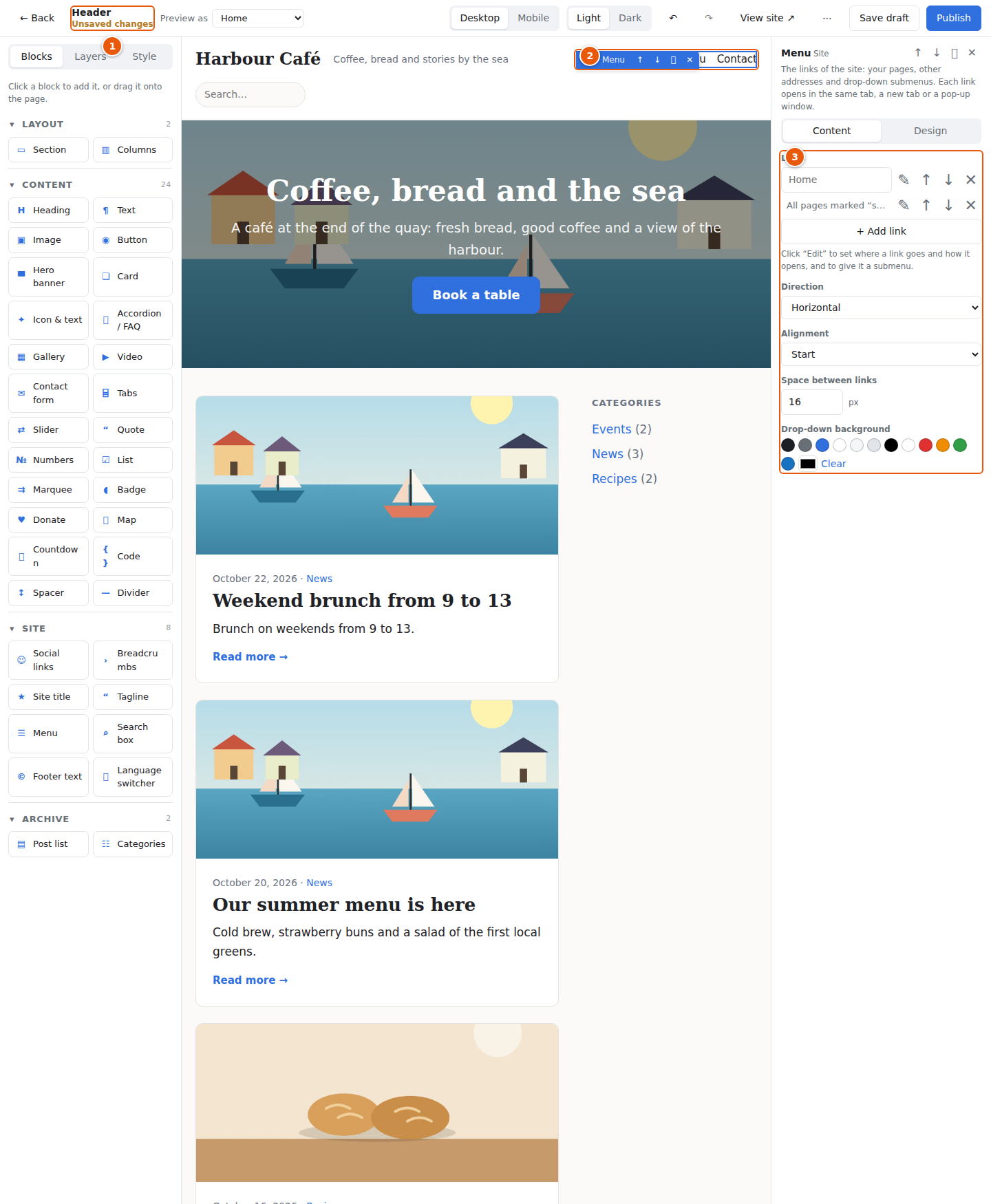
- The title of what you are editing.
- The menu block on the canvas.
- Its settings. The menu is a list of links.
Each link in the list has its own settings. Click ✎ next to it (↑ and ↓ change the order, ✕ removes it):
- Links to: A page or address (type an address, choose a page of the site from the list, or pick a file such as a PDF), Home, Blog, Shop, or All pages marked "show in site menu". The last one is there from the start and adds every page that has Show in site menu ticked in the page editor, in the order set there.
- Text: the name of the link. Leave it empty on Home, Blog and Shop to use the usual name in the language of the page.
- Opens: Automatic opens other sites in a new tab and your own pages in the same tab. You can also choose Same tab, New tab or Pop-up window over the page. The pop-up shows the link in a panel on top of the page, with a button to open it in a new tab. Some sites do not allow themselves to be shown inside another page; their panel stays empty, so use New tab for them.
mailto:andtel:links never open a new tab. - Submenu: links added inside a link form a drop-down. It opens when the pointer is over the link or when the arrow next to it is tapped; on small screens the links of the submenu are shown under it. A link with no address only opens its submenu. A submenu has one level.
A menu made before menus were lists shows its old switches (Include "Home", Include "Blog", Include "Shop") and Extra links. Edit the links as a list turns them into the list above; the links stay the same.
The Design tab of the menu changes the look of the links, the current page and the drop-down.
Site style: colours, fonts and sizes
The Site style applies to the whole site and is shared by all templates. Open it from the Design page (Site style → Edit style) or from the Style tab in any builder.
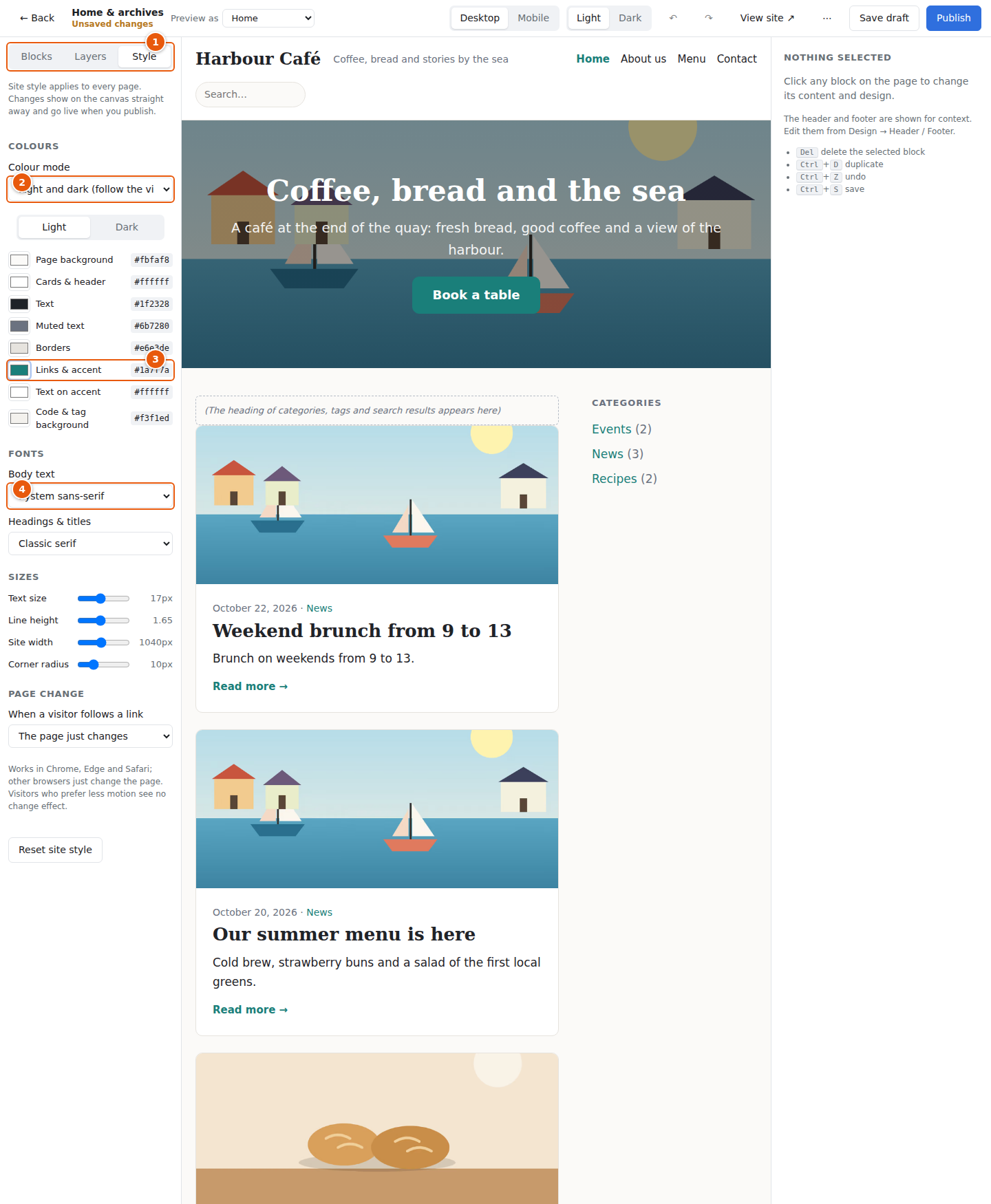
- The Style tab.
- Colour mode: Light and dark (follow the visitor's device), Always light or Always dark. When both are used, switch between Light and Dark to edit each palette.
- The colours: page background, cards and header, text, muted text, borders, links and accent, text on accent, and code background. Click a swatch to pick a colour or type a hex code such as
#1a7f7a. The canvas changes straight away. - Fonts: one for body text and one for headings and titles. Below them are sizes: text size, line height, site width and corner radius. Reset site style returns all of them to the defaults.
Lower down in the Style tab is Page change: how one page gives way to the next when a visitor follows a link. The page just changes (the default), The old page fades into the new one, or The old page slides out, the new one slides in.
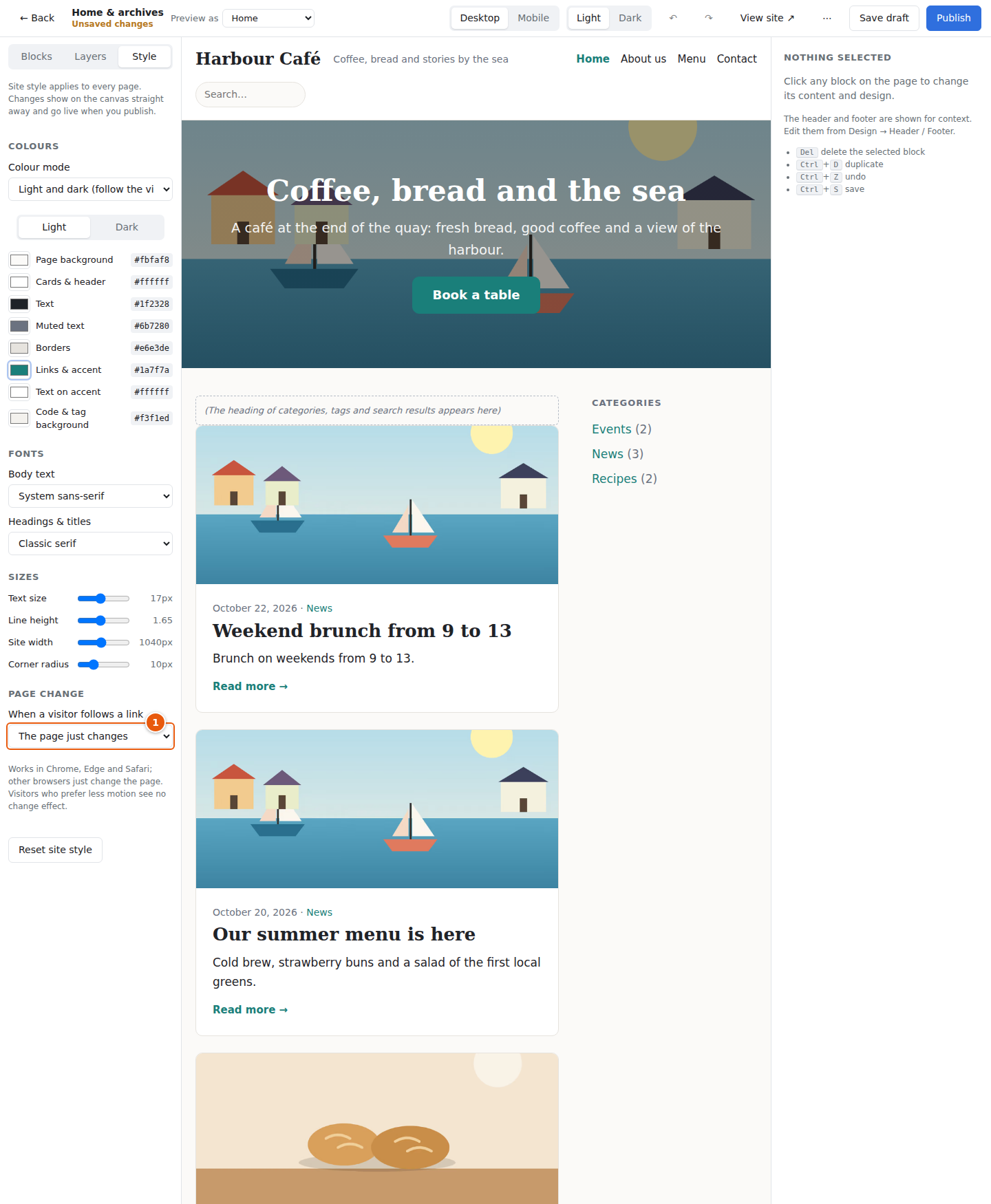
- When a visitor follows a link. This works in Chrome, Edge and Safari; other browsers just change the page, and visitors who prefer less motion see no effect.
Press Save draft and then Publish to take a new style live.
A different layout for one page
Sometimes a single page should look different from the others, for example a landing page, or a contact page with a form. Editors and admins can give any post or page its own layout, without touching the design of all the others.
Open the page in the editor and press Design layout:
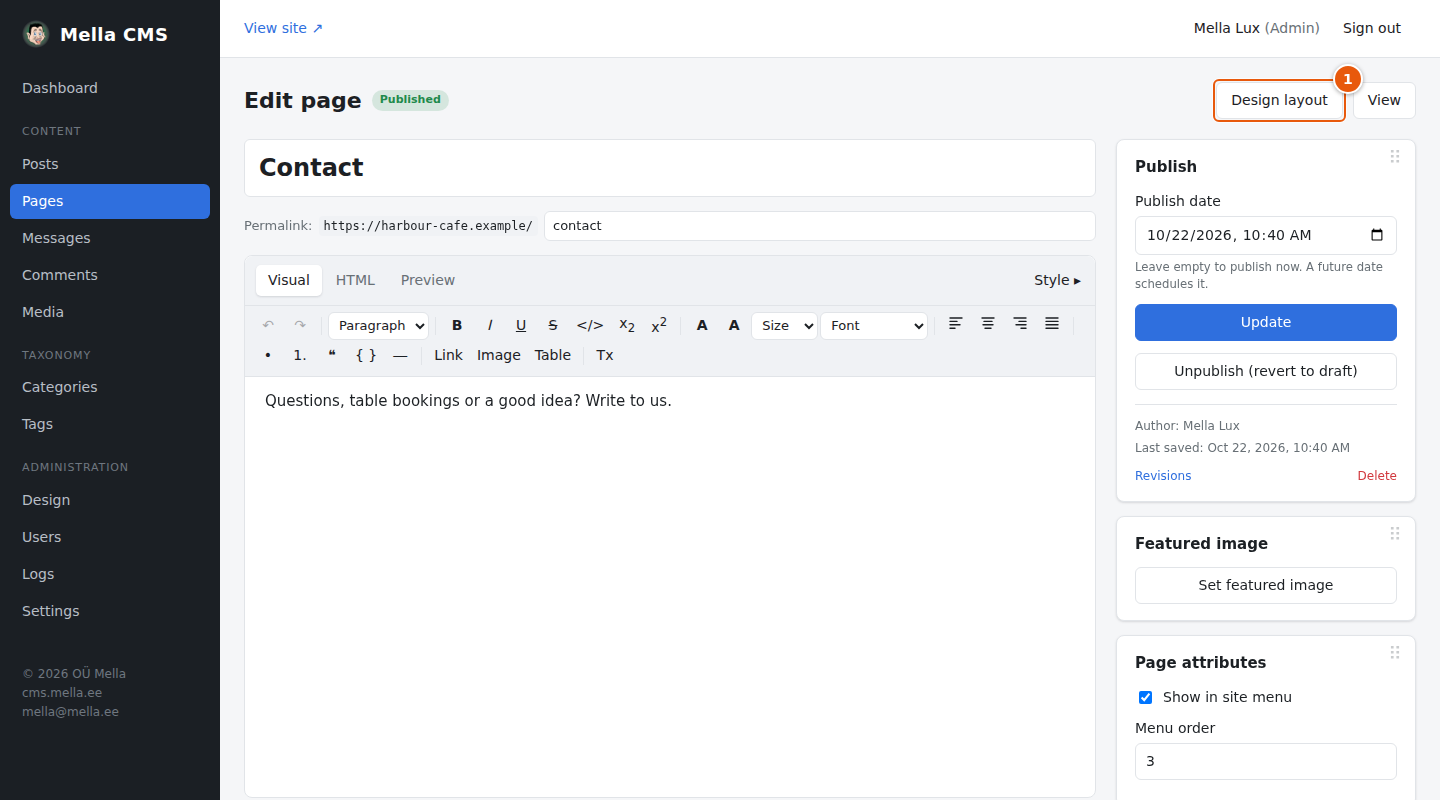
- Design layout. A tick (✓) after the name means that this page already has its own layout.
The builder opens with a copy of the standard Page template. Select the text of the page and click Contact form to add a form below it:
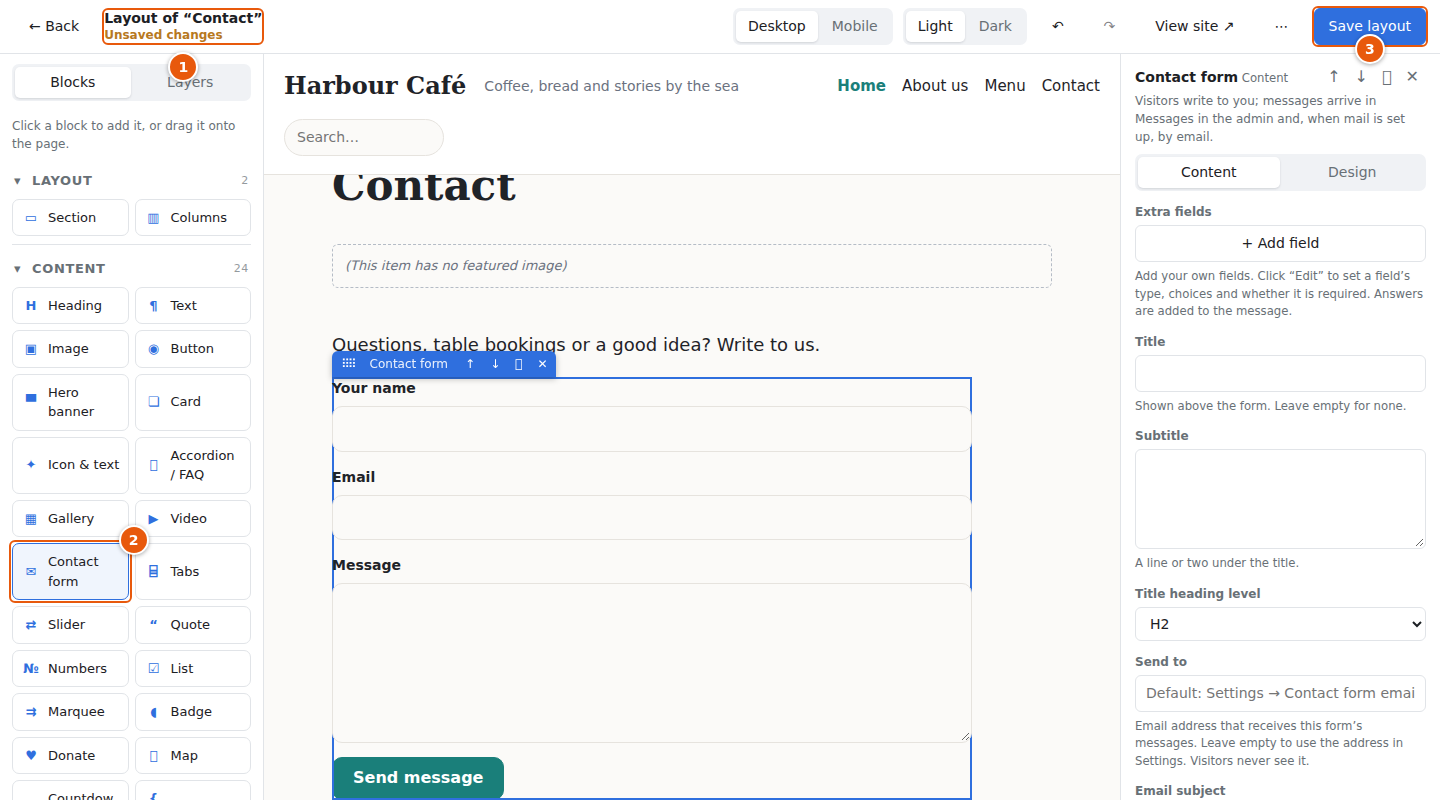
- The title shows which layout you are editing: Layout of “Contact”.
- Contact form in the palette.
- Save layout stores it. For one page there is no draft step: it is live as soon as you save.
The visitor sees a page with the form:
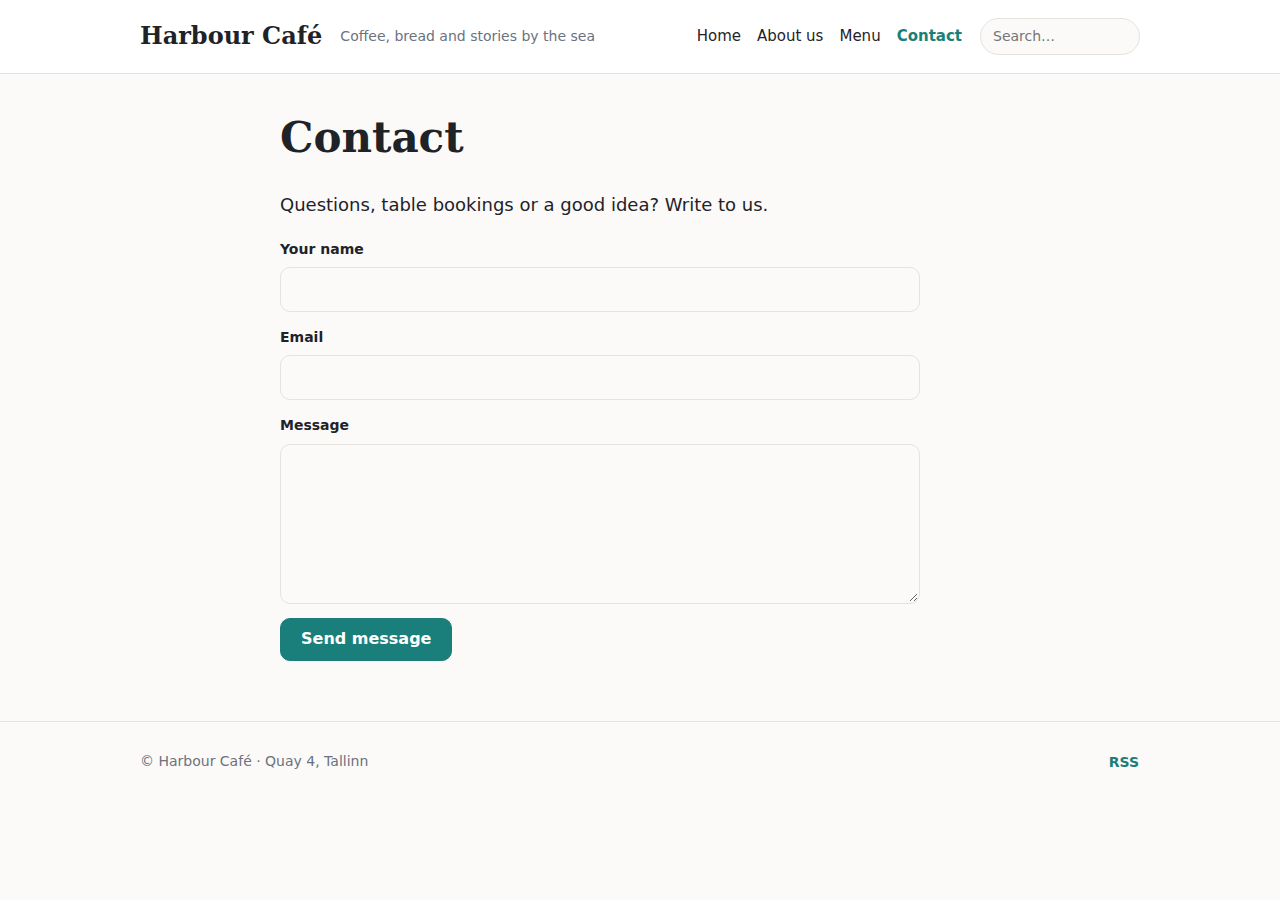
To go back to the standard layout, open the builder again and choose ⋯ → Remove custom layout. Messages sent through the form arrive under Messages.
The home page. In Settings you can choose one of your pages as the home page. Give that page its own layout (hero banner, columns, latest posts…) and it becomes your home page design.
The slider: several banners in a row
A Slider shows one slide at a time, like a row of hero banners. Visitors move between the slides with the arrows, the dots or by swiping, and the slides can also change by themselves.
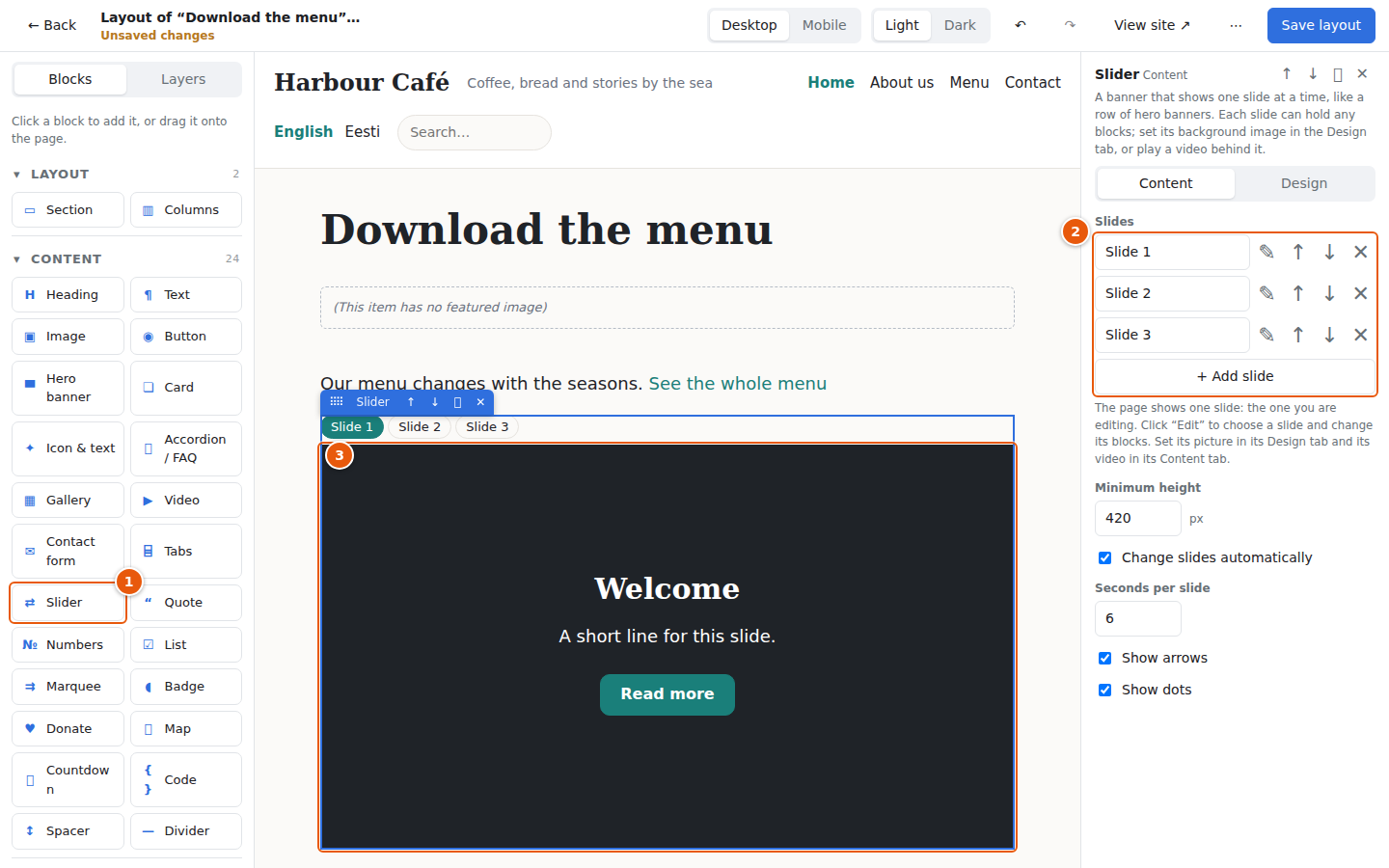
- Slider in the palette. A new slider has three slides, each with a heading, a line of text and a button, like a hero banner.
- The slides in the panel. Rename a slide in its field (the name is shown here and read out by screen readers), press ✎ to open it, ↑ ↓ to move it and ✕ to delete it. + Add slide adds one more (up to 12).
- A slide on the page. The builder shows one slide at a time: the one you are editing. Press ✎ in the panel, click a slide's name above the slider, or click a block in a slide, and the page switches to that slide. Click any block in it to change it, and add more blocks (pictures, columns…) the way you would in any container.
To give a slide a picture, select the slide (press ✎, or click it in Layers), open its Design tab and choose a background picture, as for a hero banner. The slide's Darken image setting keeps the text readable.
A slide can also play a video behind its blocks. Select the slide, press File… next to Background video to upload or choose an .mp4 or .webm file (or paste a link to one). The video plays while the slide is shown, and the slider waits for it to end before moving on when slides change automatically. Browsers only allow a video to start without sound, so it starts silent; a button at the bottom right of the slide turns the sound on and off, unless you untick Sound button on the video.
The slider's own settings are the minimum height, Change slides automatically with the seconds per slide, Show arrows and Show dots.
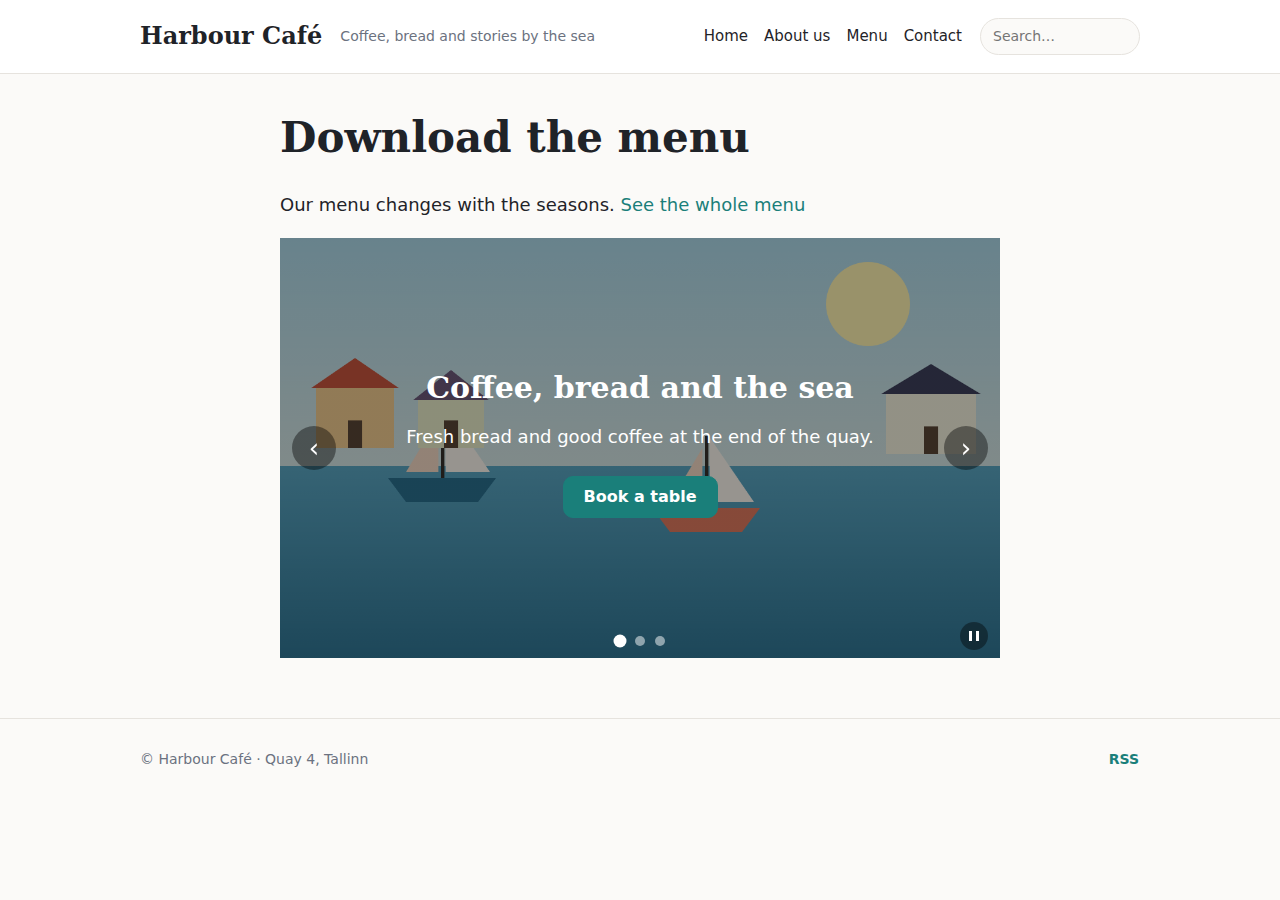
On the site the slides change by themselves, but stop while the pointer or the keyboard focus is on the slider, while it is off screen and when the visitor presses the pause button at the bottom right. If a visitor's device asks for less motion, the slides do not change by themselves at all. The arrow keys also move between the slides.
The marquee: a line that keeps moving
The Marquee block shows a line of words or pictures that moves sideways all the time: slogans, news, partners or customer logos.
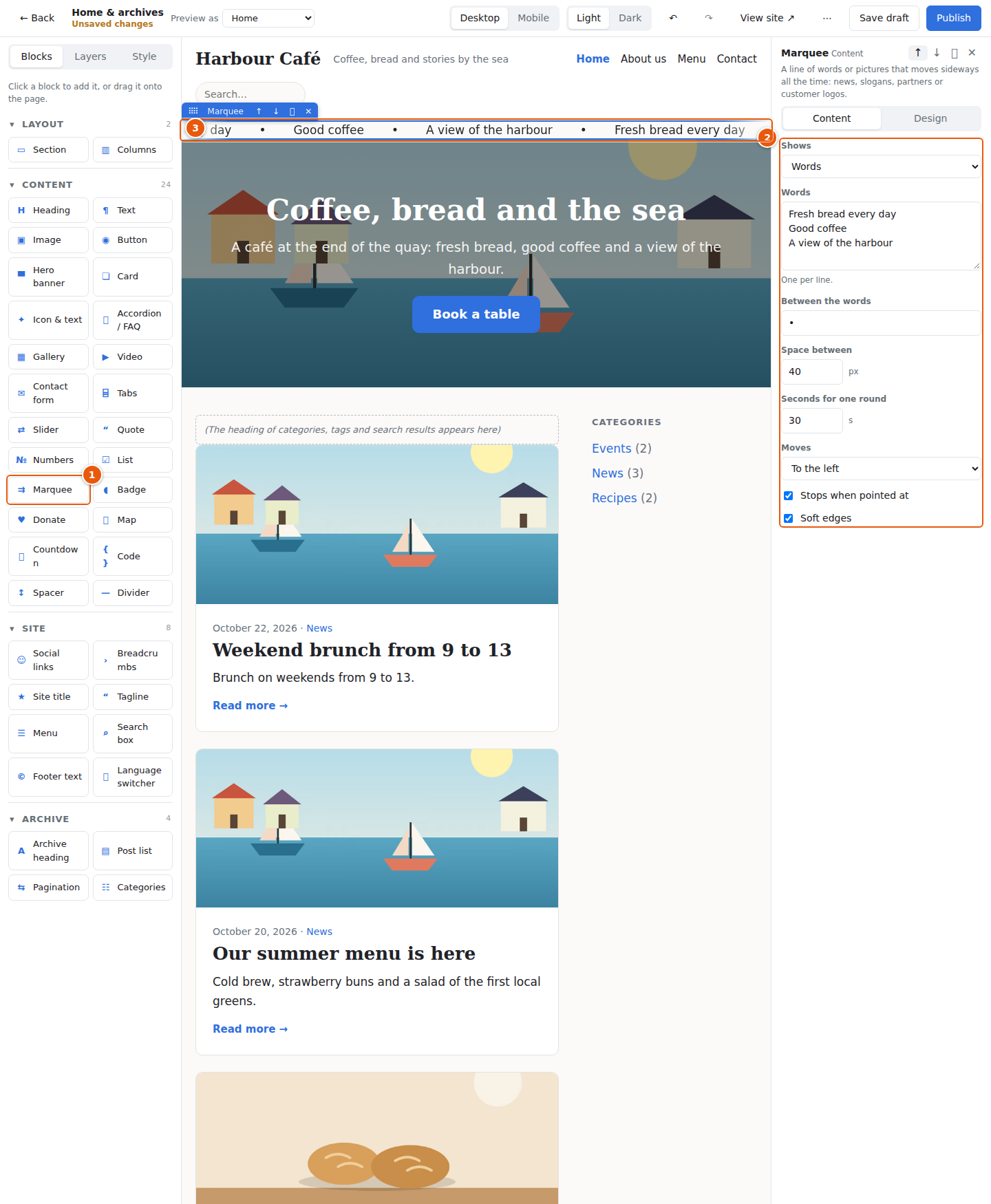
- Marquee in the palette (in Content).
- Its settings: choose whether it Shows words (one per line, with a sign between them) or pictures (with a height), the Space between them, the Seconds for one round, which way it Moves, whether it Stops when pointed at and whether it has Soft edges. The Design tab styles the words or the pictures on their own.
- The marquee on the canvas. In the builder it moves only while it is selected. Visitors who prefer less motion see the words or pictures standing still.
All blocks
Layout
| Block | What it does |
|---|---|
| Section | A full-width band that holds other blocks. Use it for backgrounds and spacing. |
| Columns | Places blocks next to each other (up to 12 units wide in total). On a phone the columns stack. |
Content
| Block | What it does |
|---|---|
| Heading | A title or subtitle. Choose the level (H1–H6) and alignment. |
| Text | Rich text, written with the same editor as posts. |
| Image | A picture from the media library, with an optional link, caption, shape and Open large on click. |
| Button | A link styled as a button (solid, outline or text only). Can link to a file: use File… next to the link field. A link to a PDF opens it in a viewer on the page, unless Open in a new tab is ticked. |
| Hero banner | A large banner with a heading, text and button. Add a background picture in the Design tab. |
| Card | A picture, a title, a text and a button in a box. Put cards inside Columns to place them side by side. Also available as a pricing card. |
| Icon & text | An icon with a title and a short description, for services, benefits and steps. |
| Accordion / FAQ | Questions that open to show the answer. Each answer can hold other blocks. |
| Gallery | A grid of pictures. Clicking one can open it large. |
| Video | A YouTube or Vimeo video, or a direct link to a video file. |
| Contact form | A form whose messages arrive under Messages. |
| Tabs | Content in tabs; the visitor opens one at a time. |
| Slider | A banner that shows one slide at a time, like a row of hero banners, with arrows, dots and optional automatic change. See The slider. |
| Quote | A quote or review with the name, role, photo and star rating. |
| Numbers | Big figures with labels, such as “120+ clients”, that count up when scrolled into view. |
| List | A list with bullets, ticks or numbers. |
| Badge | A small label such as “New” or “-20%”. |
| Marquee | A line of words or pictures that moves sideways all the time. See The marquee. |
| Donate | Invites visitors to support you: amounts, a donation button, more payment methods (one extra button each) and bank transfer details with copy buttons. Bank details can be switched off with Show bank transfer details. |
| Map | An embedded map of an address or place. |
| Countdown | Counts down to a date and time. |
| Code | A block of code, shown as written, with an optional copy button. |
| Spacer | Empty vertical space. |
| Divider | A horizontal line. |
Site
| Block | What it does |
|---|---|
| Social links | A row of icons that link to your profiles. The network is recognised from the address. |
| Breadcrumbs | Shows where the visitor is: Home › Category › Post. |
| Site title | The site name, or a logo, linking to the home page. |
| Tagline | The tagline from Settings. |
| Menu | A list of links to your pages and other addresses, each opening in the same tab, a new tab or a pop-up, with drop-down submenus. |
| Search box | A search form. |
| Footer text | The footer text from Settings, or your own text. |
| Language switcher | Links to the other languages of the site (see Languages). |
Post / page (only in the Post and Page templates and in a page's own layout)
| Block | What it does |
|---|---|
| Title | The title of the post or page. |
| Date, author & category | The byline of a post. |
| Featured image | The featured image. |
| Content | The body written in the editor. |
| Tags | The tags of the post. |
Archive (only in Home & archives)
| Block | What it does |
|---|---|
| Archive heading | The category name, the search term or the author, with a description. |
| Post list | Cards for the posts of the current archive, or the latest posts anywhere (as a list or a grid). |
| Pagination | The Newer / Older links. |
| Categories | A list of categories. |
Tips
- Start from the built-in design and change little by little. Publish often, and use View site to compare.
- Use Sections for spacing and backgrounds, and put other blocks inside them. A section with a background colour that holds a heading and two columns is the basis of most designs.
- Test on Mobile before you publish.
- Go easy on movement. One or two animated blocks draw the eye; many make a page tiring. A phone has no hover, so do not hide anything behind it.
- Use real text; empty blocks can look broken.
- The site cannot be broken for good. Reset to the default design brings back the built-in layout for that part at any time.