4. The editor in detail
Who: everyone who writes posts or pages. This chapter is a reference for the editor that you have already used in Posts.
The same editor is used for posts, pages and the Text block of the page builder. You write as you would in a word processor, and the CMS stores clean web code.
Three views of the same text
At the top of the editor are three tabs:
- Visual: what you see is what you write. Use this one most of the time.
- HTML: the text as web code, for people who know HTML. Anything the site does not allow (scripts, unknown tags, risky styles) is removed when you save.
- Preview: shows exactly what the site will output, after the CMS has cleaned the text.
The toolbar

| # | Buttons | What they do |
|---|---|---|
| 1 | ↶ ↷ | Undo and Redo (Ctrl+Z, Ctrl+Shift+Z). |
| 2 | Block type | Turns the current line into a Paragraph or a Heading 1–4. |
| 3 | B I U </> x₂ x² |
Bold (Ctrl+B), italic (Ctrl+I), underline (Ctrl+U), strikethrough, inline code, subscript and superscript. |
| 4 | A A | Text colour and Highlight colour. A row of colour swatches opens; pick one or choose your own. |
| 5 | Size, Font | Font size in pixels and the font family. Leave them on Size and Font to use the site's own style. |
| 6 | ⇤ ≡ ⇥ | Align the paragraph left, centre, right or justified. |
| 7 | • 1. ❝ { } ― | Bulleted list, numbered list, quote, code block and a horizontal divider. |
| 8 | Link | Add or change a link (Ctrl+K). See Posts. |
| 9 | Image | Insert a picture from the media library. Table next to it inserts a table. |
| 10 | Tx | Clear formatting: removes colours, sizes and other styling from the selection or block. |
Buttons that cannot be used at the moment are grey.
The Style panel
Press Style ▸ at the top right of the editor to show or hide the Style panel. It changes the look of the selected block: a paragraph, a heading, a picture or a table. The panel needs no CSS knowledge.
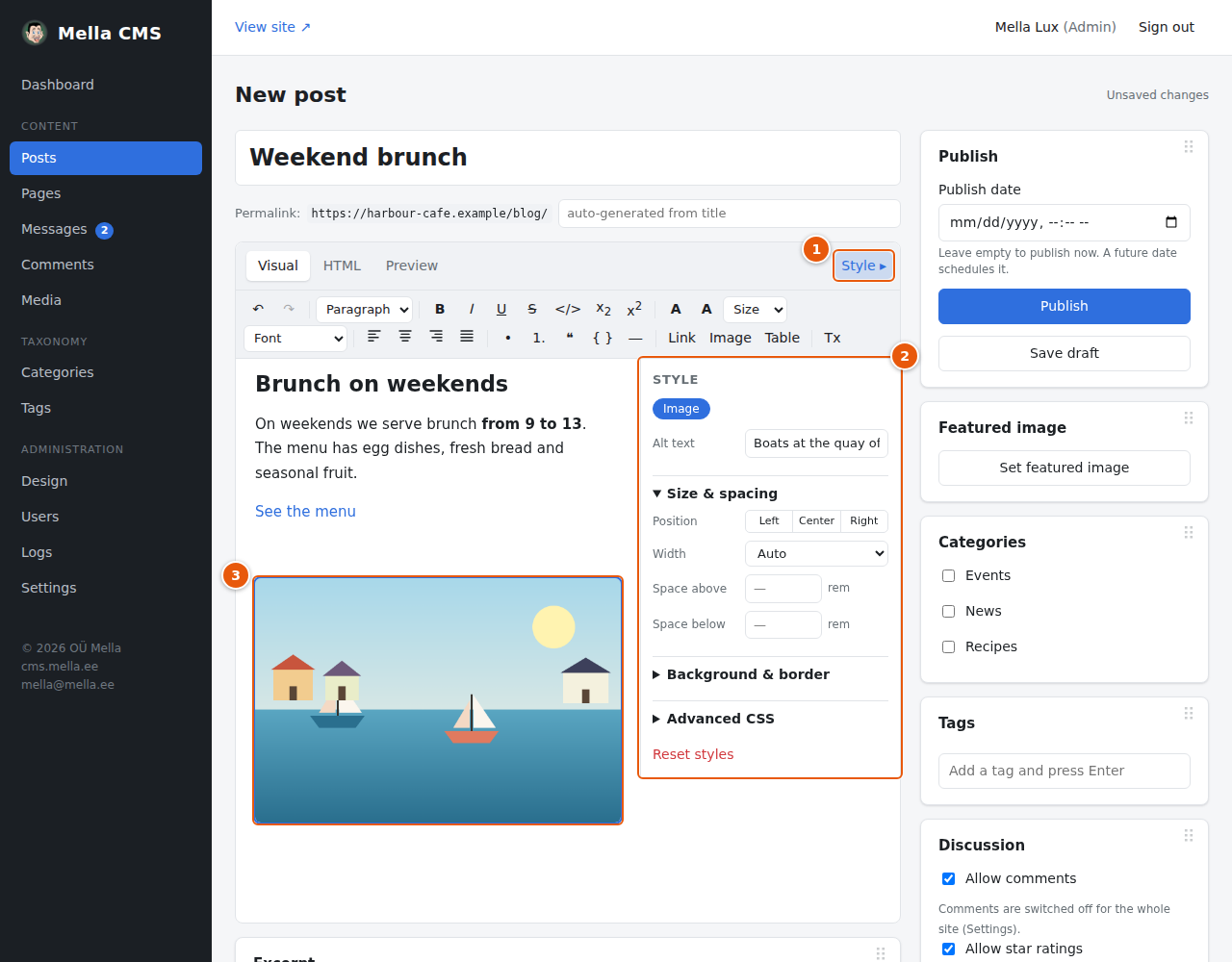
- The Style button shows or hides the panel. The CMS remembers your choice.
- The panel. The row of buttons at the top shows what is selected (here Image). What you find below depends on the block:
- Text (paragraphs and headings): colour swatches, size, font, weight, line height, letter spacing, upper/lower case and alignment.
- Image: Alt text (the description for people who cannot see the picture), Position (left, centre, right), Width, and space above and below.
- Background & border: background colour, border, rounded corners and shadow.
- Advanced CSS: for those who know CSS. Only safe properties are accepted; the rest are ignored and listed.
- Reset styles removes all styling from the block.
- The selected picture is outlined in the writing area. Click a picture to select it.
Tip: for a picture that sits beside the text, set Position to Left or Right and a Width such as 40%.
Tables
Press Table to insert a table of three rows and three columns, with a header row. Click a cell and type; press Tab to move to the next cell (pressing it in the last cell adds a new row).
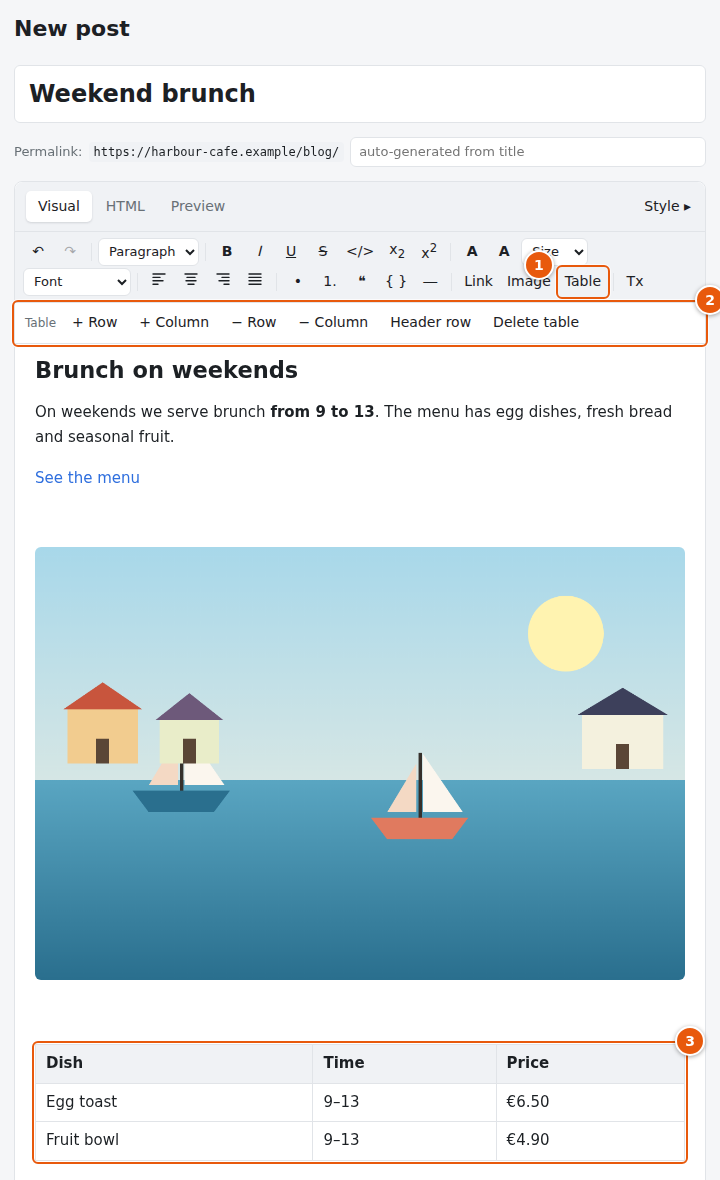
- The Table button inserts the table.
- While the cursor is in a table, an extra bar appears: + Row and + Column add after the current one, − Row and − Column delete the current one, Header row switches the first row between heading and normal cells, and Delete table removes the whole table.
- The table in the writing area.
The HTML and Preview views
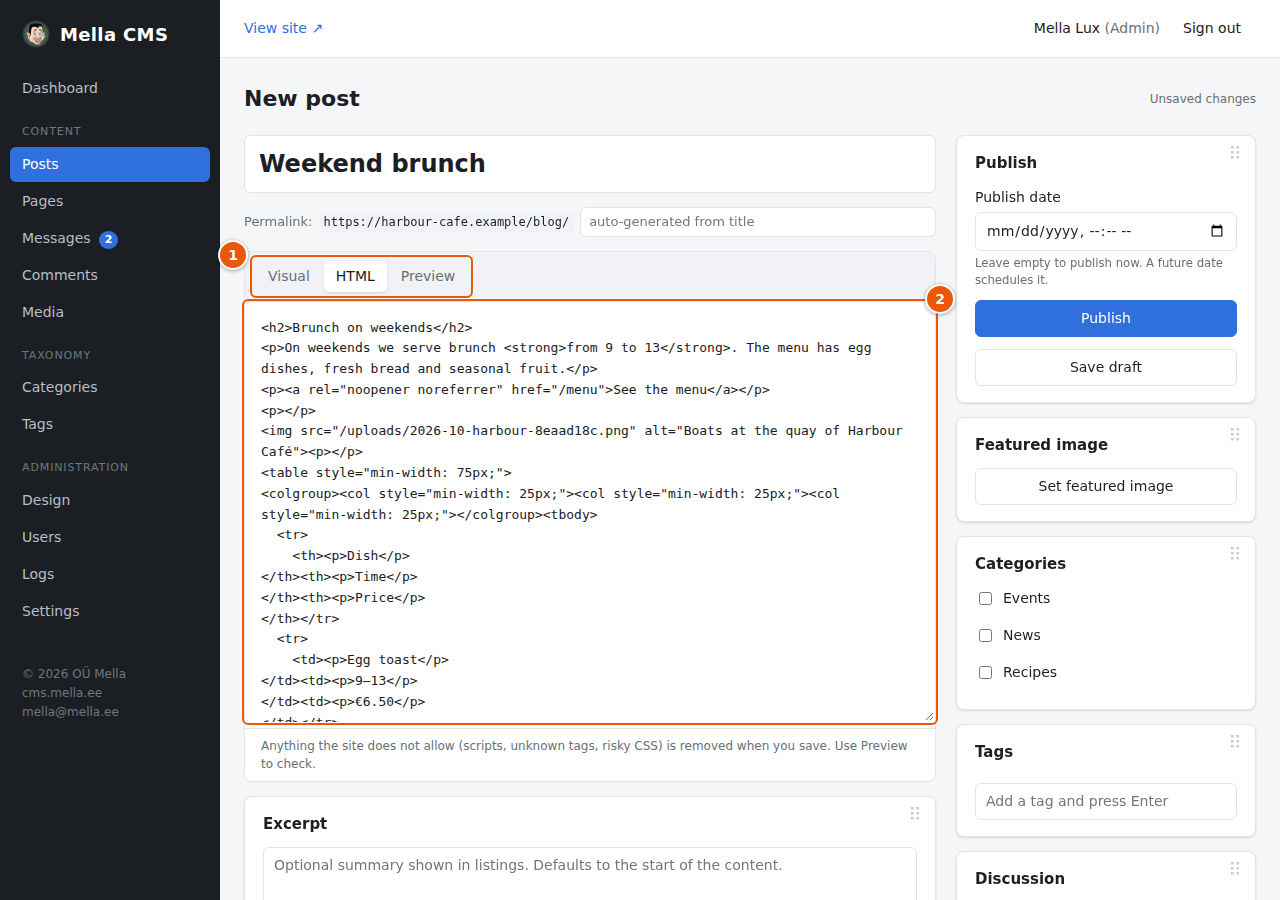
- The tabs. Here HTML is selected.
- The source of the text. You can edit it directly. Remember that it is cleaned when you save: scripts, unknown tags and risky style properties (for example
url()orposition) are removed.
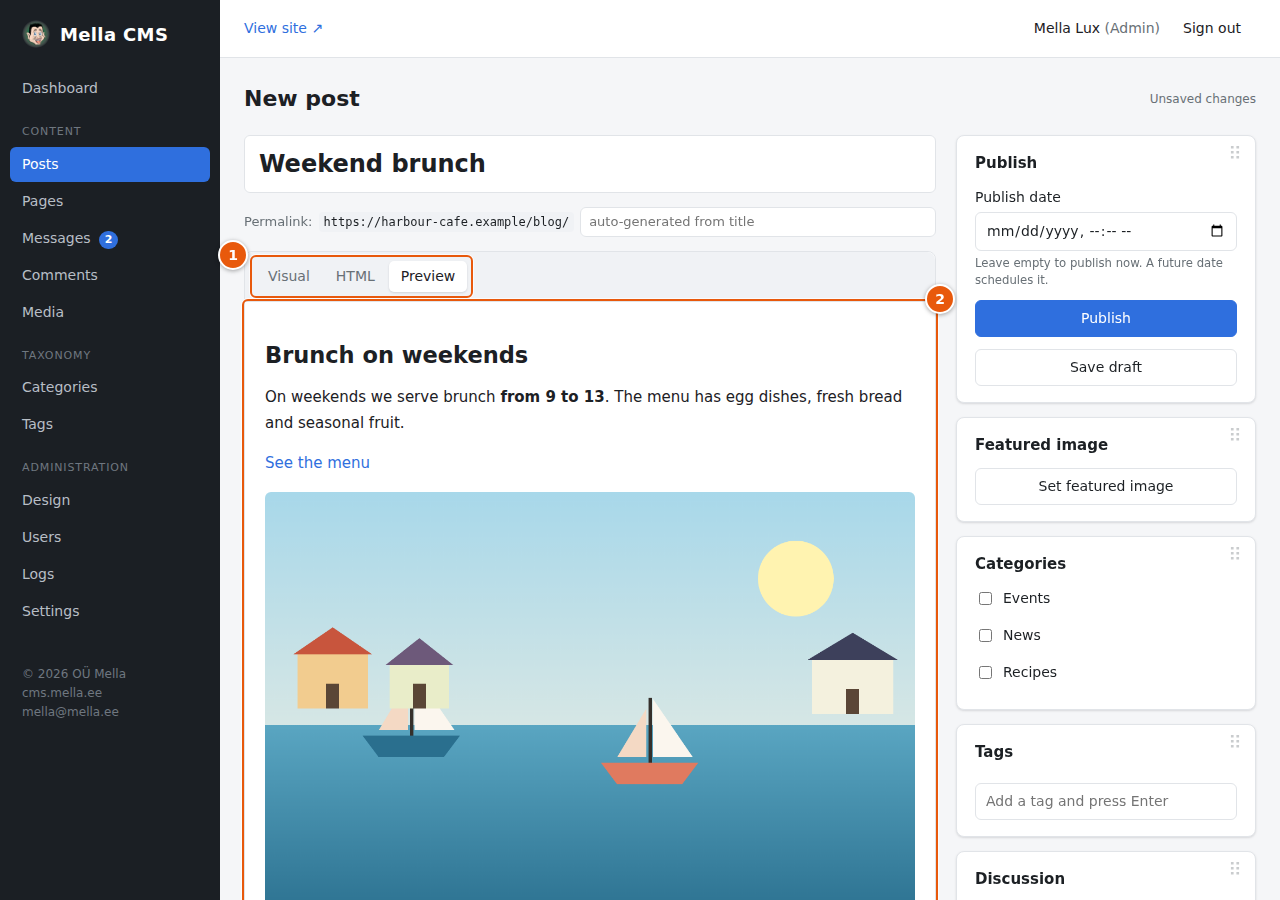
- The tabs. Here Preview is selected.
- The text as the site will show it. If something looks different from what you wrote in Visual, the CMS has removed or changed it for safety.
Excerpt and SEO
Below the writing area are two more panels:
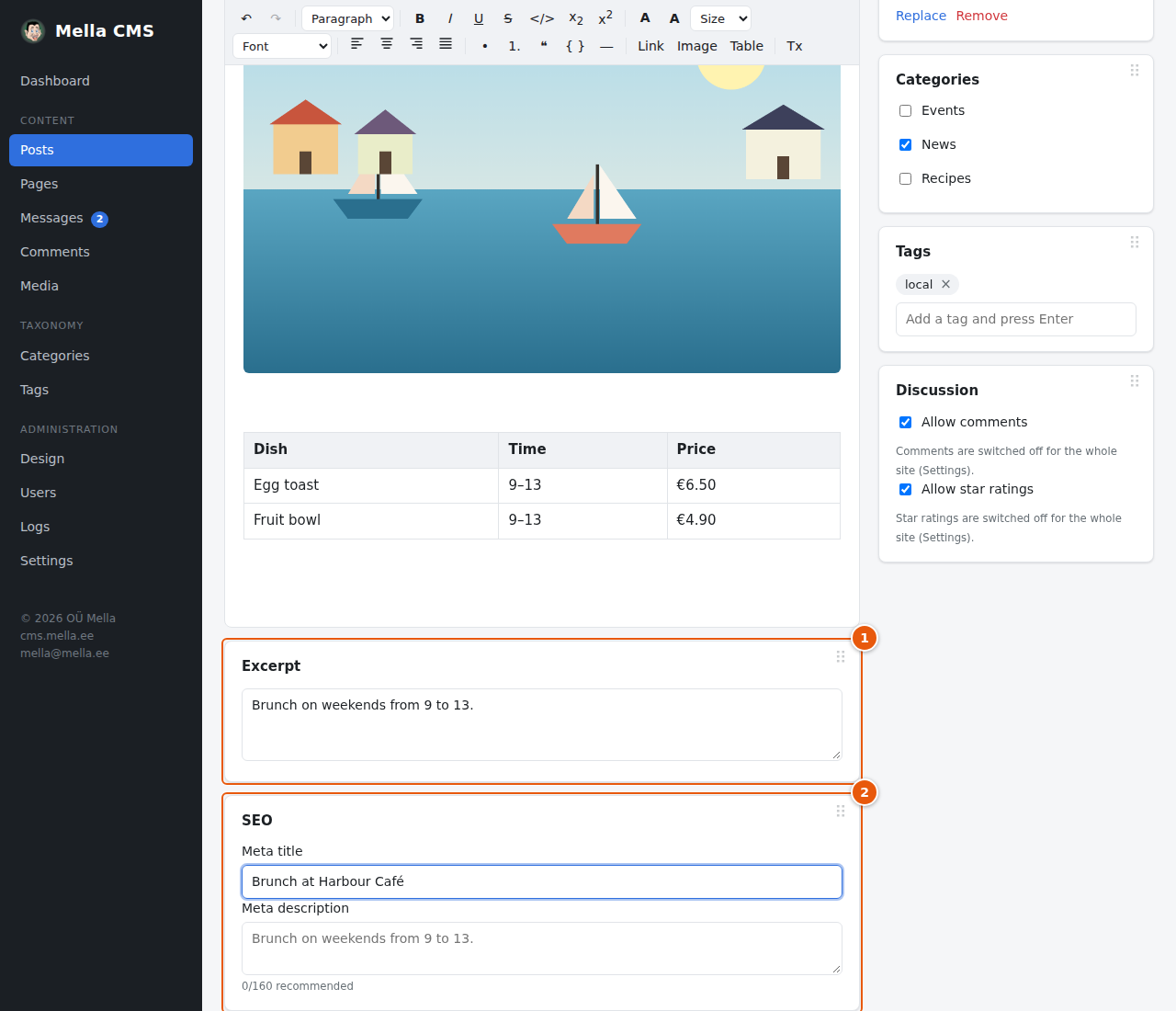
- Excerpt: a short summary that is shown in lists of posts. If you leave it empty, the first words of the text are used. It is also the default for the Meta description below.
- SEO: Meta title is the title that search engines show (leave empty to use the post's title) and Meta description is the short text below it. About 160 characters work best; the counter below the field reminds you.
Posts written before: Markdown
Older content may have been written in Markdown, a simple text format. When you open it, the CMS converts it to rich text and tells you so. It is saved as rich text the next time you save.
Keyboard shortcuts
| Keys | Action |
|---|---|
| Ctrl+S (⌘S) | Save |
| Ctrl+B, Ctrl+I, Ctrl+U | Bold, italic, underline |
| Ctrl+K | Add or change a link |
| Ctrl+Z, Ctrl+Shift+Z | Undo, redo |
| Tab (in a table) | Next cell |
## + text |
Heading (# to #### for levels 1 to 4) |
- + text, 1. + text |
Bulleted and numbered list |
> + text |
Quote |